
Your laptop asks for its BitLocker PIN before Windows even starts. You type it, and the screen says there have been too many PIN entry attempts. Now even the right PIN gets refused.
I would not go hunting for the 48 digit recovery key just yet. The lock sits in the TPM security chip, and it lifts by itself while the PC stays switched on.
One owner, who asked about it on Super User, waited about six hours, then got in with their usual PIN.
That question has 37,723 views since September 2021.
Why the right PIN fails now
Every wrong PIN is counted by the TPM, the chip that guards your BitLocker key.
Microsoft says on its TPM fundamentals page that Windows sets a TPM 2.0 chip "to lock after 32 authorization failures and to forget one authorization failure every 10 minutes".
While it is locked, even a correct PIN gets no yes from the chip. In Microsoft's words, a try "wouldn't return success or failure. Instead, the response indicates that the TPM is locked".
The message is about the count. Not about your PIN. The Super User asker typed the right one, and still got turned away by the screen.
Asked to back up an encryption certificate by a notification? That is EFS, not BitLocker, and the EFS key pop-up page shows where it comes from.
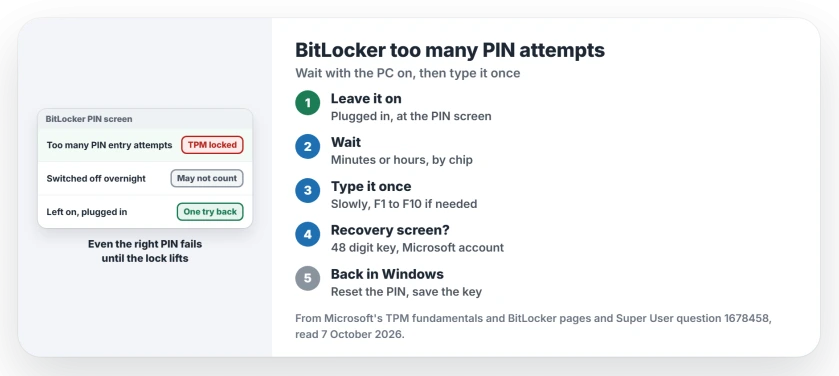
Status: checked 7 October 2026. The BitLocker PIN screen locks after too many failures counted by the TPM. Leave the PC on and plugged in, and the count drops by itself.
Ours: we read our own laptop's TPM with tpmtool getdeviceinformation, which you can run too. It allows 32 failures, as Microsoft says, but its Lockout Interval read 7200s. That is two hours per forgotten failure, not ten minutes.
1. Leave it on, plugged in, and wait
The clock may only run while your PC is on. Microsoft says Windows "doesn't require TPM 2.0 systems to forget about authorization failures when the system is fully powered off or when the system has hibernated".
So switching off to come back later can stop your wait in its tracks. Leave the laptop sitting at the PIN screen, plugged into its charger. Then walk away.
How long depends on your chip. Microsoft's BitLocker FAQ says "Most manufacturers use the PIN authentication failure count to exponentially increase lockout time to the PIN interface", and their rules differ.
Older Windows allowed "only one more guess every two hours", in Microsoft's own example. Our laptop's AMD chip still works to that slower two hour pace.
The asker's laptop dated from 2018. In their words, "I waited for around 6h and was able to enter the PIN again, no need to use recovery key".
2. Then type it once, with care
After the wait you get one fresh attempt, not a clean slate. A wrong PIN now goes straight back on the count, so type it slowly.
If the number keys along the top seemed to do nothing, use the function keys instead.
Microsoft's FAQ explains that "The numeric keys 0 through 9 aren't usable in the pre-boot environment on all keyboards", while F1 to F10 work on every computer.
3. The recovery key, if you cannot wait
Some PCs go straight to the BitLocker recovery screen instead of waiting. Microsoft lists "Entering the wrong PIN too many times" among the events that put a device into BitLocker recovery.
That screen wants the 48 digit recovery key. Microsoft's key page starts with your Microsoft account, from another device at aka.ms/myrecoverykey. Our BitLocker recovery key page goes through the other places it tends to be.
Check before you need it. Microsoft says plainly that its support team cannot find or rebuild a lost key for you.
Once you are back in
Not sure of the PIN any more? Reset it now, while Windows is running. Microsoft's recovery steps say to open the BitLocker control panel, "expand the drive and then select Change PIN", then choose Reset a forgotten PIN.
Then run tpmtool getdeviceinformation in a terminal. The Lockout Information lines show your own chip's limit and interval, so you know how long the next wait would be.
What I would not do
Resist the urge to clear the TPM to end the lockout. Microsoft's BitLocker FAQ lists "Turning off, disabling, or clearing the TPM" among the changes that stop the TPM releasing your BitLocker key.
You would swap a wait for a recovery key you may not have.
Nor would I keep switching it off and on to retry. Time switched off may not count, and every wrong guess adds one more failure.
Is this the Windows Hello PIN?
No. The Windows Hello PIN is the one you type at the sign-in screen, after Windows has started. Our Windows Hello page covers that one.
They lean on the same chip, though. For the sign-in side, Microsoft says users who lock the TPM "must wait 10 minutes or use other credentials to sign in, such as a user name and password".
The Short Version
- Too many PIN entry attempts is a TPM lockout. Even the right PIN fails until it lifts.
- Leave the PC on and plugged in. Time switched off may not count.
- The wait varies by chip: 10 minutes per failure on Microsoft's page, two hours on ours.
- Then type the PIN once, slowly, with F1 to F10 if the number keys fail.
- Never clear the TPM; use the recovery key if you cannot wait.
Where to Next
Find your recovery key in your Microsoft account today, while you can still sign in.
How long did your PC make you wait? Tell me the laptop's make, and I will add the number to this page.

Isaac Smith is the founder and editor of PC Glance, a website that covers computers, laptops, and technology. He is a tech enthusiast and a computer geek who loves to share his insights and help his readers make smart choices when buying tech gadgets or laptops. He is always curious and updated about the latest tech trends.