A Brother printer can miss your Wi-Fi name when its supported band is disabled or the name is hidden. Enable a compatible band or enter the hidden name manually. That Wi-Fi name is the SSID; check the band first after a router change.
A missing name is different from a rejected password. If the printer lists your network but won't join, skip to the WLAN report section. Reinstalling a Windows driver won't make an unsupported Wi-Fi band appear on the printer's screen.
In this guide
1. Make the network visible to this printer model
Check the full model number on the printer, then its wireless specifications. Some Brother models support only 2.4 GHz Wi-Fi; others support more bands. Don't assume your printer can use 5 GHz because a newer Brother model can.
For a 2.4 GHz-only printer, check the router's wireless settings or its management app and make sure that band is enabled. A 5 GHz-only network won't appear as a usable choice on that printer.
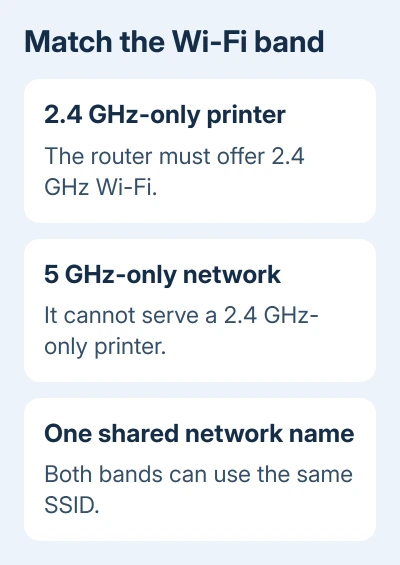
One shared Wi-Fi name for both bands isn't automatically a problem. What matters is that the router offers a compatible 2.4 GHz connection. Separate band names can make the correct choice easier to identify during setup.
Ask the router maker or network administrator how to enable a compatible band if the controls aren't clear. Record the current network name before changing it, since renaming a network affects devices already using that name.
If the SSID appears afterward, select it and enter the Wi-Fi password. If it connects, the problem was getting the printer to see the network. If it remains absent, check range and hidden-network settings next.
2. Repeat the search close to the router
Move the printer nearer the main router during setup if practical. Turn on the printer's Wi-Fi and search again. A phone seeing Wi-Fi from the printer's usual spot doesn't mean both devices receive it equally well.
For the button-operated MFC-L2710DW family, open Menu > Network > WLAN > Setup Wizard. Enable wireless when prompted. Use the manual for your particular printer if its menu differs.
On the touchscreen MFC-L2750DW family, use Settings > All Settings > Network > WLAN(Wi-Fi) > Setup Wizard and accept switching to wireless when asked.
If nearby networks appear but yours doesn't, concentrate on its band and broadcast settings. If no networks appear at all, check that the printer's Wi-Fi is turned on before searching again.
For the MFC-L2750DW family, another recommended check when the network doesn't appear is to restart the router: disconnect its power, wait 10 seconds and reconnect it. Wait for Wi-Fi to return before starting the printer's wizard again.
That restart interrupts other devices connected to the router. On a workplace or shared network, have the administrator carry it out rather than disconnecting equipment yourself.
3. Enter a hidden SSID instead of waiting for it to appear
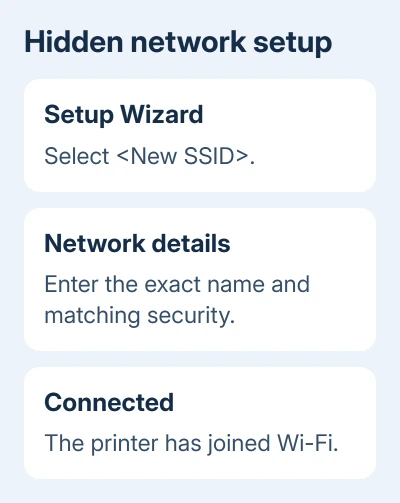
A router can be set to hide its network name. In that case, repeatedly scanning the list won't reveal it. Get the exact SSID, authentication type, encryption method and Wi-Fi password from the person managing the network.
Brother documents separate steps for button and touchscreen models in its hidden-network setup instructions for the L2700 family.
On the button-operated MFC-L2710DW family:
- Open Menu > Network > WLAN > Setup Wizard and enable WLAN.
- Select <New SSID> in the network list and press OK.
- Enter the network name, then select Infrastructure.
- Choose the authentication and encryption settings matching the router, then enter its network key.
- Confirm Yes to apply the settings.
On the touchscreen MFC-L2750DW family:
- Open Settings > All Settings > Network > WLAN(Wi-Fi) > Setup Wizard.
- Accept the wireless-interface prompt, then select <New SSID> and OK.
- Enter the name, choose Infrastructure when asked, and enter matching security settings and the key.
The display should show Connected after a successful setup. Use these paths for the models named here. Other Brother printers can have different menus and buttons.
Don't choose an open network or weaken router security just to get past the wizard. If the printer doesn't support the network's security, ask the administrator for a compatible connection they approve.
4. Use the WLAN report to choose the next repair
Print the printer's WLAN Report using the report menu listed in its manual. Keep the error code from the latest attempt. It tells you more than repeating the same password entry without knowing whether discovery succeeded.
For the MFC-L2750DW family, TS-01 means wireless isn't enabled. TS-02 means the access point can't be detected; check the band, router and any MAC-address filtering that limits which devices can join.
TS-04 points to unsupported authentication or encryption. TS-05 points to incorrect network name or key, while TS-06 points to incorrect wireless security information. Use your model's report table before applying these meanings elsewhere.
A password change won't solve a missing supported band. Likewise, turning on 2.4 GHz won't correct a mistyped key after the network is already listed. Use the report to choose what to change on your next attempt.
After it connects, find the Brother printer's IP address to confirm which network it joined. Once it's on the intended network, you can move on to getting the computer to find it.
5. Finish computer setup only after Wi-Fi connects
Once the printer shows Connected, follow the Brother computer connection steps for the matching driver and operating system. At that point, the printer can see and join your network, even if you still need to add it in Windows.
If Windows calls the connected printer offline, use its offline printer troubleshooting. That is a later stage than the printer being unable to see a network name.
If the nearby printer still sees no networks, give Brother support its model, router model, band and WLAN error code. Say whether other networks appear. Request checks of its Wi-Fi hardware and compatibility with your router's settings.
I'd keep those details together before resetting the printer's network settings. They help support decide whether another setup attempt is useful or the wireless hardware needs attention.
The Short Version
Enable a band the printer supports and repeat its search near the router. Enter a hidden SSID manually, or follow the WLAN report's error code. Finish Windows setup once the printer has joined Wi-Fi.
Checked November 15, 2026.
 If you have any business, I can build it online