

Turning off Show all folders in Explorer's left pane restored Quick Access for an owner whose pin command did nothing in Windows 11. Try that display setting first when Home is empty and new folder pins seem to disappear.
A missing left pane is a different problem. Turn the navigation pane back on if it's completely hidden. Change Show all folders if the pane is there but its pinned folders aren't showing as expected.
In this guide
1. Turn off Show all folders in the left pane
Press Windows + E to open File Explorer. Look at the navigation pane, the column containing locations such as Home, This PC, and Network. You'll use the right-click menu inside that column.
Right-click an empty part of that column. If Show all folders is checked, select it to turn the setting off. Click empty space rather than a folder name, which opens that folder's own menu instead.
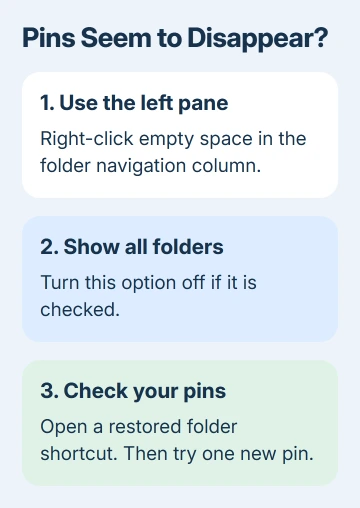
The folder tree should change. Look for your pinned entries in the left pane, then open Home to check its folder area. Try opening a familiar pin before adding anything else.
In the original Quick Access thread, the asker confirmed that turning off Show all folders worked. Another owner also reported being able to pin folders after switching Show all folders off.
This changes how Explorer displays folders in the left pane. It doesn't delete folders or move their contents. If your existing pins return, you don't need to rebuild them all or reset Explorer's saved history.
If the setting is already off, or the pins still don't appear, continue by checking a new local-folder pin. That tells you whether pinning is broken everywhere or just for one location.
2. Pin one folder from its real location
Browse to a folder you can already open, such as a project folder on your local drive. Choose Pin to Quick access from that folder's right-click menu. Look for the result in both Home and the navigation pane.
For this check, use a folder rather than an individual document. Pinned folders in Quick access and files shown in Home aren't the same list, so a document won't test folder pinning.
Microsoft's File Explorer guide explains pinning and unpinning folders. Windows 11 renamed the old Quick access starting page Home in version 22H2.
If the folder appears, open its new shortcut and check the contents. A successful pin should take you back to the existing folder. It doesn't create a second copy of the files in Home.
A network shortcut needs a working connection to its target. If local folders pin normally but an office share won't open, check the approved network or VPN connection before changing Explorer's settings.
For standard folders that were simply unpinned, the missing Quick Access guide covers restoring their shortcuts. Use that route when pinning works and only a familiar folder is absent.
If the menu command still appears to do nothing for a working local folder, try the drag method next. Keep using the same folder so the comparison means something.
3. Try dragging the folder into the pinned group
Keep the folder visible in the main file list. Drag it toward the existing Quick access folder group in the left pane. Before releasing the mouse button, read the action Windows shows beside the pointer.
Release only when the action is to pin the folder to Quick access. If Windows offers to move or copy it into another folder, move the pointer away or press Esc to cancel that drag.
Another reply confirmed a successful pin by dragging after the context-menu command failed. It's a second way to add the shortcut, rather than a different place to store your files.
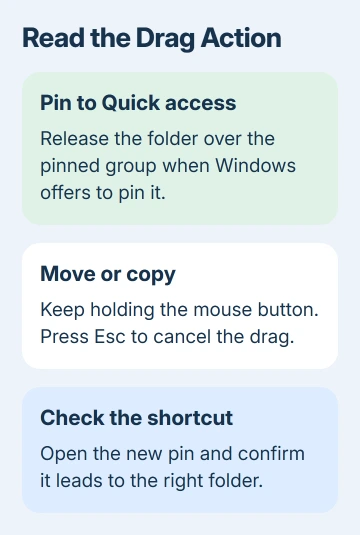
Check the resulting shortcut by opening it. If dragging works, keep the pin and stop there. Repeating the context-menu command won't improve a shortcut that now opens correctly.
Without a usable pinned group, don't drop the folder onto This PC or another destination just to finish the gesture. Continue with the navigation and Home checks instead.
4. Check the pane and Home separately
When the entire navigation column is missing, use View > Show > Navigation pane on File Explorer's command bar. Once it returns, repeat the empty-space menu check from the first section.
If your pins appear in the left pane but Home doesn't show its folder area, you've narrowed the problem to Home's display. A working navigation shortcut means the pin is available even while the Home display still needs attention.
Open the See more menu, the three dots on the command bar, and choose Options. On the General tab, review Privacy to choose which recent-file and frequent-folder suggestions appear.
Those choices control suggestions based on what you open. You don't need to show your recent documents to keep a project folder you've pinned yourself. Enable only the suggestions you actually want to see.
If Explorer simply starts on a different page, the Explorer starting-page setting controls that behavior. Opening to This PC doesn't mean Quick access has stopped accepting pins.
I'd keep a working navigation pin while sorting out Home's display. Deleting the folder or moving its contents adds a file-management problem to a shortcut problem.
5. Report a pinning failure that survives these checks
Open a fresh Explorer window and look for that folder's shortcut again. Note whether the pin never appears, appears only in the left pane, or disappears after you sign out and return.
Press Windows + R and run winver to note your Windows release and build. Mention any update that preceded the failure. The original report involved an older update; its date doesn't identify the build you're using now.
For a work computer, ask IT whether the problem follows your account and whether they manage Explorer or redirected folders. Give them the local-folder result as well as any network-folder failure.
For a personal PC, open Get Help from Start and describe Pin to Quick access doing nothing. Include whether Show all folders is on, whether dragging works, and whether the pin appears in Home, the left pane, or neither.
Avoid clearing every saved destination as a first repair. The confirmed workaround changes one display option; removing saved shortcuts can create extra work without answering why this pin command failed.
The Short Version
Disable Show all folders from empty space in Explorer's left pane. Check a local folder pin, then try dragging if the menu fails. Hidden navigation, missing suggestions, and disconnected network folders need their own checks.
Checked November 16, 2026.
 If you have any business, I can build it online






