

Quick access in Windows 11 is now part of Home in File Explorer, so a missing Quick access label can simply be a changed name. Open Home first. If the entire left panel is gone, turn on View > Show > Navigation Pane instead.
Missing pinned folders need a different repair from missing files. A folder removed from Quick access can still be on the PC, and restoring its shortcut doesn't require recovering or recreating its contents.
In this guide
1. Look in Home before treating Quick access as deleted
Press Windows + E to open File Explorer. Select Home in the left panel and look for the pinned-folder area. Starting with Windows 11 version 22H2, the former Quick access starting page is called File Explorer Home.
Quick access still holds folder shortcuts. Home also contains other items, so a recent document and a pinned folder aren't the same kind of entry. Check the folder area before deciding that your pins have disappeared.
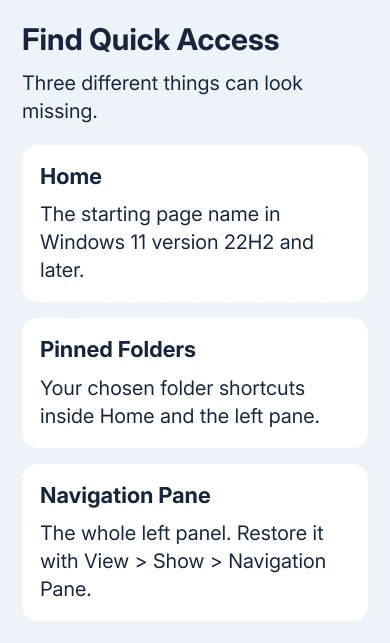
Microsoft's Explorer guide explains the name change. The standard user folders are pinned in Home and the navigation pane.
Those familiar folders are no longer shown under This PC by default on these Windows 11 versions. This PC mainly shows drives and network locations. Their absence there doesn't mean Windows erased them.
If Home already shows the folders you need, open one and check its contents. The feature is available, and you can keep using Home without looking for an older Quick access page name.
When Explorer opens to your drives, select Home yourself. The starting-page setting controls where a new window starts; it doesn't rebuild missing pins.
2. Bring back a hidden navigation pane
If the whole left-hand folder list is missing, open View on File Explorer's command bar. Choose Show, then select Navigation Pane. The folder panel should return on the left.
With the folder list visible, look for Home and your folder entries. It doesn't change the location of your documents, and it isn't necessary to move folders to make that panel return.
Try opening Documents from the restored pane. If it opens normally, the panel is working again. A single folder still absent from it needs to be pinned using the next steps, rather than another change to the navigation settings.
A narrow window can make controls harder to find, so maximize Explorer while following the menu. Use the Explorer command bar's View menu, rather than a browser menu or the desktop's right-click View choices.
3. Restore a standard folder that was unpinned
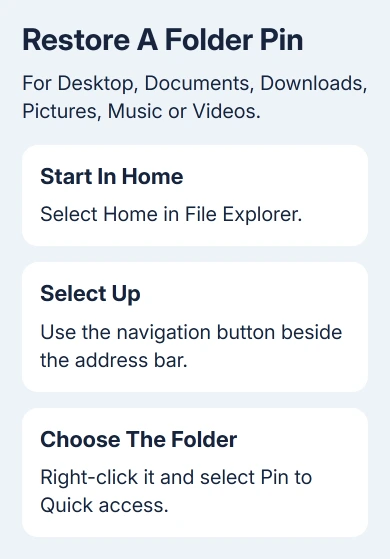
For Desktop, Documents, Downloads, Pictures, Music, or Videos, use Home to find the actual folder. It avoids guessing a path that might differ because of your account or cloud-folder setup.
- Open File Explorer and select Home in the left pane.
- Select Up beside Explorer's address bar.
- Find the standard folder you want among the six known folders.
- Right-click that folder and choose Pin to Quick access.
- Check the new pin in Home and the navigation pane.
The folder should now have a shortcut in Quick access. Open the pin and look for your expected files. The pin opens the existing location; it doesn't copy your files into a new folder.
I'd use this route before typing a guessed Documents path. A folder managed by OneDrive can be in a different location from one stored only on the computer, even though its displayed name is familiar.
If the folder itself won't open, stop treating that as a missing shortcut. Record the access or location error. Restoring the pin won't fix a folder you can't open, even if the shortcut appears in the list again.
4. Pin a project folder from its actual location
For a folder you've created yourself, browse to it through its drive or parent folder. Right-click the folder and choose Pin to Quick access. Check its location when several folders have identical names.
Return to Home, open the new pin, and make sure your project is there. Seeing the right name in the list isn't enough. Two folders named Reports can belong to different drives or accounts.
When the pin command does nothing, disable Show all folders and retry the pin before rebuilding saved shortcuts.
For a network folder, check that the connection works before relying on its shortcut. A pin can't supply access to an office server while the required network or approved VPN connection is unavailable.
When an app picker hides files inside the correct folder, check its Custom Files filter before changing any pins.
The network-location guide distinguishes a Quick access pin from a mapped drive and a saved network shortcut. Removing one of those entries doesn't necessarily remove the others.
To remove that pin later, open its shortcut menu and select Unpin from Quick access. Unpin removes the shortcut. Don't open the folder and delete its contents to try to tidy the navigation list.
5. Separate missing suggestions from missing pins
Recent files and frequently used folders are different from folders you've pinned yourself. If only those suggestions are missing, open Explorer's See more menu, the three dots, and choose Options.
In General, review the available Privacy choices for recent files and frequently used folders. Enable the categories you want, then apply the change. These settings control which suggestions Explorer shows from your recent activity.
A project folder you need every day is better pinned directly than left to the frequently used list. The suggestion list reflects activity; pinning it yourself keeps a shortcut in Quick access.
If Home stays blank or pins vanish again after signing in, note whether this happens to one folder or every folder. For a managed computer, ask IT about account restrictions and folder redirection before resetting Explorer settings.
For a personal PC, open Get Help from Start and describe the Home or Quick access failure. Include the Windows version from winver, whether the pane is visible, and whether you can open the folders from their actual locations.
The Short Version
Check Home for Quick access in current Windows 11. Restore a hidden navigation pane through View > Show. Repin standard folders through Home and its Up button, or pin a custom folder from its real location.
Checked November 12, 2026.
 If you have any business, I can build it online






