A network location without a drive letter is a saved shortcut, so remove the shortcut rather than trying to disconnect a drive. A lettered entry such as Z: needs Disconnect. Check its type in This PC before using a command.
The same complaint can also mean a folder pinned to Quick access or a device listed under Network. Those entries need different treatment, and deleting files inside the shared folder isn't the answer.
In this guide
1. Match the entry to the right removal method
Press Windows+E, then select This PC in File Explorer. Look at the unwanted entry without opening it. A drive letter in parentheses points to a mapped drive. A named location without a letter can be a network shortcut.
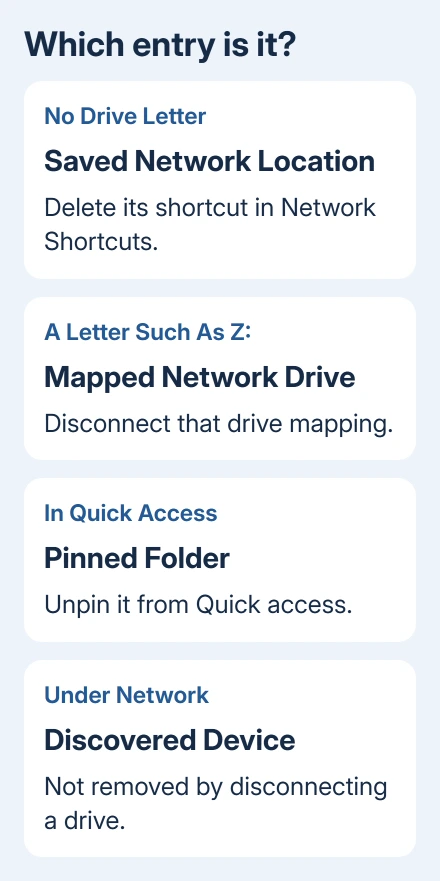
Check the left navigation pane too. An item under Quick access can remain there after its drive mapping is removed. An item under Network can be a computer that Windows discovers, rather than a connection you created.
I'd check which kind of entry it is first. A command can disconnect a drive successfully while leaving the shortcut you're trying to remove in place.
For a Quick access item, right-click it and select Unpin from Quick access. That changes the navigation pane; it doesn't remove the shared folder or disconnect every connection to its server.
If the complaint is that folders won't show new files, the File Explorer refresh fixes cover that separate problem. This procedure removes an unwanted entry from your own Windows account.
2. Delete a saved network-location shortcut
Under This PC > Network locations, right-click the unwanted location. Choose Delete if it's offered. Select the location itself before opening the shared folder, so you're removing the saved entry.
If right-clicking that item freezes Explorer, open the folder that stores the shortcuts instead. Microsoft's known-folder reference identifies its location within the current user's AppData folder.
- Press Windows+R to open Run.
- Enter
%APPDATA%\Microsoft\Windows\Network Shortcutsand press Enter. - Find the entry with the unwanted location's name.
- Select that entry and press Delete. Confirm removal if Windows asks.
- Return to This PC and press F5 to refresh the view.
Delete only the matching entry in Network Shortcuts. Opening the shortcut's target and deleting its contents would affect files on the server instead.
One owner on Super User confirmed that removing the stored shortcuts cleared locations that crashed Explorer when right-clicked. That report was for Windows 7; the current-user folder path is also listed in the Windows shell reference.
The expected result is that the location disappears from This PC. If this folder is empty, stop treating the entry as a saved shortcut and check whether it has a drive letter or belongs to another Windows account.
3. Disconnect a drive that has a letter
For an entry such as Projects (Z:), select that drive in This PC, right-click it, then choose Disconnect. Save and close documents opened from that drive first, because their connection is about to end.
If the menu fails, open Start, type cmd, and open Command Prompt in your normal account. Leave Run as administrator off, so the command runs under the same sign-in as File Explorer.
Run this command to list the connections visible to that command window:
net useMatch the Local drive letter and Remote share path to the unwanted drive. Then remove just that mapping. For example, when its letter is Z:
net use Z: /deleteThe net use reference) describes the deletion option and saved connections. Replace Z: with the actual letter from your list.
Run net use again and check This PC. The selected mapping should be gone. If Windows warns about open files or active connections, cancel, close the apps using that drive, and try the targeted command again.
Don't use a command that deletes every connection when you only want one drive removed. Other shares can belong to open work, even when they aren't the entry you're trying to clear.
4. Check a connection with no local drive letter
A network connection can appear in net use without a letter in the Local column. The connection links to the share; a saved shortcut is just an Explorer entry that opens it.
If the list shows the exact unwanted share, target its full remote path. For a share named OldShare on a server named SERVER, the example is:
net use \\SERVER\OldShare /deleteUse the server and share shown in your own output. Keep both leading backslashes, and put a path containing spaces inside straight double quotes when typing the command.
If the message says the network connection couldn't be found, check the entry against the list again. Changing the server name won't remove a shortcut, a Quick access pin, or a mapping owned by a different sign-in session.
An empty list means this command window has no connections to remove through net use. Check which kind of entry you're seeing again, rather than deleting registry keys to try to change the list.
5. Deal with an entry that comes back after sign-in
After removal, close and reopen Explorer. If the item is gone now but returns after signing out and back in, something is creating it again. On a work laptop, that can be an organization setting or a sign-in script.
Write down the drive letter, remote path, and when the item returns. Ask your IT team to check the drive-mapping policy or logon script for that share. Removing the local entry won't change a rule that recreates it at the next sign-in.
A device appearing under Network is a different case. Disconnecting a mapped drive doesn't make the server vanish from network discovery. Avoid changing network-wide discovery settings just to hide one old shortcut.
If you need help identifying the part of Explorer involved, the File Explorer guide explains its navigation and folder controls. Tell support whether the entry is in This PC, Quick access, or Network.
For a personal PC that still shows a dead entry, send Windows support a screenshot and matching net use output. Hide private server names. Ask about that Explorer entry, rather than a general internet fault.
The Short Version
Delete a no-letter network shortcut from Network Shortcuts. Disconnect a lettered drive, or target its mapping with net use. Unpin Quick access entries separately, and ask IT about mappings that return at sign-in.
Checked November 10, 2026.