

Change File Explorer's shortcut icon through Properties > Shortcut > Change Icon. Make a separate Explorer shortcut first so you can pick its picture without changing Windows program files.
The yellow folder on the taskbar, the This PC desktop icon and a folder inside Explorer are different items. Choose the steps for the item you actually want to change; one icon setting won't replace all three.
In this guide
Create an Explorer shortcut you can customize
Choose New > Shortcut from the desktop's right-click menu. In the location box, enter explorer.exe, choose Next, name the shortcut File Explorer, and select Finish.
Open that new shortcut once. It should launch the usual File Explorer window. That confirms it opens the right program before you spend time choosing a picture for it. Close the window and return to the desktop.
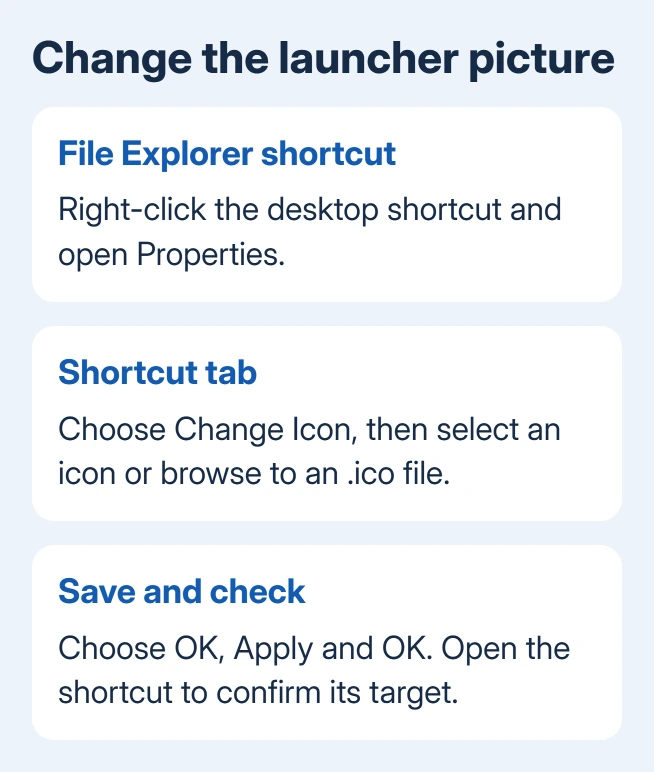
Right-click the new shortcut and select Properties. Open the Shortcut tab, then choose Change Icon. Select one of the offered pictures, press OK, then Apply and OK to save the change.
Microsoft's shortcut icon instructions describe this Properties route. The icon belongs to the shortcut, so Explorer can still show its usual icon elsewhere.
Look at the desktop copy after closing Properties. Launch the customized copy to confirm that it still opens Explorer. It should still have the same name and open the same program, even though the picture is different.
I'd keep the ordinary shortcut until the custom one works. It's easier to compare two clearly named copies than to wonder whether an unfamiliar icon points to the same program.
Use an icon file that will stay on the computer
For your own picture, choose Browse in Change Icon and select a Windows icon file, normally ending in .ico. A photo saved as .jpg or .png isn't the same file format; renaming its extension doesn't convert it.
Keep the icon in a permanent folder before selecting it. If you choose a file from a temporary download folder and later move or delete it, the shortcut can lose the picture it was told to use.
For example, store a trusted icon in a personal Icons folder, then browse to that copy. Choose a picture that is easy to tell apart at taskbar size. Tiny words and elaborate details become hard to recognize when Windows shrinks them.
The file chooser can also read icons contained in supported Windows program or library files. For this task, choosing an offered icon or a trusted .ico is enough. Leave the actual explorer.exe file alone.
If Change Icon reports that a file contains no icons, return to the picker and select a suitable icon file. Don't keep applying the same unsupported picture and expect Windows to turn it into one.
Check the new picture on your desktop shortcut. Changing that shortcut doesn't repaint every folder in its window, and it doesn't change the icon beside every Explorer window title.
Put the customized shortcut on the taskbar
Right-click your working desktop shortcut. On Windows 11, open Show more options if the first menu doesn't include the command, then choose Pin to taskbar. On Windows 10, look for Pin to taskbar directly.
Compare the pinned item with the desktop copy. Launch it to confirm that File Explorer opens. An existing pinned Explorer item can keep its earlier picture because it wasn't the shortcut you just edited.
If you now have two Explorer launchers, unpin the older item through its right-click menu once you've checked the replacement. Keep the new desktop shortcut until you've checked that the pinned version works as expected.
Windows can group Explorer windows under an existing taskbar item, so running-window icons can differ from your customized launcher. Check the desktop and taskbar copies separately.
If an icon opens the right window but clicking the taskbar won't minimize it, handle that behavior as a taskbar fault. Replacing the icon picture won't repair window switching.
Change This PC through Desktop icon settings
For the computer symbol on the desktop, open Settings > Personalization > Themes > Desktop icon settings. Select This PC in the icon list and choose Change Icon.
Pick an offered picture or browse to your .ico, then confirm the dialogs. The preview in Desktop icon settings should show your selection before you apply it. Return to the desktop and check the actual item too.
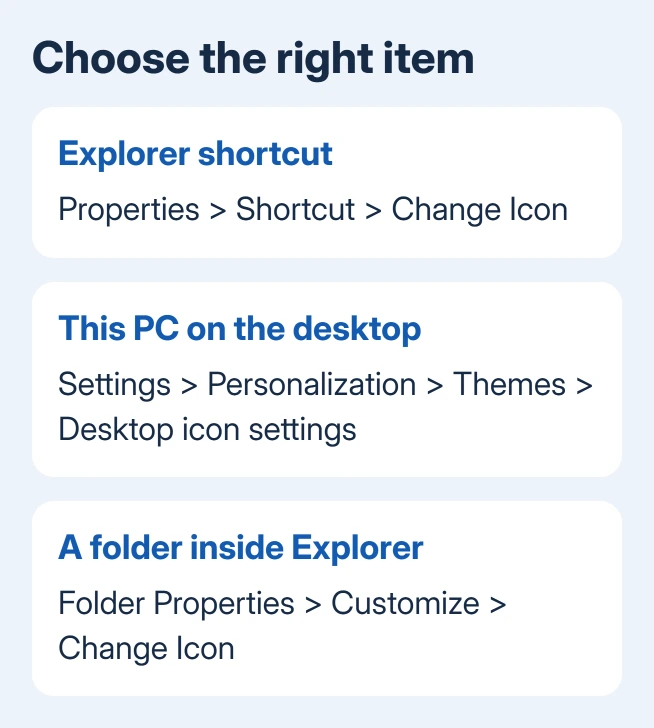
The desktop customization instructions cover those system icons separately from ordinary shortcuts. If This PC is absent, enable its checkbox in that dialog before looking for it on the desktop.
The Allow themes to change desktop icons option controls whether a theme can replace common desktop icons later. Clear it if you want your chosen system icons to remain when changing themes.
Use Restore Default in that dialog to undo a system-icon customization. For the folder view that opens when you launch Explorer, change its Home or This PC starting page separately.
No Shortcut tab, wrong picture or missing option
Check what you selected. The actual Explorer program file, a real folder and an ordinary shortcut have different Properties tabs. Return to the desktop shortcut created in the first section if you need the Shortcut tab.
A real folder can have Properties > Customize > Change Icon. That changes the folder you selected, rather than the Explorer launcher. Use it when you're customizing that particular folder.
If the new picture disappeared after you cleaned Downloads, reopen Change Icon and browse to the permanent copy. If it simply hasn't appeared yet, refresh the desktop and reopen Properties to check whether the selected icon was saved.
If a work PC's personalization control is missing, ask IT whether a policy controls that shortcut or desktop icon. Give them the Windows version, the item you're changing and a screenshot of its Properties tabs.
For a personal PC where a newly created shortcut still can't save its icon, use Get Help and describe that exact failure. Keep the working original rather than replacing Windows files or applying an unrelated registry download.
The Short Version
Create an explorer.exe desktop shortcut, then use Properties, Shortcut and Change Icon. Keep custom icon files in a permanent folder. This PC uses Desktop icon settings, while an individual folder uses its own Customize tab.
Checked November 15, 2026.
 If you have any business, I can build it online






