

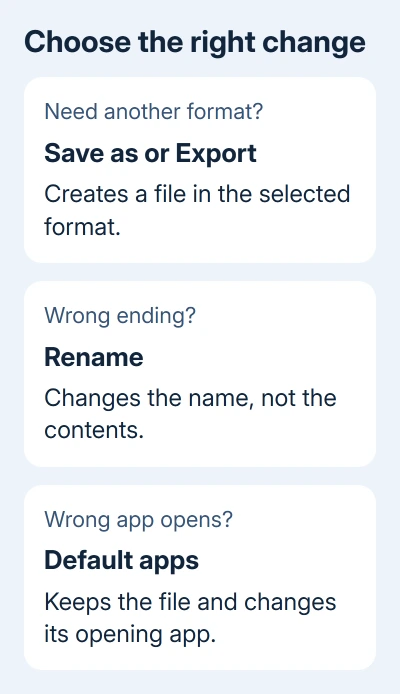
To change a file type in Windows 11, save a new-format copy using the app's Save as or Export command. File Explorer's Rename command changes the extension only; use that when the existing ending is wrong.
If the file already has the right format but opens in the wrong app, change its default app instead. All three can look like a file-type problem in Explorer, but each needs a different fix.
In this guide
Decide whether the name or the contents need changing
Start with the result you need. A website asking for a JPG needs a JPEG image, not a PNG with a different name. A document that should open in Word needs a format Word can read, or Windows needs to be set to open it in Word.
Microsoft explains in its file extension reference that changing the extension changes the filename, not the file's contents.
For example, renaming photo.png to photo.jpg leaves the image data in PNG format. Some apps can recognize and open it anyway, which makes the rename look successful. An upload form can still reject that file.
I'd keep the original and create a converted copy first. Then you can compare both files and return to the original if the new format loses something you need, such as transparency or document editing features.
Show the full filename before using Rename
Windows can hide known filename extensions. When that setting is on, a file displayed as notes might really be notes.txt. Adding an ending while the original is hidden can create a misleading double extension.
- Press Windows + E to open File Explorer.
- Open the folder containing your file.
- Select View > Show > File name extensions.
- Check the full filename, including the part after the final period.
For report.pdf.txt, the final .txt is the extension Windows uses. The earlier .pdf is just part of the name. Don't guess the real format from either word when the file came from an unknown source.
Open Properties from the file's right-click menu if you need to check the listed type and associated app. That label comes from the extension. The contents can still be different from what that name suggests.
This setting changes how Explorer displays filenames. It doesn't convert any files, change their contents or make a file safe to open. Leave it enabled while you work so the result stays visible.
Convert an image with Save as in Paint
Open the image in Paint, then save a separate copy with the file type you need. This is useful when an upload service accepts JPEG but your picture is PNG, or when you need a PNG copy of a supported image.
- Open the picture in Paint.
- Choose File > Save as.
- Select the required image format, such as JPEG picture or PNG picture.
- Choose a different filename and a destination folder, then save.
- Open the new copy and check that the picture looks right.
Use the choices offered by your installed Paint version. If Paint can't open the image, you'll need an app that can read its original format before you can convert it. Typing a different extension into Explorer doesn't supply that support.
JPEG can't keep a transparent background, and its compression can change image detail. Choose PNG if you need a transparent background and the destination accepts it. Keep the editable original for future changes.
Export documents from the app that opens them
For a document, open the original in an app that understands it and check Save as or Export for the required format. Choose the format from that command's list, rather than adding an extension to a filename box on its own.
When PDF is offered, the exported PDF is a separate file intended for viewing and sharing. Keep the working document if you'll need to edit its text and layout later. Saving one format doesn't mean the original should be deleted.
The same rule applies to audio and video: the app must support both reading the original and writing the target format. A different extension can't change how a video is encoded or extract its soundtrack.
If the required format isn't offered, check the file maker's export instructions or use software that supports both formats. For private documents, a local app avoids having to upload the contents to a conversion service.
Correct an extension only when its contents already match
Use Rename when you know a file has the wrong ending, or when you're creating a text-based file that needs a particular extension. Work on a copy while you confirm the result.
- Select the file in Explorer and press F2.
- Replace the extension after the last period with the correct one.
- Press Enter.
- Accept the warning about changing the extension only if you meant to use the new ending.
Open the copy in the intended app. If it stops opening, restore its previous extension and use the app's conversion command instead. Changing names repeatedly won't repair a damaged file or reveal its original format.
For a downloaded file with an unexpected ending, ask the sender what format they exported. Have them resend the original if necessary. That is more useful than trying a series of extensions until one icon looks familiar.
Change the app when the format is already correct
A PDF opening in a browser rather than your PDF reader is an app-choice problem. Open Settings > Apps > Default apps, search for .pdf, choose the app you want, and confirm the choice shown by Windows.
The guide to default apps in Windows 11 explains why separate extensions can need separate choices. Changing one file type's default doesn't automatically change every type that app supports.
If you're having trouble locating the copy you just saved, use the File Explorer search steps to look for its name and extension. Check the folder selected in Save as as well as Downloads.
When a converted file still won't open, check it in the app that created it and note the exact error. Ask that app's support team whether it can export a file with the format, size and features your destination requires.
The Short Version
Show extensions in Explorer, then choose the right job. Save as or Export converts a file. Rename corrects an extension. Default apps changes what opens it. Keep both versions until the destination accepts your exported copy.
Checked November 13, 2026.






