

Windows 11 lets you change one device's local IP address through Settings > Network & internet. Select the Wi-Fi network or Ethernet connection, edit IP assignment, and choose Manual when you need a specific address.
This changes that connection's address inside your network. It doesn't change the public internet address shared through your router. For a home connection, use automatic addressing unless a device or network setup needs a fixed address.
In this guide
Decide which address needs to change
A local IPv4 address identifies your PC within its network, for example 192.168.1.25. The router has a separate public address for internet access. Changing the PC's local number won't change the address an IP-check website reports.
If the aim is to identify the current address, use the Windows IP address checks first. Reading an address doesn't require changing it, and many printer or sharing tasks only need the existing number.
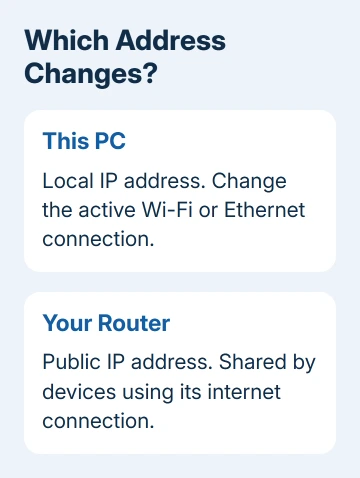
Also decide which connection you're changing. Wi-Fi and Ethernet have separate settings. A manual address entered for Wi-Fi won't configure the Ethernet adapter, and a VPN can add another connection with its own addresses.
I'd leave automatic addressing on unless the setup specifically needs a fixed number. It avoids carrying a home network's settings onto a different network and makes reconnecting much simpler.
Record the working connection before editing it
Open Start, type Command Prompt, and open it. Run ipconfig /all. Find the connected adapter, then note its IPv4 address, subnet mask, default gateway, DNS servers, and whether DHCP Enabled says Yes.
DHCP is the router's automatic address-assignment service. The gateway is normally the router the PC uses to reach other networks. DNS servers turn names such as a website address into the numbers used to reach them.
Use the details supplied by the network administrator or router configuration for the new settings. Don't copy an address from a different computer: two devices can't use the same local address reliably.
Have whoever manages your router check that the fixed address is unused and outside the range it hands out automatically. Get an assigned address from IT when using an employer's or school's PC.
For example, 192.168.1.50 is only an example address. It isn't a universal setting you can paste into any network. The correct address, subnet, gateway, and DNS depend on the network you're joining.
Change the saved Wi-Fi network's IP assignment
These steps change the Windows 11 PC using that Wi-Fi network. They don't change the router or the addresses of the phones and laptops connected alongside it.
- Open Settings > Network & internet > Wi-Fi.
- Select Manage known networks and choose the network you want to change.
- Beside IP assignment, select Edit.
- In Edit IP settings, select Manual. Switch IPv4 on.
- Enter the assigned IP address, Subnet mask, and Gateway.
- Enter the Preferred DNS and, if provided, Alternate DNS settings, then select Save.
Microsoft says Manual assignment lets you enter the address and DNS settings. Keep the settings window open while checking the result so you can return to automatic assignment if needed.
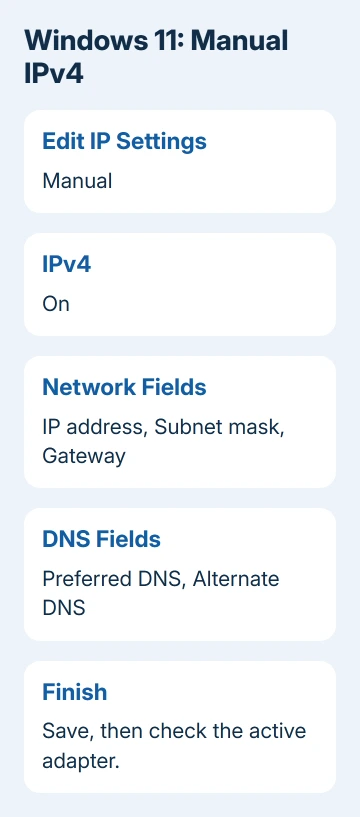
Some layouts show Subnet prefix length instead of Subnet mask. Both tell Windows which addresses belong to the local network: mask 255.255.255.0 equals prefix length 24. Use the form that the field requests.
After saving, return to the network's properties and check the displayed IPv4 address. If it hasn't changed, confirm you edited the connected network rather than another saved Wi-Fi profile.
Use the Ethernet connection for a wired PC
For a wired connection, open Settings > Network & internet > Ethernet and select the connected Ethernet network when necessary. Beside IP assignment, select Edit. Set the assignment to Manual, then enable IPv4.
Enter the address, subnet information, gateway, and DNS values supplied for that wired network, then save. These fields work like the Wi-Fi fields, but you're saving the settings for the Ethernet adapter.
If the PC has a built-in Ethernet port and a USB Ethernet adapter, check which one has the cable. The adapter name in ipconfig /all helps you match the active connection to the settings you're editing.
If your PC is also connected to Wi-Fi, it may keep using Wi-Fi. Disconnect the other connection temporarily while checking the wired setup if you need to know whether Ethernet itself reaches the network.
Check the address and the connection separately
Run ipconfig /all again and read the active adapter's IPv4 address. With manual settings saved, DHCP Enabled should say No. Confirm the gateway and DNS entries too, rather than checking only the new number.
Open a website, then try the local device or service you needed the fixed address for. If the address is saved but you can't connect, check the settings; it doesn't mean Windows ignored the entry.
If the address becomes 169.254.x.x or appears with Duplicate, use the static-address conflict checks. Have the router owner confirm another device isn't already using the chosen address.
For a repeat failure, compare the subnet and gateway with the values provided for this connection. An address on the wrong subnet can leave the PC unable to reach its router even though the address field looks normal.
Return this connection to automatic addressing
Open the same Wi-Fi or Ethernet connection, select IP assignment > Edit, and choose Automatic (DHCP). Save the change. On a network running DHCP, the router supplies the connection details again.
If DNS server assignment is still Manual, edit it and select Automatic (DHCP) too. Reconnect, then check the address. The router can give your PC the same number again; automatic doesn't always mean a different address.
If the required static setup still won't connect, give the network administrator the adapter name and the settings they assigned. Ask them to confirm the address allocation, subnet, gateway, and DNS before trying a different number.
The Short Version
Edit IP assignment for the connected Wi-Fi profile or Ethernet adapter, enter the assigned IPv4 details, and check with ipconfig. Automatic (DHCP) reverses the change on a DHCP network. The public address belongs to the router.
Checked November 12, 2026.
 If you have any business, I can build it online






