

Chrome's Dino game works offline, but you don't have to disconnect to play. Open chrome://dino/ in Chrome's address bar, press Enter, then press Space to start running. On a phone, tap the dinosaur instead.
The direct address opens the built-in game while your internet connection stays available for other tabs. If you're already looking at Chrome's No internet page, the dinosaur on that page can start the same game.
In this guide
Open the game without disconnecting
I'd use the direct address first. Turning off Wi-Fi interrupts everything else using that connection, and it doesn't make the game work any better.
- Open Google Chrome, then open a new tab.
- Click the address field, where Chrome displays the current page address.
- Type
chrome://dino/and press Enter. On a phone, use the keyboard's Go control. - Wait for the dinosaur and its ground line to appear. Press Space on a computer or tap the dinosaur on a touchscreen.
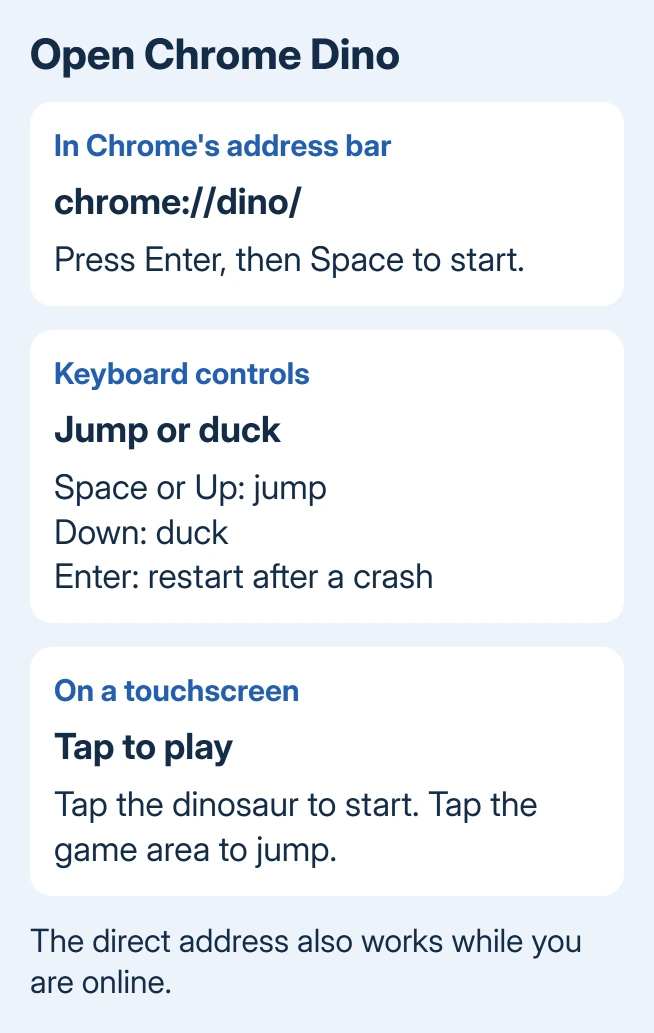
The dinosaur starts running when the game receives the start action. The address stays inside Chrome, so this isn't a download or a game you need to install. Leave your network connection switched on if other apps still need it.
A search-results page means the text went into a search field instead of opening as an address. Select the browser's address bar, replace its entire contents with chrome://dino/, and submit it again. Keep the colon and both forward slashes.
These keyboard steps apply to Chrome on Windows, Mac, Linux and Chromebook. Open Chrome itself instead of another app's search field. A different browser can have its own internal pages and games.
Start from the No internet page
During an actual connection outage, try opening a website in Chrome. If its No internet error page shows the dinosaur, press Space or tap the dinosaur to begin. The obstacles start moving once the runner starts.
An error page without the dinosaur isn't the screen these steps apply to. For example, a website's own error message can appear even while Chrome still has a connection. Use the direct address instead of repeatedly loading that website.
Playing doesn't restore internet access. If you came to this screen because a download stopped, keep the game separate from the Chrome connection and download checks.
Once the connection returns, open the website in another tab to check it. The game running successfully tells you Chrome can run its built-in page; the router and internet service could still be disconnected.
Jump, duck and start another run
On a computer, Space or the Up arrow key makes the dinosaur jump. Press the key as a cactus approaches, then release it. Choose the moment for each jump rather than pressing keys continuously as the obstacles arrive.
The Down arrow key makes the dinosaur duck while it's on the ground. Watch what the next obstacle needs rather than pressing every control together. Jumping and ducking are separate actions, so practice each control on its own.
After a collision, wait for the game-over screen, then press Enter to restart. The dinosaur runs again from the beginning. Restarting the run is different from reloading the whole tab, which opens the page again.
On a touchscreen, tap the game area to jump. After a collision, use the restart control shown on the game screen. The desktop's Down arrow key is a keyboard control; don't search Android or iPhone settings for a matching duck switch.
The keyboard shortcut belongs to the game page. If the address bar still has a text cursor in it, pressing Space edits that text instead. Click the game area to move attention back to the page before trying the control again.
Check management when the game is blocked
A school or work browser can have the dinosaur game disabled by its administrator. Google says administrators were given this control. Disconnecting Wi-Fi doesn't remove a browser restriction.
On a computer, open Chrome's three-dot menu and check for Managed by your organization near the bottom. The managed-browser help page also describes opening chrome://management to check management details.
Type chrome://policy into Chrome's address field to view applied policies. This page helps explain the restriction when reporting it to your school or company; it isn't a normal settings switch for enabling games.
Ask the administrator whether the dinosaur game is intentionally disabled on that device. Include the message you see when trying to start it. Keep the account signed in so the administrator can review its restriction.
A missing game on a managed device doesn't mean Chrome needs reinstalling. If the block is intentional, the next step is the administrator's decision about access, rather than another network repair.
Keep offline games separate from offline browsing
The built-in runner is available without fetching a website. That doesn't make ordinary web pages, cloud documents or downloads available offline. Each of those tasks needs its own preparation or a restored connection.
For example, documents need their Google Docs offline setup completed while a connection works. Starting the dinosaur won't save those documents for later or change their sync settings.
If the direct address still won't open in an unmanaged Chrome browser, record the address, Chrome version and exact message. Use Help > Report an issue in Chrome's three-dot menu to send those details when you're connected again.
The Short Version
Open chrome://dino/ in Chrome and start with Space or a tap. Use Space or Up to jump, Down to duck on a keyboard, and Enter after a collision to restart. A management block needs the device administrator's attention.
Checked November 15, 2026.
 If you have any business, I can build it online






