

Chrome's full offline installer worked for several owners when Windows rejected the usual setup file. Get a fresh official copy matching your PC's system type. Administrator permission alone didn't fix the reported error.
The wording matters. This app can't run on your PC is different from Windows recommending a Microsoft Store app or Chrome showing a connection error after setup starts. Each needs its own next step.
In this guide
1. Replace the failed setup file with the full installer
Leave the rejected installer closed and use Edge, or whichever browser still works. Use Google's offline installation instructions, expand Install Chrome offline, and follow its alternate download link.
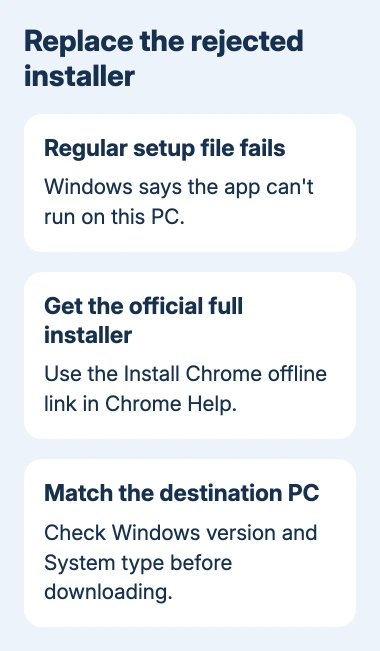
The linked download route can offer the complete installation file instead of the small program that retrieves Chrome during setup. Use that official route rather than downloading a repackaged installer from a search result.
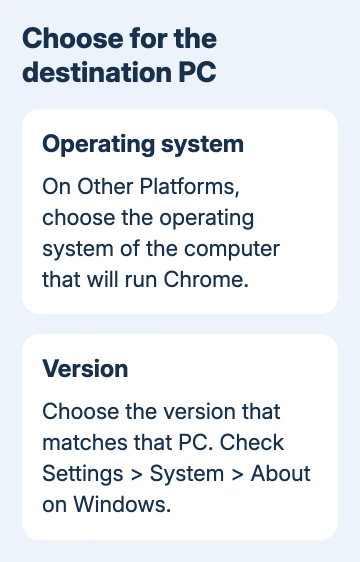
Open Other Platforms if the main download doesn't match. Choose the version for the computer that will run Chrome, especially if you're borrowing another computer for the download.
Let the download finish, open the saved file's folder and run the new installer. At the Windows permission prompt, check that the installer is the official Google download before approving the prompt.
One owner fixed this with the alternate standalone download, and others also got Chrome installed using the full installer. Another owner had already tried administrator permission and received the same error.
Another owner still got the message after a manual download. If the full installer also fails immediately, check the system details on the PC where you're installing Chrome before choosing another download.
2. Match Windows and processor type before trying again
Open Settings > System > About. Under Device specifications, read System type. Under Windows specifications, read the Windows version. Keep those details handy when choosing the download.
Chrome has different installers for Intel or AMD Windows PCs and Windows-on-ARM PCs. Pick the official Windows download for that processor type rather than assuming that any file marked Windows will suit the machine.
Google lists Windows 10 as the minimum for Intel-based machines. ARM-based machines require at least Windows 11. Those are Chrome's requirements; they don't extend the support lifetime of an older Windows release.
A factory reset doesn't change your PC's processor type. If this started after a reset, check what Windows is actually running now and get a current installer. An old file copied back from a backup may be the wrong starting point.
Don't change .exe to another extension to make the file open. That doesn't convert the program or change the processor it was built for. Get the correct package from its download page instead.
If the computer doesn't meet current requirements, use a browser that supports your system while you arrange a Windows or hardware upgrade. Another download can't change an operating system that Chrome doesn't support.
3. Separate a Store restriction from a rejected program
Read the complete Windows message. A prompt recommending a Microsoft-verified app means you need to check Windows' app-installation settings. That's different from the compatibility message that stops Chrome setup opening.
On Windows 11, check Settings > Apps > Advanced app settings > Choose where to get apps. On Windows 10, the corresponding choice is under Settings > Apps > Apps & features. A managed PC may leave this choice to IT.
For S mode, an ordinary desktop installer isn't allowed until the PC leaves that mode. Check Settings > System > Activation on Windows 11, or Settings > Update & Security > Activation on Windows 10.
Leaving S mode permanently changes that installation restriction. The computer's owner should decide whether to make that permanent change. Request an approved browser package from IT on computers your school or employer manages.
If Windows is already allowing desktop apps and the error is still the original compatibility message, return to the file and system checks. Changing the default browser won't make a rejected setup file run.
4. Use the MSI route when the full EXE still fails
Windows Installer can run Chrome's enterprise MSI package. I'd start with the consumer full installer because there are fewer choices. Try the MSI package if the full EXE still won't run.
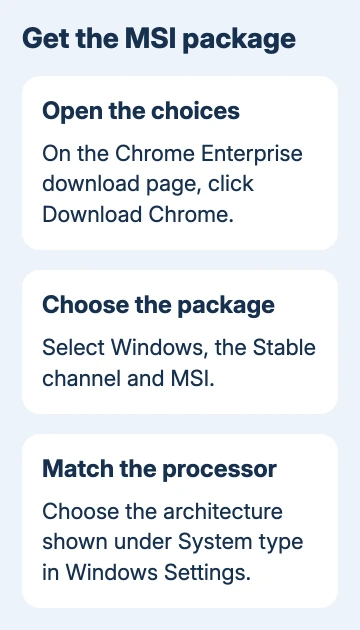
Open the Chrome Enterprise download page and click Download Chrome to open the package choices.
Choose Windows, the Stable channel, MSI then the processor architecture shown in System type. An organization's administrator should choose its own approved package.
Download the MSI and open it to start setup. A bundled download may need extracting before you reach its Installers folder. Check the actual filename rather than expecting an old forum filename to stay unchanged.
The Chrome Command Prompt installation steps explain how to run the MSI with a log if setup needs closer attention. Use those steps if Windows Installer opens but then reports an error.
Avoid trying several installers at once. Finish or cancel the current setup before starting another, and keep the exact result from each package. That tells you whether only one EXE failed or Windows installation is failing more broadly.
5. Confirm the browser opens, then escalate the right failure
After installation, open Start, search for Google Chrome, and launch it. A working browser window confirms that Chrome installed. Then open a website to check that the installed browser can reach the internet.
If other downloaded EXE files also fail, use the Windows EXE error checks. A problem affecting many programs needs broader Windows attention than another Chrome download.
For a Chrome-only failure, open the installation help page's community link and report the error there. Include the Windows version, System type, installer source, filename and exact error. Add an MSI log if you used that route.
If the reset followed phishing and Windows still shows security alerts or unfamiliar management restrictions, give those details to the PC's support technician. Leave security protection enabled while the technician checks that file.
The Short Version
Get a fresh official offline installer and match it to the destination PC. Handle a Store or S mode restriction separately. If the full EXE still fails, use the official MSI route and keep its installation result for support.
Checked November 26, 2026.
 If you have any business, I can build it online






