A Chromebook that keeps disconnecting from Wi-Fi may have an unstable wireless connection or a home-network problem. Reconnect Wi-Fi and restart the Chromebook, then try another network to see which needs attention.
Watch the Wi-Fi indicator when the next interruption happens. The next steps depend on whether Wi-Fi disconnects or stays connected while the internet stops working.
In this guide
1. Reconnect Wi-Fi and restart the Chromebook
Open the clock panel at lower right, select the network controls, and switch Wi-Fi off and on. Select your network again if it doesn't reconnect. Keep a page or call open to check whether the usual interruption returns.
If the interruption returns, save your work and use Shut down in the clock panel's power controls. Turn the Chromebook back on. Shutting the lid puts the Chromebook to sleep; opening it wakes the device. Neither action restarts it.
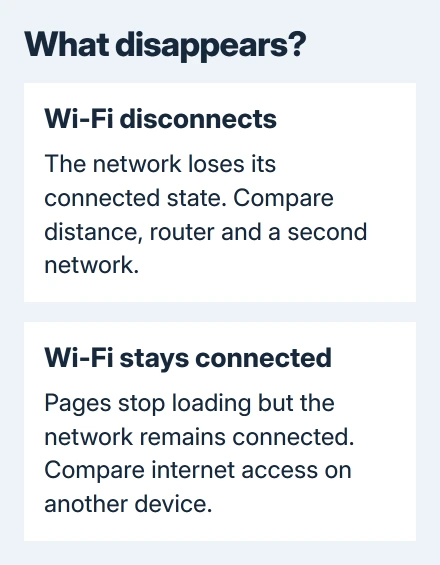
Watch what changes during the failure. If Wi-Fi disconnects, continue with the wireless checks. If it stays connected but pages stop loading, compare internet access on another device before changing the Chromebook.
When the connection problem appears as Chromebook sign-in rejecting a correct password, match the verification message before changing account credentials.
For a network that never appears or refuses its password, use the Chromebook connection checks instead. Those steps cover trouble joining Wi-Fi rather than drops after joining.
2. Check the router and the distance from it
Move the Chromebook near the router and use it there for a while. A connection that holds nearby but fails in another room points to weak coverage or interference between you and the router. Erasing the laptop won't address that cause.
While the Chromebook is failing, connect another device to that Wi-Fi and check whether it can get online. Make sure the comparison device is using Wi-Fi, rather than loading pages through cellular data without you noticing.
If both devices lose access, restart your router as its maker directs and wait for it to reconnect. Google's connection troubleshooting recommends comparing a second computer.
For a separate modem and router, follow your provider's restart sequence, particularly if the modem also handles phone service. Don't press a recessed factory-reset button to restart either device.
If the connection stays stable near the router, try a more open router position or ask the network owner about improving coverage. If every device still loses internet access near the router, tell your provider when it happens.
3. Compare a second network before changing more settings
Use a different known-working Wi-Fi network, or a phone hotspot if your plan permits it. Use the Chromebook for the same activity: loading one page won't check a connection that drops only during calls.
I'd compare networks before removing a saved connection or considering a reset. That tells you who should handle the repair without changing your files or account.
If the second network stays connected, turn your attention to the original router or network. Record whether the problem happens in one room, on one network name, or only at certain times, then give that detail to its owner.
If Wi-Fi drops on both networks, check the Chromebook's updates and try the Guest session described later. A phone hotspot uses cellular data, so keep the comparison short if your plan has a small allowance.
If reconnecting produces DHCP lookup failed, follow the address-assignment repair steps. DHCP is the process that gives your Chromebook a usable local network address.
4. Finish any ChromeOS update and its restart
Open Settings > About ChromeOS and select Check for updates while connected to a stable network. If an update downloads, use Restart when offered. A downloaded update still needs that restart to finish installing.
ChromeOS updates include the operating system, rather than just the Chrome browser. You'll need to restart to finish this check; opening another browser tab doesn't install the system update.
If the home connection won't stay up long enough, use the working network from the earlier comparison. If Wi-Fi keeps cutting off the download, that doesn't mean the updater has rejected your Chromebook.
Read the update screen if it says the Chromebook no longer receives updates. That limits future fixes through system updates. Don't install an unofficial wireless driver or switch to Developer mode to chase a Windows-style repair.
After updating, rejoin the original network and retry the call or download that normally stalls. If the same interruption returns, compare a Guest session next.
5. Try Guest mode to compare your signed-in session
Save your work, sign out, and select Browse as Guest at the sign-in screen. Connect to the same Wi-Fi and try ordinary browsing. Guest mode lets you browse without your usual signed-in browser setup.
If Guest stays connected while your normal session doesn't, review extensions and network-related software used in your account. Change one suspect item at a time, then return to the same activity to see whether the problem stops.
Guest working once doesn't identify a particular extension. Stay in Guest mode until you've had time to check for the usual interruption. Don't remove several things just because one page loaded successfully.
Managed Chromebooks may hide Browse as Guest because the administrator disabled it. Ask IT to compare the managed account and network policies.
6. Save the network test results for the right support team
Open Settings > About ChromeOS > Diagnostics. Under Connectivity, the app runs tests for the current connection. Keep it open during or just after a drop so the results show what's happening with the failing connection.
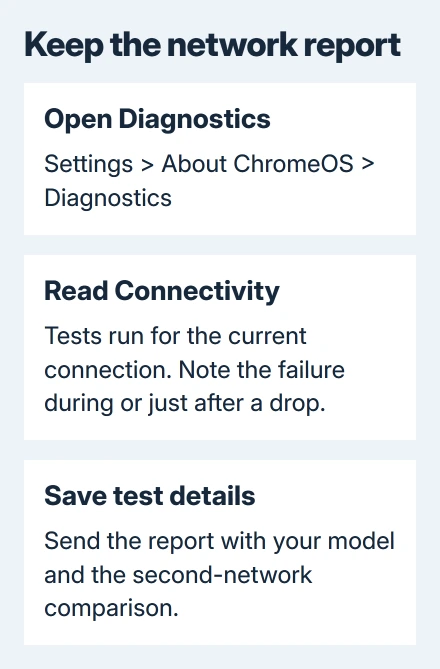
Use IP Configuration for address information and Save test details to keep the report. A DNS failure means website names aren't being translated into addresses; the wireless connection itself may still be working.
If only the original network fails, send its owner the report and the successful second-network comparison. Ask them to check coverage, router restarts, and whether other devices lose internet at the same time.
For drops on different networks after updating, give the manufacturer your model, ChromeOS version, Diagnostics results, and Guest comparison. Ask for a wireless hardware or software check, including warranty service.
The Short Version
Reconnect and restart, compare router coverage and a second network, then finish ChromeOS updates. Try Guest mode to compare sessions. For persistent drops, keep Diagnostics results to send to network support or the manufacturer.
Checked November 12, 2026.
 If you have any business, I can build it online