When a Corsair mouse's right click fails with SignalRGB, quit SignalRGB before resetting the mouse. If clicking returns, check saved assignments and iCUE conflicts. If it fails with both apps closed, check its connection and hardware.
A working button with broken lighting is a different fault. Check which part isn't working so a lighting problem doesn't send you through unnecessary Windows repairs.
In this guide
1. Compare the button with SignalRGB fully closed
Find SignalRGB beside the Windows clock. Open the hidden tray icons if necessary, right-click its icon, and choose Quit. If that button won't work, use another mouse or the keyboard to reach the app's exit control.
Try right-clicking the desktop and a file in File Explorer. Then open the app or game where the failure first appeared. When Windows accepts the click but one game doesn't, check that game's binding too.
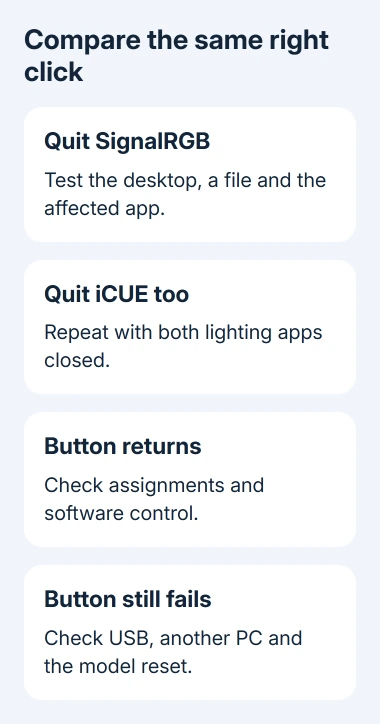
Next, quit iCUE if it's running and repeat the comparison. Use Task Manager to confirm the app has closed rather than simply minimizing its window. Keep the mouse connected through the same port for this check.
If quitting an app brings right click back, check its profile and how it controls the mouse. If neither helps, try the connection and reset checks. A button that still fails with SignalRGB closed doesn't point to that app alone.
If the menu opens slowly after the click, use the separate Windows right-click menu checks. Waiting for a menu to load differs from a button sending the wrong command or no command at all.
2. Restore the intended button assignment in iCUE
Leave SignalRGB closed and open iCUE. Select your mouse on Home, then open Key Assignments. Check what the physical right button does in the active profile. Remove a macro you didn't mean to use, or assign the mouse action you want.
Also check Windows' primary-button setting. In Windows 11, open Settings > Bluetooth & devices > Mouse > Primary mouse button. Windows 10 uses Settings > Devices > Mouse > Select your primary button.
Choose Left for the usual arrangement where the left button selects and the right button opens context menus. A swapped primary button can make both physical buttons seem to perform the wrong job without either being broken.
For a supported mouse that must keep an assignment after iCUE closes, switch to Device Memory Mode before editing and save the settings to the mouse. A profile used by iCUE isn't the same as one saved on the mouse itself.
Corsair's button-assignment instructions explain that stored settings can work without iCUE. Check your model's available controls; don't assume every older mouse shows the same memory-mode interface.
Close iCUE and test the button again before starting SignalRGB. If the assignment disappears when iCUE closes, revisit the device's saved profile. If it stays correct until SignalRGB opens, tell SignalRGB support when it stops working.
3. Let one program control the lighting
Check whether your exact mouse appears on SignalRGB's supported-device list. Support for Corsair doesn't mean every model or wireless version works with SignalRGB. Compare the whole model name on the mouse label.
If your device is supported but its lighting won't respond, SignalRGB's keyboard and mouse procedure starts with quitting SignalRGB and using the original control app to prepare the device.
Save any assignments you need before deleting onboard profiles. The procedure includes clearing onboard profiles, choosing software control if offered, and clearing lighting effects or setting them to solid black when possible.
Quit iCUE completely, then start SignalRGB and retry the effect. If the lighting still doesn't respond, try another USB port. Use the options available for your mouse; it may not have every control in the instructions.
I'd leave both lighting apps closed until the button works reliably. Once clicking is correct, start the program you want to use for lighting and confirm the assignment stays correct.
If lighting improves but right click still fails, continue with the button checks. Working lighting means the app can control the lights. A macro or saved button assignment can still be wrong.
4. Check USB before using a model-specific reset
Connect the mouse cable or receiver to the computer's own USB socket, without a hub or dock. Try another port. For a wireless model, check its charge and make sure you're using its intended receiver or Bluetooth connection.
Use the Windows mouse hardware checks for the direct-port and second-computer comparison. Test the actual right button on that computer with lighting software closed.
If the right button fails on the other computer too, try a reset next. Save needed profiles first because resetting can remove custom behavior. Use the correct sequence for the model, especially Scimitar and Dark Core variants.
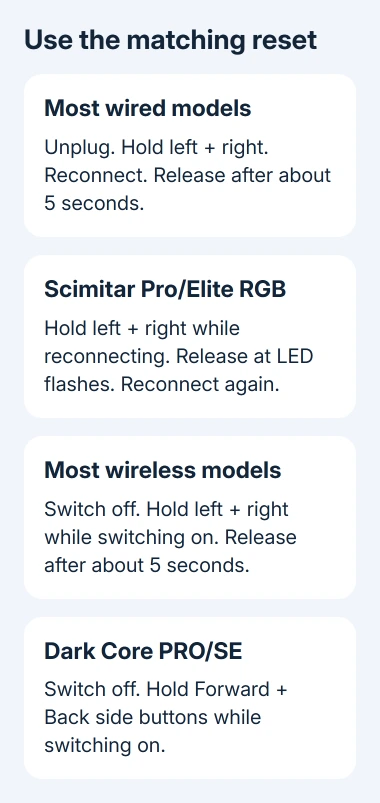
For most wired Corsair mice, unplug the mouse, hold both left and right buttons, and reconnect it while holding them. Release after about five seconds. A flashing LED indicates that the reset worked.
For Scimitar Pro/Elite RGB, hold those buttons while reconnecting, release when the LEDs begin flashing, then unplug and reconnect once more. Don't stop after the first reconnect on these listed models.
For most wireless Corsair mice, turn the mouse off, hold left and right buttons, and switch it on while holding them. Release after about five seconds and look for the LED flash.
For Dark Core PRO/SE, the listed reset uses the Forward and Back side buttons while switching from Off to On. Follow the model-specific reset instructions, rather than applying the main-button sequence.
Report a hardware fault or an app conflict
If right click fails on a second computer while both apps are closed, ask Corsair to check the switch or firmware. Include the exact model, the part number starting CH-, and the reset result. The support form may also request a label photo.
If the mouse works until SignalRGB starts, report that result to SignalRGB with its version, your mouse model and whether stored assignments survive with iCUE closed. Include any device-support or conflict warning it displays.
For a mouse that also fires twice, compare the double-clicking checks before treating every missed context menu as the same problem. Whichever team you contact, tell them what happened with the lighting apps closed.
The Short Version
Compare right click with both lighting apps closed. Correct assignments and save needed device-memory settings. Try another PC port and computer before resetting; Scimitar and Dark Core controls differ from the standard sequence.
Checked November 12, 2026.