

Chrome lets you create extension keyboard shortcuts at chrome://extensions/shortcuts. Open it on a computer, find the action, and press the keys you want to use. This editor doesn't change Chrome's built-in tab or window shortcuts.
Extension shortcuts, a website's own keys, and desktop shortcuts that open websites do different jobs. Use the extension page to trigger an installed browser tool. For an action inside a particular website, check that site's settings.
In this guide
Open the extension shortcut editor
Click Chrome's address bar, type chrome://extensions/shortcuts, and press Enter. This is an internal browser page, so enter the address at the top of Chrome, outside any webpage search field.
The menu route starts at More > Extensions > Manage extensions. Choose Keyboard shortcuts in the extensions page's navigation. Depending on the window width, expand its navigation menu first if those choices aren't visible.
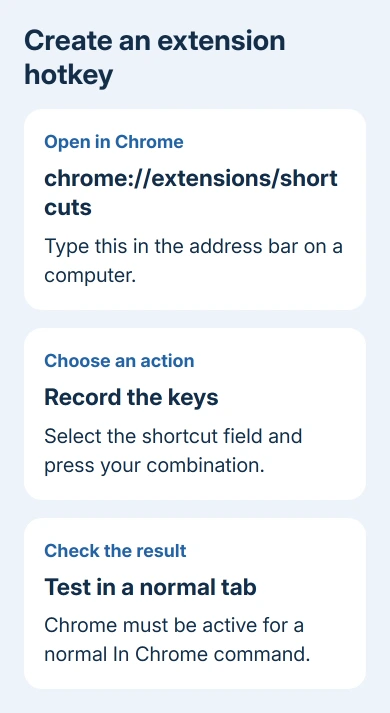
Look for the installed extension you want to control and read its action labels. An extension can offer several actions, such as opening its popup or starting one particular feature. Assign the keys beside the action you actually want.
Google's extension instructions describe this page as the place to assign your own shortcuts. The extension decides which commands it offers; entering a key combination doesn't create a new command inside the extension.
If you're looking for the existing tab, window, or search keys instead, use the Chrome shortcut reference. Knowing the original command helps avoid choosing keys that Chrome already needs.
Record a combination for one action
Start with one action to make testing the shortcut easier. Keep the extension's name and the action description in view. If you edit the wrong action, your keys can work but trigger something you didn't intend.
- Select the action's shortcut field or its edit button.
- Hold the modifier keys for your chosen combination.
- Press the final letter or number once, then release the keys.
- Check that the field displays the intended combination.
- Click away from the field, then switch to a regular webpage to test it.
For example, try Ctrl+Shift+Y on Windows or Linux if it's available. On a Mac, Command+Shift+Y is a similar choice. You can use these for testing; they aren't default shortcuts for every extension.
Don't type the text of the combination as ordinary letters. The field records the keys you press together. If it displays a different combination than intended, edit that field again before testing the command elsewhere.
Choose a normal webpage for a tool that acts on page content. Chrome's internal settings pages aren't a useful first test for an extension that edits or reads a website. The browser can restrict what extensions do on those pages.
Choose keys Chrome can accept
Windows and Linux extension hotkeys normally need Ctrl or Alt, with optional Shift. On macOS, Command, Control, and Option differ, so check the recorded keys instead of assuming a Windows combination transfers unchanged.
Ctrl+Alt combinations aren't permitted for extension commands because they conflict with AltGr on some keyboard layouts. A letter on its own also isn't the usual format for an extension shortcut. Follow any rejection shown by the editor.
Some Chrome and operating-system shortcuts take priority and can't be overridden. For example, don't build your setup around replacing an essential window command with an extension action. Pick an unused combination instead.
Another extension can also use the same keys. Check the other assignments on this page before settling on your choice. If Chrome won't accept the combination, try different keys before assuming the extension is broken.
I'd give related actions a memorable pattern after one shortcut works. Several new assignments make it harder to remember which action failed. A tidy pattern isn't useful when one combination conflicts with the system.
Keep the scope in Chrome unless you need more
The normal extension command works while Chrome has focus, meaning Chrome is the active app receiving your keyboard input. Test it with the Chrome window selected before expecting it to respond from another program.
Some commands offer a Global scope, which lets the shortcut work outside Chrome. If the editor offers this choice for your action, you can use the keys while another app is active. Not every extension action offers a global command.
After testing the shortcut in Chrome, try it with another app active where an accidental action won't cause trouble. If that app or the operating system already uses the keys, choose another combination. Global shortcuts work beyond Chrome.
ChromeOS doesn't support global extension commands through the Commands API, the system extensions use for shortcuts. Change Chromebook system keys through the Chromebook shortcut controls, separate from this browser editor.
When the extension or action isn't listed
Open chrome://extensions and check that the extension is present and enabled. If Chrome disabled it or shows an error, resolve that problem before changing its shortcut. An unavailable extension can't respond to its shortcut.
If the extension works from its toolbar button but doesn't offer the desired command in the shortcut editor, check the extension's own settings and help. Its developer has to provide the action; Chrome can't invent an unsupported operation.
For an action that works on one website but not another, open the extension's Details and check its site access. Follow the extension permission controls for the specific site the tool needs.
Grant access only where that action needs it. A keyboard shortcut doesn't bypass an extension's permissions, and assigning new keys won't make a website-reading tool work on a site it isn't allowed to read.
Built-in Chrome and website shortcuts use other rules
The extensions editor doesn't let you change built-in commands. Replacing Ctrl+T differs from assigning keys to open an extension's popup. Chrome doesn't have a built-in screen for changing those shortcuts.
A website can have its own shortcuts and a switch to enable them. You may need to select its page before using those keys. Check the site's keyboard or accessibility settings instead of adding an unrelated extension command.
For a persistent failure, give the extension's support contact the action name, assigned keys, operating system, and toolbar test result. For a managed work browser, ask your administrator about blocked settings.
The Short Version
Open chrome://extensions/shortcuts, pick an extension action, and press your chosen keys. Check conflicts and test with Chrome active. Built-in commands and website-specific shortcuts aren't editable through that page.
Checked November 15, 2026.
 If you have any business, I can build it online






