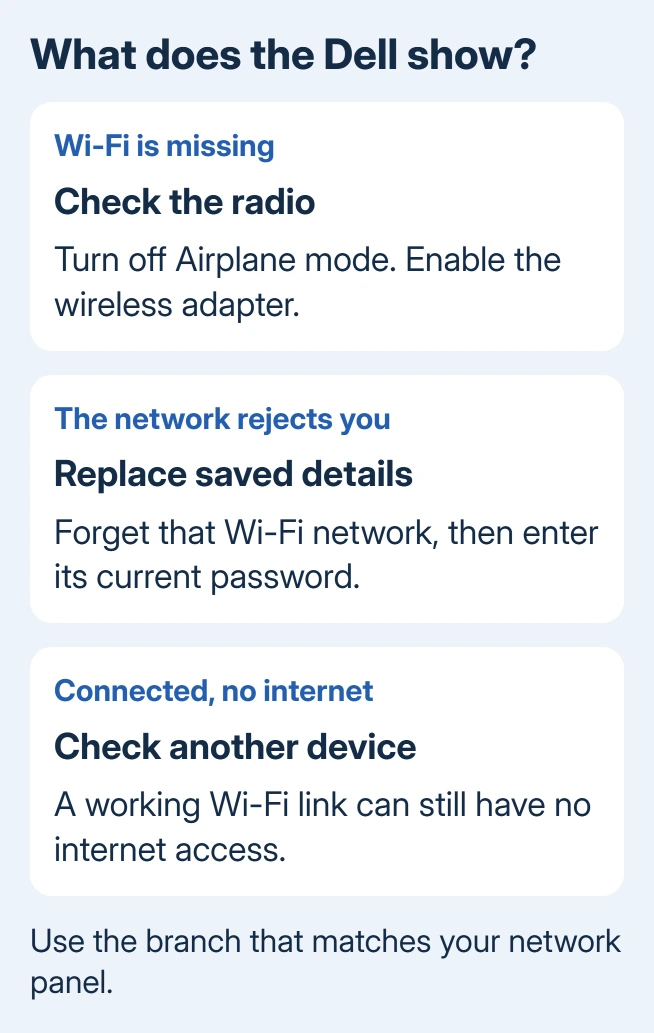
A missing Wi-Fi control on a Dell laptop can mean its wireless adapter is switched off. Check that the adapter is enabled first. If the network appears but won't accept a connection, forget its saved details and enter the current password.
A Connected, no internet message confirms the wireless link exists. Try another device on that router before replacing the Dell's driver. Choose the checks for what your laptop shows, then continue if it still won't connect.
In this guide
1. Turn the wireless radio back on
On Windows 11, click the network and sound area beside the clock. Switch off Airplane mode, then enable Wi-Fi. Open the available-network list and choose your network, then select Connect.
On Windows 10, open the clock area's network panel and use the Wi-Fi and Airplane mode tiles. Turning Airplane mode off doesn't always turn Wi-Fi back on, so check both controls.
Some older Dell models have a hardware wireless switch or a keyboard button with a wireless symbol. Check the switch position or your model's manual. Don't assume every Inspiron, Latitude, or XPS uses the same function key.
If the Wi-Fi option is absent, open Device Manager by right-clicking Start. Expand its Network adapters category. Find the wireless adapter. Its name may include Intel, Qualcomm, Realtek, Wireless, or Wi-Fi.
Right-click that adapter. If Enable device appears, select it and check the network panel again. If it already offers Disable device, it's enabled. Continue to the driver check if the radio still doesn't appear.
Microsoft lists this adapter check in its Wi-Fi connection instructions for missing adapters and rejected connections. When the Wi-Fi control is missing, check the adapter before spending time on the password.
2. Replace the saved network details
When other networks appear but your home network refuses to connect, remove its saved profile. Have the current Wi-Fi password ready first. Forgetting a network removes the details Windows uses to join it automatically.
In Windows 11, open Settings > Network & internet > Wi-Fi > Manage known networks. Find your network and select Forget. Return to the network list, select the network, and enter its password again.
In Windows 10, open Settings > Network & Internet > Wi-Fi > Manage known networks. Select the network, choose Forget, and reconnect from the taskbar network panel.
Check the network name when your router names its 2.4 GHz and 5 GHz bands separately. If it connects with the fresh details, the old saved profile or password was the problem. If it still fails, try another connection next.
3. Compare the router with a phone hotspot
Join that Wi-Fi from another device and load a webpage. Switch off cellular data on a phone during the comparison so the carrier can't supply its internet connection. If both devices fail, restart the router and modem.
Unplug their power, wait about 30 seconds, and reconnect the modem first. Let it reconnect to the provider, then power the router if it's separate. This restarts the equipment without erasing its settings.
If other devices work, try the Dell on a phone hotspot. A connection there shows that the laptop can use a wireless network. Next, check your home router's password, Wi-Fi band, and compatibility settings.
For a network that appears only on newer devices, check whether your Dell's adapter supports that Wi-Fi band. An older 2.4 GHz adapter can't join a 5 GHz-only network. Try the router's 2.4 GHz network when one is available.
Our laptop-only Wi-Fi troubleshooting develops that comparison further. If the Dell can't join either network, move to the adapter and driver rather than resetting the working router.
4. Treat Connected, no internet as a separate problem
When Windows shows Connected, no internet, the Dell has joined the access point. Open a browser and try a familiar website. At a hotel or other public network, complete its sign-in page if one opens.
If every device on that router is offline after the restart, contact the internet provider. Tell them that Wi-Fi connects but internet access fails across devices. Reinstalling the Dell's driver won't repair the provider's connection.
If only the Dell is offline, open Start, type Command Prompt, and select Run as administrator. Run these commands separately to request fresh network addressing and clear cached website addresses:
ipconfig /release
ipconfig /renew
ipconfig /flushdns
Reconnect and try a website again. If a personal VPN is active, disconnect it briefly for comparison, then restore it. Leave employer-managed VPN or proxy settings to IT when the problem affects a work network.
5. Match the Dell wireless driver to the actual laptop
In Device Manager > Network adapters, open the wireless adapter's Properties. Note its name, Device status, and the Driver tab's version. A warning symbol or error code points toward the driver rather than a rejected password.
Use Ethernet or a second computer to open Dell's driver selector. Identify the laptop by its Service Tag or exact model, then choose its installed Windows version and matching wireless driver.
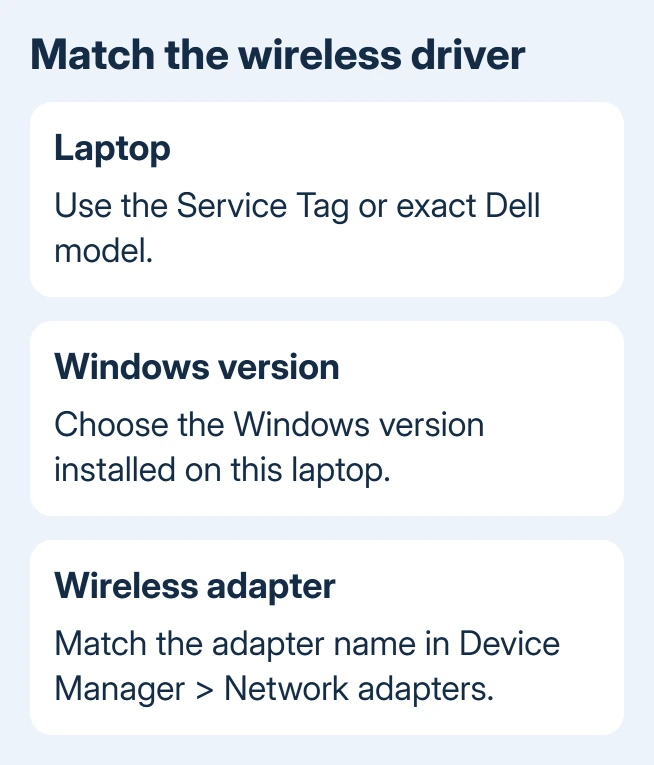
Match the adapter brand too. The same Dell model can have different wireless hardware, so choose your adapter's driver instead of installing every network package. Transfer the downloaded installer by USB if this laptop has no connection.
Run the matching package and restart. Check whether the adapter returns and joins the network. The offline network-driver guide explains how to prepare the download on another PC.
6. Reset networking or ask Dell to check detection
I'd save network reset for a laptop that still fails after the matching driver. It reinstalls adapters with their original network settings, so note any VPN setup you need to reinstall afterward.
In Windows 11, open Settings > Network & internet > Advanced network settings > Network reset. In Windows 10, use Settings > Network & Internet > Status > Network reset. Select Reset now and follow the restart prompt.
Rejoin Wi-Fi after the restart. For a still-missing adapter or a repeated Device Manager error after the correct driver, give Dell Support that error and your Service Tag. Ask why the laptop isn't detecting its wireless adapter correctly.
The Short Version
Restore the radio when Wi-Fi is missing, forget the saved network when joining fails, and compare another device when Wi-Fi connects without internet. Use the exact Dell wireless driver before network reset or a hardware-support request.
Checked November 15, 2026.
 If you have any business, I can build it online