

A blank Edge taskbar icon can follow your browser profile even when Edge opens normally. Start by signing the Edge profile out and back in. Owners saw the logo return, including one who said it stayed correct after signing back in.
Check when it changes, though. A blank pinned button before launch needs a shortcut check. A normal pin that turns blank only after Edge opens matches the profile-related case more closely.
In this guide
1. Compare the pinned icon with the running window
Close Edge and look at its taskbar button. Open Start, search for Microsoft Edge, and launch that result. Compare the icon before launch, while the browser runs, and after you close it again.
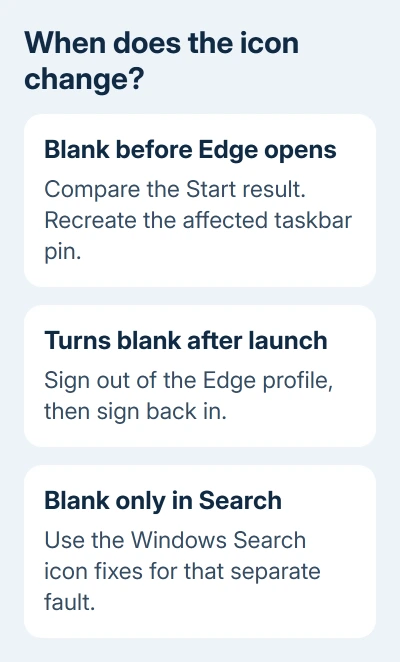
If the pin is already blank while the Start result is normal, skip to section 3. If the pin looks correct until Edge starts, try the profile sign-out next. Note whether switching between Edge profiles changes the icon too.
The original owner could restore the pin's picture by unpinning and repinning Edge. Opening the browser made it disappear again. They had also restarted Windows and deleted an icon cache without getting a lasting result.
I'd check the profile before rebuilding Windows caches. Recreating a pin won't fix a problem that returns when the signed-in window opens. Watching what happens when you open Edge is quicker than repairing Windows.
If many apps have blank pictures only in the Start search results, use the Windows Search icon fixes. That is a different location and pattern from a single running Edge taskbar button.
2. Sign out of the affected Edge profile, then sign back in
In the affected window, open Settings and more > Settings > Profiles. Use the account controls to Sign out, which can also mention turning off sync. Decline any option to clear your existing local browser data.
This signs you out of the browser profile, not Windows. Keep your Windows account and browser profile. Watch whether the taskbar picture changes when you sign out of that Edge profile.
Look at the running Edge icon while the profile is signed out. If the normal Edge logo returns, sign back into that same profile with the same Microsoft account. Check the taskbar again, then close and reopen Edge once.
An owner said signing out restored the picture, and it stayed correct after they signed back in. Another saw the icon return when they signed out. That makes this useful to try, though a blank icon doesn't always mean an account problem.
Microsoft's profile and sync instructions explain signing in and out of Edge. Check the profile's sync status after signing back in if you normally sync browser data across devices.
If the icon stays normal only while you're signed out, tell Edge support and keep your existing profile. Support can then check what happens when you sign in, rather than working only from a report of a missing picture.
If the profile was never signed in, skip this step. Adding an account just to sign it out serves no purpose. Check the shortcut and repair options instead.
3. Replace a broken taskbar pin from the actual Edge app
Right-click the blank taskbar button for Edge, then choose Unpin from taskbar. Open Start, search for Microsoft Edge, then right-click its result and choose Pin to taskbar. Some Windows menus place the pin command under More.
Another Windows 11 route is to launch Edge from Start, right-click its running taskbar button and choose Pin to taskbar. Windows 10 offers the same pin command on a running app's taskbar menu.
Open and close Edge after pinning it. If the shortcut is fixed, the normal logo stays through that cycle. If it turns blank only after a particular profile opens, mention that profile when you report the problem.
Don't confuse the main Edge app with a website installed as an app. An installed website may use a separate taskbar button with a different picture. Launching the main Microsoft Edge result from Start makes that distinction easier to check.
For a missing website shortcut rather than the browser's own icon, follow the pinned-site steps. A website has its own pin, so check that separately from the main browser shortcut.
4. Repair Edge if both the shortcut and profile checks fail
Close Edge for every signed-in Windows user. On Windows 11, open Settings > Apps > Installed apps, locate Microsoft Edge, open its menu and select Modify. Approve the permission prompt and choose Repair.
On Windows 10, go to Settings > Apps > Apps & features, select Microsoft Edge, then choose Modify > Repair. Keep the internet connected. The repair downloads the browser components and should keep your settings and browser data.
A later reply said the Modify repair brought back Edge's icons, including its taskbar picture. This repairs the browser. It's a different procedure from the Windows repair installation an adviser suggested elsewhere in the discussion.
If Modify isn't available, ask IT to check how Edge is installed on your work PC. When the repair finishes, reopen Edge and check its running icon again. If that works but the old pin is still blank, replace the pin once.
The repair is described in the Edge troubleshooting instructions. It needs administrative permission, so IT may need to perform it on a managed PC.
When the icon still turns blank
Open the three-dot menu, choose Help and feedback, then select Send feedback. Include the version from edge://settings/help, Windows version, and icon behavior before launch and after each account change. Note how other icons look.
Ask support about the profile if signing out changes the icon. If many Windows icons are affected, report that wider problem to IT or Microsoft Support. Don't reinstall Windows just because an adviser suggested it in the old discussion.
The Short Version
Watch the icon before launching Edge and after its window opens. Refresh the existing Edge profile session for the second case, recreate the pin for the first, and use Edge's Windows repair if both checks fail.
Checked November 23, 2026.
 If you have any business, I can build it online






