

Edge blocks an .exe like this when the download doesn't look deliberate to it, usually because the link came from a site you hadn't visited before today. It doesn't mean the file is infected; Edge is wary of the file type itself.
If you trust where the file came from, press Ctrl+J, open the More actions menu (three dots) beside the file and choose Keep. Edge then finishes saving it under its real name.
Two other download warnings look similar but mean something different, so check which one you have first.
In this guide
Which download warning is it?
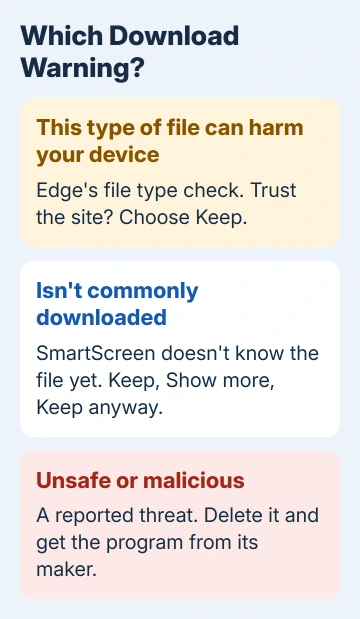
- ".exe was blocked because this type of file can harm your device" comes from Edge's file-type check. The file may be perfectly fine, and step 1 keeps it.
- An unknown-file warning, which asks you to make sure you trust the file, comes from SmartScreen, Microsoft's built-in download checker: it hasn't seen this file often enough to vouch for it. Step 2 gets you past it.
- A red warning that calls the file unsafe or malicious means SmartScreen matched it to a reported threat. Delete it and get the program from its maker's own website.
Why Edge stops the file
Edge sorts file types by how much harm they can do. A .txt file downloads freely, while an .exe sits in a group that Edge lets through automatically only when two things are true.
First, you clicked a link to start the download. Second, you'd visited the page offering it before the most recent midnight, so yesterday or earlier. A first visit today fails that test.
Microsoft's page on download interruptions explains that Edge also lets these files through when you use Save link as or type the file's address straight into the address bar.
A file that SmartScreen already knows is safe gets through too. Everything else is stopped with the was blocked message.
1. Keep the file from the Downloads panel
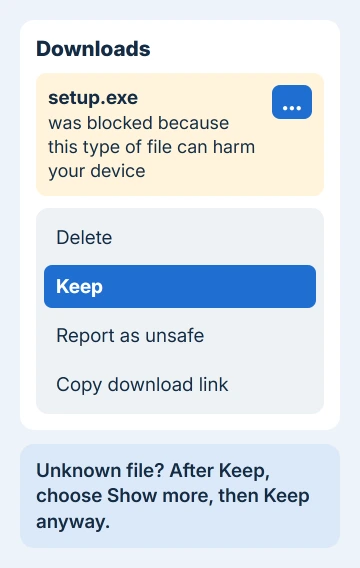
Press Ctrl+J to open Downloads, point at the blocked file and click the three dots (More actions), then choose Keep. On the full downloads page, edge://downloads, the same Keep and Delete choices sit under each file's three dots.
Until you choose, the file waits in your Downloads folder under a name like Unconfirmed 557344.crdownload. One owner found that renaming that file by hand also worked, but Keep does it properly in one click.
Once you click Keep, Edge offers to open the file, or you can open it later from the Downloads panel.
Don't look for a Report as safe option on this warning. The same owner saw only Delete, Keep, Report as unsafe and Copy download link in that menu. That fits: this block is about the file type, not a SmartScreen verdict you could dispute.
2. Unknown file? Choose Keep, then Keep anyway
New programs and rarely downloaded tools can also get SmartScreen's unknown-file warning, on its own or after the first one. Choose Keep, then Show more, then Keep anyway.
SmartScreen judges a file partly by how often it's downloaded and how long it's been around, so a brand-new release can warn for a while even from an honest developer. Only push past it for a file from the maker's own website.
3. Download it the way Edge counts as deliberate
For a file you'll download again, give Edge the signal it's looking for. Right-click the download link, choose Save link as and pick a folder: Edge treats that as a deliberate download and doesn't interrupt it.
Pasting the file's direct link into the address bar works the same way. And once you've visited the site on an earlier day, the same link usually goes straight through, because the site now counts as one you know.
4. Leave SmartScreen switched on
Turning off SmartScreen under Settings > Privacy, search, and services > Security won't get rid of this warning. The block comes from the file type, and SmartScreen marking a file as safe is one of the things that lets it through.
Switching it off only removes that route, along with your protection from downloads already reported as malware. I'd leave it on and use step 1 for the odd file you trust.
5. Stop the warning for one site you trust
If you download from one site all the time, Edge has a policy (a setting companies normally manage) for exactly this: ExemptFileTypeDownloadWarnings, available from Edge 105 on Windows and macOS. On a work PC, IT would have to set it.
On your own PC, back up the registry first. Then open Registry Editor, go to HKEY_LOCAL_MACHINE\SOFTWARE\Policies\Microsoft\Edge, and create the Edge key if it isn't there.
Add a String Value named ExemptFileTypeDownloadWarnings (right-click > New > String Value) and give it this value, with your site in place of example.com:
[{"file_extension": "exe", "domains": ["example.com"]}]Restart Edge and open edge://policy to check that it loaded. Edge will also start saying it's managed by your organization, which is normal once any policy is set.
Files from that site still get SmartScreen and mixed-content warnings (an http download started from an https page), and exempting every site for a risky type like exe is a bad idea.
When Edge still won't let it through
If the file downloads and then vanishes, or the panel says a virus was detected, Windows Security removed it. That's a different block, and the virus detected steps show where to look in Protection history.
A download that stops partway with a network error is another problem again, and Edge's Network issue message has its own fixes.
If a developer's installer trips the warning every single time, let the developer know. They can't change your browser, but they'll want to hear about it.
The Short Version
The was blocked message is Edge's file-type check, not a virus warning. Press Ctrl+J, open the three dots on the file and choose Keep; for an unknown file, follow with Show more and Keep anyway.
Save link as or a typed download address avoids the block next time. For one trusted site, the ExemptFileTypeDownloadWarnings policy stops it for good.
Checked November 19, 2026.
 If you have any business, I can build it online






