

Microsoft Edge gets your position from Windows and hands it only to sites you allow. When a map in Edge can't find you but Chrome or Weather can, the block is usually Edge's permission for that site or Windows' switch for desktop apps.
A wrong city is a different problem: Windows is guessing from your IP address, a VPN or a default location. I'd check the site's own permission first, since it's one click from the address bar.
In this guide
1. Allow location for that site
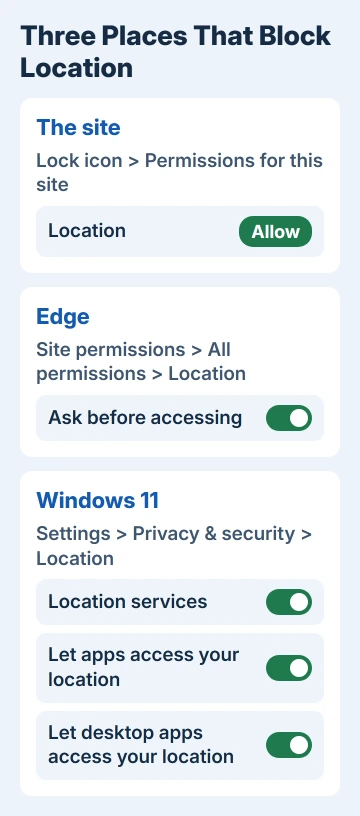
Open the site, click the padlock next to its web address (some pages show an Info icon there instead) and pick Permissions for this site. Set Location to Allow, or back to Ask, then reload the page.
If you ever clicked Block for that site, it stays blocked without saying so. Edge won't ask again until you change it here, which is why a map can sit on a blank spot with no prompt at all.
When it works, the site either asks for your location or jumps straight to it. A small location icon also shows in the taskbar's notification area, by the clock, while Edge is using your location. Hover over it to see Edge's name.
2. Check Edge's own location setting
Go to Settings and more (…) > Settings > Privacy, search, and services > Site permissions > All permissions > Location. Make sure Ask before accessing (recommended) is on.
With it off, Edge won't share your precise location with any website. On the same page, look through the Block list and remove the site if it's there, along with any other site you didn't mean to block.
If that switch is grayed out and Edge says your organization manages it, a policy is making the choice for you. A policy is a setting pushed onto Edge from outside, so you can't change it from this page.
On a work PC, that's your IT team. On a home PC, privacy tools sometimes leave Edge policies behind that lock settings like this.
Open edge://policy from the address bar, then find DefaultGeolocationSetting in the list. The policy's documentation lists 2 as "Don't allow any site to track users' physical location", so a 2 there blocks every map you open.
3. Let Windows share location with desktop apps
In Windows 11, open Settings > Privacy & security > Location and switch on Location services. Let apps access your location needs to be on too, and so does Let desktop apps access your location further down the page.
Edge counts as a desktop app, so that last switch matters most. Desktop apps don't get their own switches the way Store apps do; they're allowed or blocked as a group.
In Windows 10, the same three switches live under Settings > Privacy > Location. Their names start with Allow rather than Let, and the desktop apps switch still sits near the bottom.
Only an administrator account can turn on Location services. On a standard account the setting doesn't appear at all, so ask whoever set up the PC to switch it on.
If everything is on and the site still gets nothing, reload it once more, then check the taskbar for the location icon. If it shows up, Edge is asking Windows for your position, so the problem is inside Edge and updating it comes next.
4. Update Edge
Select Settings and more > Help and feedback > About Microsoft Edge. Edge checks for an update and installs it; select Restart when it's done.
A broken release can cause exactly this. In June 2023, Edge 114 stopped giving sites any location at all, even with every permission on, while the taskbar showed Edge asking for it.
Version 114.0.1823.43 fixed it within days, and owners confirmed their maps worked again after updating.
While the bug lasted, one owner got Edge working by turning Let desktop apps access your location off. Others confirmed it, though one found Maps and Weather stopped working with it off.
It was a stopgap for a bug that's long fixed, so keep the switch on and update instead.
5. Fix a location that's wrong, not missing
Windows works out where you are from GPS, nearby Wi-Fi networks, cell towers, your IP address or a default location. A laptop on Wi-Fi usually lands close. A desktop on an Ethernet cable may only have its IP address to go on.
Give that PC a default: Settings > Privacy & security > Location > Default location > Set default. Windows uses it whenever it can't do better, and Microsoft's location page recommends it for desktops.
A VPN changes your IP address, and sites that guess from it will place you near the VPN server. Pause the VPN, reload the page and compare. If the position jumps to where you are, the VPN was the cause.
The same location setting drives Windows' automatic time zone. If the clock is also wrong, the grayed-out time zone fix starts from the same switch.
When Edge still can't find you
Create a fresh profile from the profile icon (Add profile) and try the site there. If location works in the new profile, something in your usual profile is blocking it, so go back through steps 1 and 2 there.
If it fails everywhere in Edge but works in other browsers, press Alt + Shift + I to send Microsoft feedback, with your Edge version and the site's address.
Work PC? Ask IT whether a location policy covers your account.
The Short Version
Edge takes location from Windows and gives it only to sites you allow. Check the site's permission, Edge's Location setting and the Windows switches, including desktop apps, then update Edge.
For a city that's wrong rather than missing, set a default location in Windows or pause your VPN.
Checked November 19, 2026.
 If you have any business, I can build it online






