

The Time zone list in your Settings is gray, the clock is an hour or more off, and you cannot pick the right zone. Toggling switches has not helped.
I would check Location before touching anything else, because Windows works out your zone from where it thinks the PC is.
On Microsoft Q&A, a January 2022 thread about the locked list shows Same question (70+), and a second one adds 60+ more.
Why the list is locked
The Date and time page has two switches that look alike. Set time automatically syncs the clock. Set time zone automatically picks the zone, and while it is on, the list stays locked on purpose.
One owner switched off the clock one and still could not choose a zone. Check which of the two you changed.
Microsoft's time and time zone steps give the order: the time zone switch goes off first, then you choose from the list.
If that switch is off and your list is still gray, something else is holding it. Microsoft's troubleshooting article calls the automatic switch "a system wide setting that applies to all user profiles on a machine".
That matters on a standard account. Microsoft says "Non-administrator users cannot change or interact with the Set time zone automatically setting".
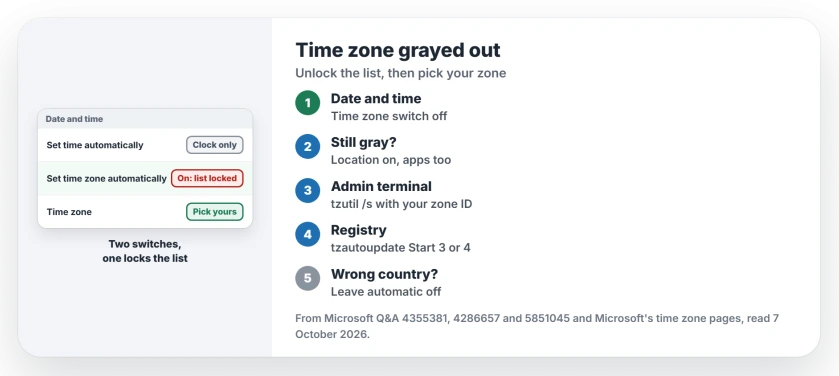
Status: checked 7 October 2026. A grayed time zone list was unlocked for owners by turning Location on, or by tzutil in an administrator terminal. Microsoft documents the service behind it.
Ours: on this laptop, the tzautoupdate service's Start value reads 4 and Location reads Allow. By Microsoft's table, 4 means the automatic switch is off, and tzutil /g answers Pakistan Standard Time.
1. Find the right switch
Open your Settings, then Time and language, then Date and time. Windows 10 uses the same names.
Switch Set time zone automatically off, leaving Set time automatically alone. With that one off, the list should unlock.
If you use a standard account, the switch may be missing or locked. Use an administrator account, or ask whoever owns the PC to change it.
2. Turn Location on, for the PC and for apps
On the 70+ thread, the top-voted reply is from an owner with this exact lock. In their words: "I solved it by going to the privacy settings".
There they turned on Location services and Let apps access your location. That reply has 40+ helpful votes.
A volunteer moderator on the second thread gave the reason: "That happens when Windows does not know your location".
On Windows 11 the switches sit under Settings, Privacy and security, Location. On Windows 10, look under Settings, Privacy, Location.
Ours: after turning Location on, I would switch the automatic zone off and on once, then see which zone it picks.
3. Set the zone with tzutil as an administrator
The Command Prompt tool tzutil sets the zone directly. Its own help says /l "Lists all valid time zone IDs and display names", and /s sets one.
The window you run it in matters. An owner with the same fault wrote that tzutil "fixed my concern", and that the asker's attempt failed because they "opened a standard terminal rather than an administrative terminal".
Press Windows+X and choose Terminal (Admin), or Windows PowerShell (Admin) on Windows 10. Run these, with your own zone ID from the list in place of Eastern Standard Time.
tzutil /l
tzutil /s "Eastern Standard Time"
The ID is the second line of each pair in the list. Check the result with tzutil /g.
The service and values Microsoft documents
Microsoft's time zone troubleshooting article names the two values behind the switches, and you need Registry Editor run as an administrator to change them. Both live in the registry.
The service sits at HKEY_LOCAL_MACHINE\SYSTEM\CurrentControlSet\Services\tzautoupdate. Its Start value is 3 for automatic zones, or 4 to turn them off.
Location sits under CapabilityAccessManager\ConsentStore\location, with a Value of Allow or Deny. A policy can override both. Then, Microsoft warns, "you must reverse the policy otherwise it will override the manual editing of the entry".
A support answer with 50+ helpful votes used the same lever from the Services window. With the Auto Time Zone Updater service disabled, it says "the manual time zone dropdown control is enabled automatically".
When automatic picks the wrong country
A different fault looks similar. One owner in Australia found that with the switch on, "it instantly reverts to Istanbul", on a brand new laptop.
A volunteer moderator, also in Australia, saw it "changing to Dublin time until I turned off automatic time zone detection".
The owner's own test pointed at their network: "If I hotspot the laptop to my phone, everything works fine".
Ours: if your zone keeps jumping to another country, leave automatic off and pick yours by hand. Retry automatic after your next update.
Why does my clock still look wrong after I fix the zone?
A correct zone with a wrong hour after every restart is a different fault. Our clock wrong after restart page reads the size of the gap first, from Linux dual boots to a flat CMOS battery.
In Alberta or British Columbia? Our Alberta and BC page covers the zone names Microsoft is adding for the 1 November change.
On a Mac instead? The Mac time zone page covers a Closest City list that only offers places in the wrong zone.
The Short Version
- The Time zone list locks while Set time zone automatically is on, by design.
- Switch off that one, not Set time automatically.
- Location services and Let apps access your location unlocked it for owners.
- tzutil /s in an administrator terminal sets the zone directly.
- Standard accounts cannot change the automatic switch, Microsoft says.
Where to Next
First, open Date and time and see which of the two switches is off. It is the quickest check.
Zone list still gray after both checks? Mention your Windows edition when you comment, and whether a school or company manages the PC, so I can look at the policy side.

Isaac Smith is the founder and editor of PC Glance, a website that covers computers, laptops, and technology. He is a tech enthusiast and a computer geek who loves to share his insights and help his readers make smart choices when buying tech gadgets or laptops. He is always curious and updated about the latest tech trends.