

Drawings that show on a PDF in Microsoft Edge but vanish from the saved file are a fault in Edge's newer PDF viewer, the one built on Adobe's engine. Owners fixed it by switching Edge back to the older viewer, which kept their drawings.
How you switch depends on your Edge version, and Microsoft plans to retire the old viewer in Edge 162. That's why the last step covers apps that will still handle signatures after that.
In this guide
1. Check the Save icon right after you draw
Open the PDF in Edge, select Draw in the PDF toolbar and make one mark. Then look at the Save icon at the right of that toolbar: it should light up as soon as you've drawn something.
If it does, choose Save as and save a copy to Documents or your desktop. Close it, reopen the copy and look for your ink. A fresh copy in a folder you own takes Downloads, OneDrive and email attachments out of the picture.
For a PDF that came by email, save the attachment to Documents first. Then right-click the saved file in File Explorer, pick Open with and select Microsoft Edge. That way Save writes to a file you can actually find again.
If the icon stays gray after you draw, Edge isn't treating your ink as a change, and saving won't keep it. That's the fault the next two steps deal with.
2. On older Edge versions, turn off the new viewer in flags
Go to edge://flags, Edge's page of experimental settings, and type PDF Viewer into the search box. Set New PDF Viewer to Disabled and select Restart.
Draw on the PDF again. The Save icon should now light up after the first mark.
This was the accepted answer on Microsoft's forum in August 2024, and owners were still thanking its author in May 2025. One added that checkboxes and the eraser started working again too.
By July 2026, though, one owner found that Edge no longer lets you turn the new viewer off in flags. If the entry is gone, or switching it changes nothing, go to step 3.
3. Up to Edge 161, use the policy (Windows)
Edge keeps one switch for organizations that still need the old viewer: the NewPDFReaderEnabled policy. It's been marked for removal since Edge 156 and is planned to stop working in Edge 162, so it's a stopgap at best.
Check your version first by typing edge://settings/help in the address bar. Then search the Start menu for cmd, select Run as administrator and paste this command:
reg add "HKEY_LOCAL_MACHINE\SOFTWARE\Policies\Microsoft\Edge\Recommended" /v "NewPDFReaderEnabled" /t REG_DWORD /d 0 /fClose every Edge window, then end any leftover Microsoft Edge entries in Task Manager, or just restart the PC. Edge tends to stay open in the background, and the change only kicks in once it fully restarts.
Owners used this exact command to bring the old viewer back in July 2026, and it still worked for them weeks later. To check it took, type edge://policy and look for NewPDFReaderEnabled in the list.
Setting any policy makes Edge act as if an organization manages it, which can lock settings such as Secure DNS. Once you're done with the old viewer, undo the change with:
reg delete "HKEY_LOCAL_MACHINE\SOFTWARE\Policies\Microsoft\Edge\Recommended" /v "NewPDFReaderEnabled" /fA Mac has no registry (the Windows settings store this command edits), so this route is for Windows only. On a Mac, go straight to step 4, where Preview does the same job.
4. Use another PDF app for signatures
Microsoft plans to end that policy in Edge 162, and the old viewer goes with it. So if you collect signatures on a touchscreen, a proper PDF app is the lasting answer. I'd set one up now rather than wait for Edge to change under you.
Adobe Acrobat Reader is free and has a Fill & Sign tool built for exactly this. In File Explorer, right-click the PDF, choose Open with and pick Acrobat Reader.
Open Fill & Sign, add a signature and draw it with your finger or pen, then save. The signature stays in the file, and Reader can keep it for next time, which saves a step with every client after the first.
One owner suggested using Firefox until Microsoft fixes Edge. Its built-in PDF viewer has its own drawing tool and saves the ink into the file, so it suits anyone who'd rather not install a PDF app.
On a Mac, Preview already does this. Open the PDF in Preview, show the Markup toolbar and use Sign or the drawing tools, then save the file.
If you sign PDFs every day on Windows, make that app the default: in Windows 11, open Settings > Apps > Default apps, type .pdf in the search box and choose the app you picked.
When the drawings still don't stick
Report it from the PDF tab with Edge's feedback shortcut, Alt + Shift + I, and add your Edge version and whether Save lights up. The more reports Microsoft gets, the better the odds of a fix in the new viewer.
Another owner's drawings showed in the saved copy inside Edge but were gone once the PDF was attached to an email, and no fix was posted for that. For signed paperwork, open your saved copy in a second app before you send it.
If typed text disappears rather than ink, that's a separate bug with its own font fix for Edge PDFs, and the steps differ.
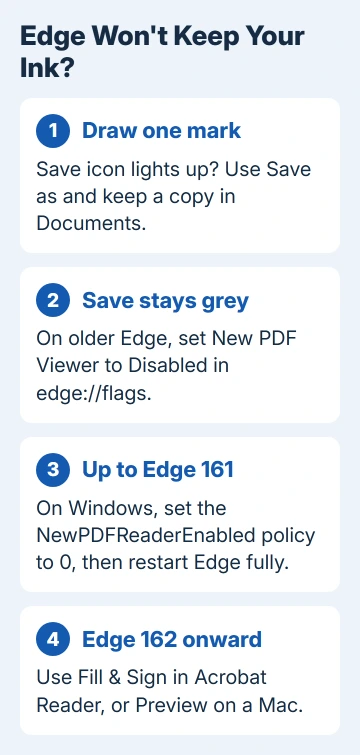
The Short Version
Draw a mark and check whether Edge's Save icon lights up. If it stays gray, disable New PDF Viewer in edge://flags on older Edge, or set the NewPDFReaderEnabled policy to 0 in Windows.
That policy works until Edge 162. After that, use Acrobat Reader's Fill & Sign, Preview on a Mac, or another PDF app.
Checked November 19, 2026.
 If you have any business, I can build it online






