

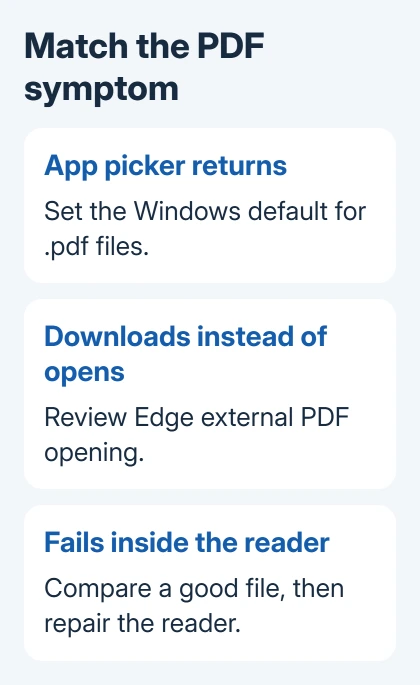
A repeated prompt to choose a PDF app points to Windows' default app setting for .pdf files. If PDFs download instead of opening, turn off Edge's external-PDF option to use its built-in reader.
Owners reported both problems after a Windows 10 update. Some fixed the PDF setting, while the original asker needed an Edge reinstall. Start with the setting that matches your screen before changing the installation.
In this guide
1. Open a saved PDF from inside the reader
Save one affected PDF somewhere easy to locate, such as Downloads. Open Edge, press Ctrl + O, select that file and choose Open. Watch whether it becomes a readable document in a browser tab.
This checks the reader without depending on what Windows does when you double-click a PDF. If it opens this way but double-clicking brings back the app picker, change its .pdf default using section 2.
If Edge can't open it, try opening the same file from another installed PDF reader's File > Open command. Also try a different PDF you've opened successfully before, so one damaged download doesn't send you into a browser repair.
A document that fails in every reader on every device needs a fresh copy from its sender. If another device opens it successfully while this PC fails, continue with the local settings and repair steps.
Keep the original file while testing. Use a copy if you need to experiment with saving or printing it; overwriting your only copy won't explain the opening failure.
2. Give .pdf files one default app in Windows
On Windows 11, open Settings > Apps > Default apps. Search for .pdf in the file-type search box, select its current app and choose Microsoft Edge or your preferred installed PDF reader.
Confirm with Set default or the confirmation button shown. Return to File Explorer and double-click your saved PDF. A successful change opens the document in that app without asking you again.
On Windows 10, open Settings > Apps > Default apps, then Choose default apps by file type. Find .pdf, select the app beside it and choose the reader you want.
The default-app instructions explain how Windows assigns a program to a file extension. Setting Edge as your web browser is a separate choice from assigning .pdf files.
Another route is to right-click a PDF and choose Open with > Choose another app. Select the reader, then use Always on Windows 11, or check Always use this app to open .pdf files on Windows 10 before confirming.
Choosing an app only for that one opening won't necessarily change the next double-click. Check the confirmation choice carefully if the same app picker keeps returning.
If Windows remembers your choice but the file still won't open, use the earlier result from opening the file inside the reader. A default-app change can't repair a reader that also fails when you select its own Open command.
3. Stop Edge sending PDFs back to an external app
Enter edge://settings/content/pdfDocuments in the address bar. Find the control for downloading PDFs or opening them externally. Its wording varies between Edge versions; older releases called it Always open PDF files externally.
For reading inside Edge, switch this control off. Close and reopen the browser, then try the PDF again. The expected result is a document tab with Edge's PDF controls, rather than another download or an app-selection prompt.
Owners in the PDF-opening discussion confirmed that turning the external-opening setting off restored viewing. One could use their laptop pen to mark PDFs again afterward.
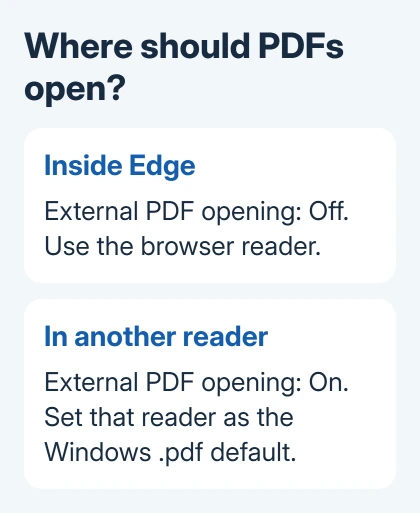
If you prefer Acrobat or another reader, keep the external/download choice on and give .pdf files to that reader in Windows. Both settings should send the document to the same reader.
With external opening on and Edge also set as the Windows PDF app, a file can be passed back to the browser instead of reaching another reader. Change which app receives the PDF rather than choosing Edge in the same prompt again.
On a managed PC, a policy can force external opening. Open edge://policy and look for AlwaysOpenPdfExternally if the setting is locked. Ask IT to review that policy rather than editing the registry yourself.
If the document opens but your typed annotations disappear later, use the Edge PDF text fix. That's a separate saving or text-rendering problem, not this opening loop.
4. Repair Edge when its reader still fails
Check edge://settings/help for a browser update and complete any offered restart. Then try the same saved file again. Use the file that opened successfully elsewhere so you're checking Edge with a working PDF.
On Windows 11, open Settings > Apps > Installed apps. Find Microsoft Edge, open its three-dot menu and select Modify. Approve the Windows permission prompt, then select Repair.
On Windows 10, use Settings > Apps > Apps & features > Microsoft Edge > Modify > Repair. Repair needs an internet connection to retrieve its browser files.
Repair is intended to preserve browser data and settings. If Modify isn't available on an organization-managed installation, ask IT to repair Edge instead of trying a forced uninstall.
The original asker fixed their 2020 installation by uninstalling and reinstalling Edge. A later owner said reinstalling twice didn't help, so that result isn't a reason to promise the same outcome on other PCs.
Modern Windows may not offer Edge's Uninstall button. Use the supported Repair route, then ask support about reinstalling if Repair fails. Old package-removal commands can target the retired Edge browser instead.
If PDFs open and only printing fails, the Microsoft Print to PDF guide handles that later stage. Reassigning the PDF app won't repair a print dialog.
When neither reader can open the document
For an Edge-only failure, open Help and feedback from the three-dot menu, then select Send feedback. Include the browser version shown under About Microsoft Edge, whether Ctrl + O works and whether the external-PDF option is on.
If the app prompt keeps returning with several readers, ask Windows support to review the .pdf default setting. Explain that the same file works on another device and list the default-app changes already tried.
If a business PDF must stay private, describe the behavior without uploading its contents publicly. Ask the sender for a harmless sample that shows the same problem if support needs a file.
The Short Version
Fix the Windows .pdf default for repeated app prompts. Turn external PDF opening off to use Edge's reader, or choose another default reader if you want external opening. Repair Edge only if its reader still fails.
Checked November 23, 2026.
 If you have any business, I can build it online






