

Pages showing plain text, scattered links or missing layout in Edge can be failing to download their style files. Reload once with Ctrl + F5, then compare another browser and another connection before resetting Edge.
If the same laptop shows broken pages in several browsers but works on another network, take that result to your internet provider. That was the fix in the reported case, even though a tablet worked on the home Wi-Fi.
In this guide
1. Reload the broken page without its saved files
Press Ctrl + F5 while viewing the affected page in Edge. If F5 normally changes the volume or brightness, you may need Ctrl + Fn + F5 to send the actual F5 key.
Wait for loading to finish, then check whether the text, menus and pictures return to their usual positions. This reload asks for fresh page files instead of relying on copies already stored by the browser.
Web pages often download their layout separately from their text. Those layout instructions are called CSS, or style sheets. If they don't arrive, the words can appear while the page looks unfinished or badly arranged.
If reloading restores the layout, use the page normally and watch whether the fault returns. The Edge cache steps explain clearing cached files if an old page copy keeps causing trouble.
If nothing changes, open the same address in an InPrivate window with Ctrl + Shift + N. Check how the page looks. Having to sign in again in the private window is a separate issue.
An InPrivate window uses separate website data. Extensions usually stay off in private windows unless you permit them. If the page works privately, continue with the Edge-only checks. If it stays broken, compare another browser next.
2. Compare the same address in another browser
Open the affected address in another browser already installed on the PC. Keep the website and connection the same for this comparison. Opening a different website won't tell you whether the broken page's files can load.
If another browser shows the complete page, check Edge's saved data, extensions and settings. Use the next section before changing the router or asking for a new internet plan.
If Edge and the other browser both show the same broken layout, move to the connection comparison. Installing several more browsers is unlikely to add much once two show the same failure on the same PC.
One owner in the page-display discussion tried Edge, Firefox and Chrome. The pages looked wrong in all three, and an Edge reset and repair didn't correct them.
Those browsers use the same connection and software that checks web traffic. That comparison hasn't identified a cause yet, so try another network before making broad changes.
3. When the fault follows only your normal Edge window
Enter edge://extensions in Edge's address bar. Temporarily turn off page-blocking or page-styling extensions, then reload the affected page in a normal window.
If its layout returns, turn the extensions on individually and reload after each change. Keep the one that breaks the page disabled for that website, or adjust its site permission if the extension offers that option.
For missing pictures with an otherwise normal page, the Edge image-loading checks cover blocked images separately. A missing photograph isn't necessarily a failure of the whole page's layout.
If extensions aren't the cause, remove only that website's stored data. Deleting its cookies ends its signed-in session, so have its sign-in method available before you delete anything.
Open the three-dot Settings and more menu, then Settings > Privacy, search, and services > Cookies. Choose See all cookies and site data and type the site's name into the search box.
Expand that site's entry with the arrow beside it, choose Delete and reload the affected page.
Update Edge through edge://settings/help, complete the offered restart and revisit the same address. If the page works in every browser except an updated Edge, send Edge feedback with that comparison.
4. Move the affected laptop to another connection
Connect the laptop to a trusted alternative, such as your own phone's mobile hotspot or another home network. Disconnect from the original Wi-Fi so the browser is actually using the connection you're testing.
Open the same affected addresses without changing browser settings. If they display correctly now, return to the original connection and check again. If the pages break again on your original connection, tell your provider what happened.
Keep this comparison short on a metered hotspot. Loading two affected pages is enough; a large operating-system download or a long speed test isn't needed to check the layout.
The reported laptop displayed the pages correctly at a friend's home. The owner later confirmed that their internet provider found the problem on its side and the issue was resolved.
A phone or tablet working on your home Wi-Fi doesn't end this check. In that case the owner's iPad worked on the same home network while the laptop didn't. Test the affected laptop on another connection too.
If the pages remain broken on the alternate connection, check the security software or any VPN set up on that PC. Update the security app and request support for its website filter rather than leaving protection switched off.
5. Give the provider the comparison that matters
Contact the internet provider when the affected laptop works elsewhere but repeatedly fails on your connection. Give them the exact page addresses, approximate times and what happened on each connection.
Ask them to check why those sites' page resources aren't reaching the laptop correctly. Include that several browsers fail, rather than reporting it only as an Edge problem. Also report whether other devices work through your Wi-Fi.
Microsoft's connection troubleshooting page also separates reaching the router from trouble with the modem or provider. A connected Wi-Fi icon doesn't mean every website resource arrived.
Ask the provider how to restart its modem or router. Factory reset wipes the configuration instead of simply restarting the equipment. Don't press the recessed Reset button for this comparison.
If an Ethernet connection shows the same fault, tell the provider that too. In the discussion, bypassing the home router didn't fix it. Changing DNS servers and disabling secure DNS also failed for that owner.
I'd keep those failed changes out of the repair unless the provider requests a specific comparison. A fast speed-test result doesn't rule out a problem reaching particular sites, and buying more speed didn't settle this case.
When the page is still broken everywhere
When unrelated networks and different devices all fail on that page, report it to the site's support team. Send the address and a cropped image showing the layout, along with the browsers and networks you tried.
For Edge alone failing, choose Help and feedback > Send feedback from its menu. Give the version and InPrivate result. If the fault happens only on your connection, give the provider the results from both networks.
The Short Version
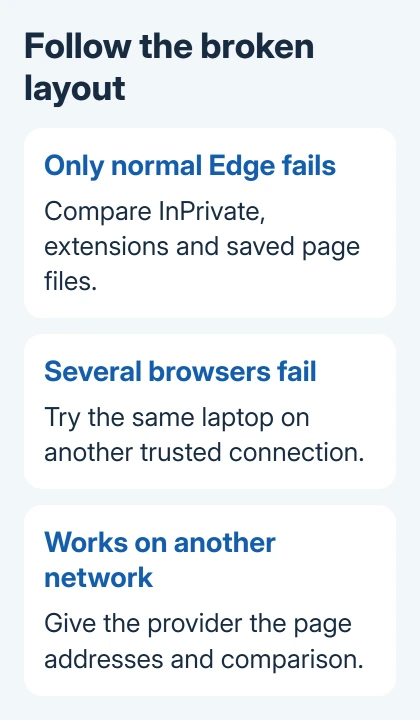
Reload the page, compare browsers, then test the same laptop on a different network. If the fault follows the connection, give the provider that result before resetting or reinstalling Edge.
Checked November 23, 2026.
 If you have any business, I can build it online






