

Windows has no safe Task Manager button to end every unnecessary task. Close apps you recognize and aren't using, then disable unwanted startup entries. Killing all background processes can interrupt useful work or make Windows unstable.
The useful question is which app is slowing the PC or running when you don't need it. Task Manager's CPU, Memory, Disk and Network columns help you see that. A long process list doesn't tell you that those tasks need closing.
In this guide
Decide what can close before touching End task
Start with visible apps. Save your work, close the browser tabs you don't need, and quit unused editors, game launchers or meeting apps through their own menus. This gives each app a chance to finish saving and shut down normally.
Some apps remain in the notification area after their window closes. Open the hidden icons beside the clock, right-click a recognizable app and look for its Exit or Quit command. Stop a transfer through its app before quitting it.
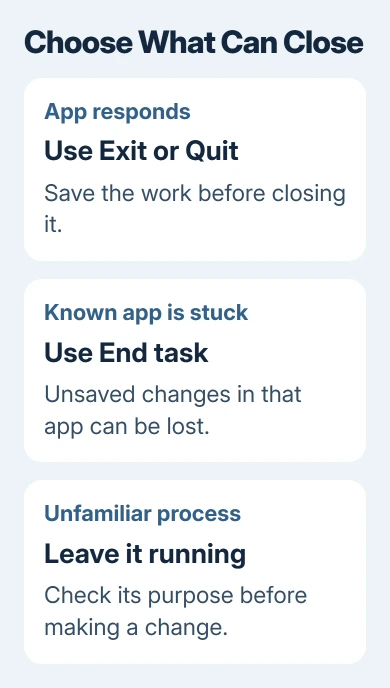
I'd close one app I recognize and check the result before changing several things. A launcher downloading an update needs different attention from a frozen browser. The process count doesn't tell you which case you're dealing with.
Leave unfamiliar Windows processes alone. Service Host, Windows Logon Application and System aren't entries to end for spare memory. Background processes include Windows components, drivers, security tools and app features.
Sort Processes by the resource that's busy
Press Ctrl + Shift + Esc. On Windows 11, select Processes in the left navigation. On Windows 10, choose More details if needed and select the Processes tab. Keep the slow app or activity open while checking.
Click CPU, Memory, Disk or Network to sort by that resource. Click again if the largest value isn't first. CPU measures processor use; Memory shows RAM use; Disk and Network show current storage and network activity.
Watch the list for a short while instead of acting on one changing number. A setup program or file copy can be busy for a good reason. Check whether the app is doing a job you asked it to do before interrupting it.
Expand an app's group to see its related entries when available. Browsers and other apps can use several processes. Those entries aren't necessarily unwanted copies. Ending one of an app's related processes can affect the whole app.
Microsoft's Windows performance advice recommends reviewing Task Manager's resource use and startup apps. Use the readings to decide which app needs attention. Reducing the process count isn't the goal.
For a memory total that seems inconsistent, the Task Manager memory explanation separates app figures from other Windows memory use. Adding the visible app rows isn't the same as measuring all RAM use.
End a known app when normal closure fails
Select the app you recognize in Processes and choose End task. On Windows 11 the command is in the toolbar or right-click menu; in Windows 10 you can also use the bottom End task button. Confirm the selected name before clicking.
End task can discard unsaved changes in that app. Use it when the normal close or quit action doesn't work, or when you're prepared to lose the app's current work. Don't treat it as the everyday way to close a document editor.
Check whether the app's window disappears and its CPU, memory, disk or network use drops. Reopen the app if needed and see whether the same activity returns. That tells you whether closing this particular app actually improved the problem.
If a known app refuses to stop, use the Task Manager process-ending checks. Don't work around the failure by selecting nearby system processes or ending every entry that shares part of its name.
An app that repeatedly freezes needs its own repair or update. Note what it was doing, the app version and any error message. Ending it provides a way out of the current freeze; it doesn't repair damaged settings or a faulty update.
Stop unwanted apps from launching at sign-in
Ending an app now doesn't change whether it starts with Windows. For a lasting change on Windows 11, open Task Manager's Startup apps page. On Windows 10, open its Startup tab.
Select an app you recognize and don't need immediately after signing in, then choose Disable. The change affects its automatic launch, not whether you can open it later. Choose Enable later if you want it to start automatically again.
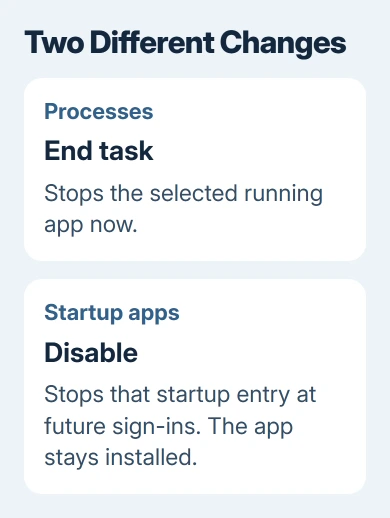
The Startup impact column helps show which entries have more effect on startup. It isn't a safety rating. A high-impact tool can still be something you need, such as software supporting a device you use for work.
Keep security tools, required backup software and work utilities enabled unless their support team advises otherwise. For an optional personal app, check its own launch-at-sign-in setting too, especially if it re-enables itself later.
Restart when convenient and check that the unwanted app no longer appears automatically. Open it manually to confirm it's still available. That checks whether the change worked while keeping the software available for when you need it.
Handle background work through the app's controls
A cloud storage app may sync files even when its window is closed. A launcher can download games while minimized. Open the responsible app and pause or schedule that work when you need the computer's resources for something else.
For supported Windows 11 apps, open Settings > Apps > Installed apps, select the app's three-dot menu and choose Advanced options. Where Background apps permissions appears, use its available choices to control background activity.
Windows 10 has Settings > Privacy > Background apps for supported apps. These controls don't cover every desktop program. When the option is absent, use the program's preferences or quit command; there isn't a universal switch.
Uninstall an unused app through Settings when it no longer belongs on the PC. That's different from ending a task or disabling startup. Only uninstall software you recognize. An unfamiliar filename isn't enough to decide you don't need it.
Get help when Windows itself remains busy
If closing unused apps hasn't helped, save the remaining work and restart the PC. Recheck Task Manager before opening your usual programs. Check why a Windows or driver process stays busy instead of handling it like an unused app.
Use Windows Security > Virus & threat protection > Quick scan if unexpected activity makes you suspect malware. For continuing trouble, open Get Help and describe the busy resource, process name and what happens after a restart.
The Short Version
Close known apps normally, use End task for an app that won't close, and disable optional startup entries separately. Leave Windows processes running. Check resource use and whether the PC responds better, rather than counting tasks.
Checked November 15, 2026.






