Missing values in Excel for Mac's filter checklist can reflect its limit of 10,000 unique entries, even when those values still exist in the sheet. Use a Contains condition for a keyword search instead of the checklist's search box.
A missing checklist entry and a missing worksheet record aren't the same thing. If Contains still leaves out a known match, check the selected range and other active filters before blaming a Mac-only row limit.
In this guide
1. Enter the keyword as a Contains condition
Open the filter menu in the column containing your text. In the Mac filter panel, find Filter > Choose One, select Contains, and enter the keyword in the criteria box beside that choice. Apply the condition offered by your version.
This control differs from the search field marked with a magnifying glass. The criteria box tells Excel what text to match in the cells. The checklist search helps you find values shown in the list so you can select them.
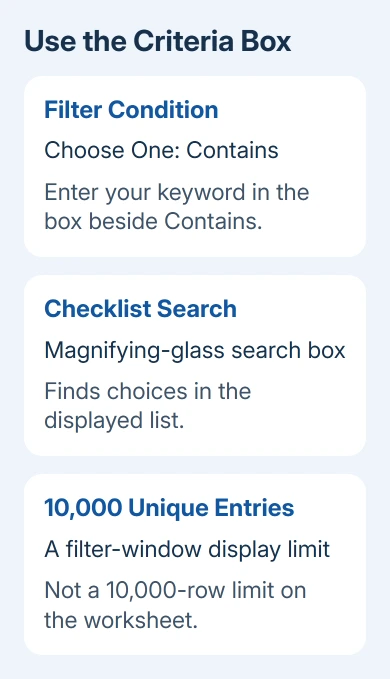
In the original Excel 2011 for Mac discussion, one owner had been typing into the magnifying-glass box. They confirmed that using Contains and its adjacent box brought back matching records past row 10,000.
Pick a record you already know is missing and check its row number before applying the condition. Afterward, look for that specific record in the results. Finding that record tells you more than simply seeing a longer list of matches.
The Excel filter instructions keep the 10,000-unique-entry limit separate from the records in a worksheet.
It isn't a rule that Excel can filter only 10,000 rows.
In Excel for Windows, use that column's heading menu, then select Text Filters > Contains, then enter the term and choose OK. The panel looks different, but the goal is the same: apply a text condition to the column.
For an exact code, use Equals instead. Contains is intended for text appearing within a longer value. A search for cat, for example, can also match a word that includes those letters. Choose the condition that suits the data.
2. Clear other columns that are narrowing the result
A filter on another column can keep the record hidden even when its text matches. Open each filtered heading and clear any condition you don't intend to keep. Then apply your Contains condition by itself.
Filters on different columns work together. If Region is restricted to West, searching the Description column won't bring back an East record just because its description contains your keyword. That row fails the other condition.
The checklist also reflects the currently filtered range. A value missing from the choices can belong to records hidden by another column's condition. Clearing that condition can bring the value back without changing its format.
If you're unsure how the conditions were added, the Excel filter setup guide explains the full range and column controls.
Make sure you're filtering the list you want, rather than a neighboring block of data.
Check the known missing row again after clearing those extra conditions. If it appears now, keep only the filters you need. If it remains absent, move to the range check instead of changing column formatting at random.
I'd use one known matching record as the check throughout this process. It gives you a clear answer after each change and avoids treating a different set of hidden rows as the same problem.
3. Include the records after gaps and new additions
Clear the current conditions and inspect the data's boundaries. Find the header row, the last column in each record and the final row with data in it. If the filter covers only an earlier block, it can't check records outside that block.
For a normal range, turn filtering off with Data > Filter, select the complete rectangle including the headers, and turn it back on. Choose Contains again and look for a known record among the last rows.
If the list is already an Excel table, use that table's existing heading controls. Check that the new records really belong to the table, rather than sitting just outside its shaded area.
Seeing a filter menu in the heading doesn't tell you whether every row is included.
Avoid selecting only the text column when the task concerns whole records across several columns. Keep all the columns for each record together so the filtered results make sense for your work.
After values change within the filtered data, use Data > Reapply where your desktop version offers it. Reapplying refreshes the condition against edited data; it doesn't repair a range that never included the missing records.
Check the same workbook copy on the Mac and PC. A downloaded copy with fewer records or a different saved filter can look like a platform difference even when each app is showing the results for its own copy.
4. Match the filter to the actual cell contents
Click the cell belonging to the missing record. Compare the formula bar's text with the keyword. Look for leading spaces, unexpected punctuation or a different spelling.
A value that looks similar in the grid may not contain the exact text you're searching for.
For mixed numbers and text, check which filter choices the heading offers.
Excel uses the column's data to decide which filter choices to offer. Number Filters and Text Filters aren't interchangeable ways to search the same stored values.
The original owner tried resetting the column format without success. Their successful change was the filter control they used, so clearing formats isn't the first repair for the specific 10,000-entry symptom.
Don't remove records to shrink the checklist. Removing duplicate rows is a separate operation that changes the data. A display limit in a menu doesn't make repeated records unwanted.
If you're searching dates or amounts, choose a date or number comparison rather than forcing a text workaround. Use a small known example in a copy to confirm the selected condition returns the records you intend.
When a correct condition still misses records
In a current Mac release, use Help > Check for Updates, or update through the App Store if that's where Excel came from.
Excel 2011's historical panel explains the original report; it isn't a current supported release to keep using for a new fix.
Give Microsoft Support a compact workbook example with private data removed, the exact filter condition, Excel version and a row that should match. State whether Contains fails or only the checklist is incomplete.
That distinction changes what needs fixing.
If a current PC returns different results, include both version numbers and confirm you're comparing the same file. A row that support can make disappear with the same steps tells them more than a screenshot of an incomplete checkbox list.
The Short Version
Use Filter > Choose One > Contains on Mac for a keyword condition. The 10,000 limit concerns unique checklist entries, not a worksheet's filterable row count.
Clear unwanted column conditions and verify the complete range if a known match is still absent.
Checked November 17, 2026.
 If you have any business, I can build it online