

The File Explorer three-dot menu opening upward was a Windows 11 24H2 bug. Microsoft listed its fix in the March 27, 2025 update KB5053656. Install current Windows updates first; move the window down to reach hidden commands meanwhile.
A menu that changes direction to stay inside the screen is normal. This fault is different: the menu can open past the screen edge when Explorer is maximized, leaving commands unreachable.
In this guide
1. Install the Windows update that replaces the old bug
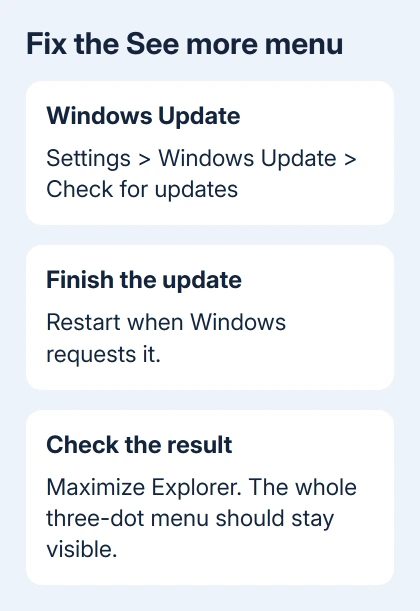
Open Settings > Windows Update and select Check for updates. Install what's offered, then save documents and complete any requested restart. Windows needs to finish applying the update before you check the menu again.
Microsoft's KB5053656 release notes list a fix for the File Explorer See more menu opening in the wrong direction. The three-dot command-bar button is called See more.
That update was for Windows 11 24H2, with OS build 26100.3624. It's an old preview release; you don't need to hunt for it instead of installing today's updates. Use the cumulative updates offered for your installed Windows version.
Press Windows + R, enter winver, and read the OS build alongside the version if you aren't sure what is installed. Keep both details. A build number without its Windows version makes comparisons across releases confusing.
After restarting, press Windows + E, maximize the new Explorer window, and click the three dots. Success means the entire menu stays on the screen and its commands can be selected. Test the position that previously hid the items.
If the bug remains on an updated PC, continue with the temporary access steps. Don't uninstall security updates just to return to the appearance of an earlier Explorer version.
2. Restore the window and move it down
Click Restore Down, the overlapping-squares button next to Explorer's close button. Drag the title bar downward to create space between its command bar and the screen's upper edge, then open the three-dot menu again.
The original report describes the menu as usable when the window wasn't maximized. This gets the commands back into reach without changing Windows features.
If dragging is awkward, press Alt + Space and select Restore when available. Use the title bar to reposition the restored window, then repeat the menu check. You're only moving the window, without moving any files or folders.
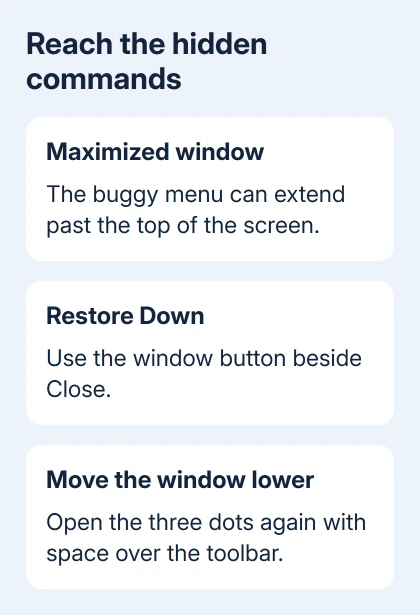
Choose the command you need while the full menu is visible. You can maximize the window again afterward. This keeps the commands within reach while you get the update installed or work with support on the remaining problem.
If a menu fits on screen and all of its items work, direction by itself isn't a fault. Keep checking only if commands are cut off or the change stops you using the menu normally.
For an Explorer window that opens to the wrong starting folder, change the Home or This PC setting separately. Changing the landing folder doesn't repair this command-bar placement bug.
3. Open the needed control without the three dots
For Folder Options, press Windows + R, enter control.exe folders, and press Enter. This opens the same Folder Options dialog without using the clipped See more menu.
The General tab includes the opening-folder choice. The View tab contains advanced folder settings. Open the control you need, then choose Apply or OK to save any changes.
For a selected file or folder's properties, press Alt + Enter. Select the item first so the shortcut opens the intended item's Properties dialog. Check the name at the top before changing a file-specific setting.
If the needed command is available by right-clicking a selected item, use that route too. The item context menu and the command bar's three-dot menu are different menus, even though some actions appear in both.
For work you repeat often, the File Explorer keyboard commands can reduce how often you need the clipped menu. These shortcuts don't change the bug; they let you reach the controls it blocks.
If a different Explorer menu is missing entirely, record which one: the command bar, the file context menu, or a View submenu. The upward-opening See more report doesn't explain every missing Explorer command.
4. Check old feature tweaks before adding another one
An owner in the original discussion reported that disabling feature ID 51960011 with ViVeTool made the menu open downward. That was an owner workaround posted before the documented March 2025 fix.
Use normal updates first on a current Windows installation. ViVeTool changes hidden Windows feature settings. A feature number from an old build isn't a reliable choice for every later version.
Mention any previous use of that workaround in your support report, along with Explorer replacements or command-bar tweaks. Those changes can help explain why the menu still behaves differently on your PC after the fix.
I'd finish normal updates and compare a fresh Explorer window before adding a hidden-feature tweak. The Windows fix handles the reported direction bug without a separate utility.
If a customization utility is installed, use its own documented restore option or ask its developer how to return Explorer to its default behavior. Don't run a collection of feature-disable commands from unrelated menu problems.
Report clipping that remains on a current build
Open Feedback Hub from Start and choose Report a problem. Describe the fault as File Explorer See more menu clipping past the top of the screen, rather than only saying the menu opens upward.
Include the Windows version and build, whether Explorer is maximized, and whether the same problem happens after moving the restored window down. Mention any external monitor and the display scaling in use.
Before attaching a screenshot, close folders with private names or switch to a harmless location such as This PC. Show the menu and the screen edge together so the missing commands are visible in context.
On a managed work PC, ask IT to confirm that cumulative updates have actually finished installing. A pending restart or a policy that holds back updates can leave the old bug in place until IT finishes the update.
If updated Windows still hides commands beyond the screen, send the details through Get Help. Ask about Explorer menu clipping on that build and whether earlier shell customizations need removal.
The Short Version
Install current updates for the menu-direction repair. Meanwhile, restore Explorer and move it lower, or open Folder Options with control.exe folders. Report remaining clipping with the Windows build and previous Explorer tweaks.
Checked November 16, 2026.
 If you have any business, I can build it online






