Windows + E opens File Explorer, Alt + D selects its address bar, and Ctrl + Shift + N makes a folder. Those three shortcuts cover opening your files, going straight to a location, and organizing what you find.
Next, check which part of Explorer will receive your keystrokes. This is called keyboard focus. A shortcut can act on a filename, the folder list, or text in the address bar, depending on where you last clicked.
In this guide
Start with opening and navigating folders
Press Windows + E to open Explorer. Its first view depends on your saved settings and Windows version. If it opens Home when you want drives, change the File Explorer starting view.
Use Alt + D to select the address bar. Type a folder path, such as C:\Users, then press Enter. This takes you straight to that location without working through the left-hand folder list one level at a time.
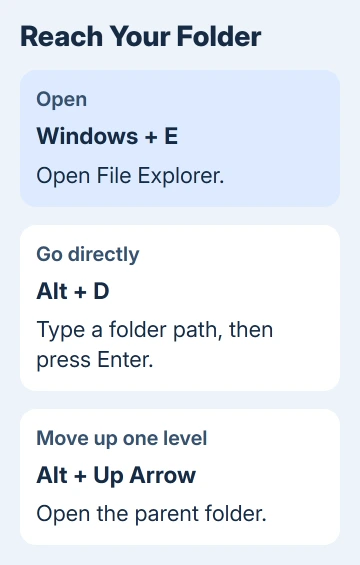
The previous folder and the parent folder aren't always the same place. Alt + Left Arrow returns to the previous location in your browsing history. Alt + Up Arrow opens the folder containing the current folder.
For example, a search result can take you into a folder on another drive. Going back returns to where you came from; going up follows the actual folder path. Choose Back for the earlier view or Up for the containing folder.
Use Alt + Right Arrow to move forward through that browsing history after going back. These shortcuts change the folder you're viewing. They don't move any files or change the folders on disk.
Put the cursor in Search instead of the address bar
Press Ctrl + E or Ctrl + F to select Explorer's search box. Type a filename or a part of it you remember, then let the search run. Check the folder location first so you're searching the area you intended.
Alt + D is for a known location; Ctrl + E is for looking for an item. Typing a filename into the address bar isn't the same search. Check which box is selected before typing so your text goes where you intended.
After starting a search, check the visible results and location before acting on a file. Two files with the same name can belong to different folders. Select a result and press Alt + Enter when you need to check its properties.
If the window is stuck rather than waiting for a search, stop pressing more shortcuts. The Explorer response checks address a frozen window; a different search shortcut won't repair that failure.
Select and organize files with the keyboard
Click inside the file list, then press Ctrl + A to select its items. Check the selection before copying or deleting. In the address bar or search box, the same shortcut selects text instead of selecting the folder's files.
For a continuous group, select its first item, hold Shift, and use the directional keys to extend the selection. The highlighted files show which items your next action will affect. Release Shift before moving around normally again.
For separate items, hold Ctrl while using the directional keys to move between files, then press Space to select an individual item. This lets you build a selection without including everything between the first and last file.
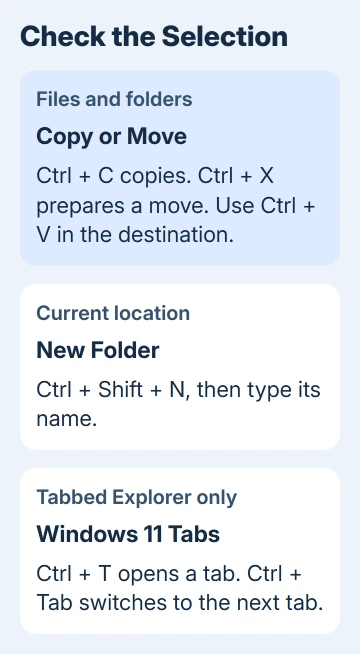
Press Ctrl + Shift + N to make a new folder in the current location. Enter a name for it and confirm with Enter. If Windows says you don't have permission, choose a location you own rather than trying the shortcut repeatedly.
Select a file and press F2 to rename it. Type the new name, then press Enter. Keep a visible file extension intact unless you're intentionally changing how Windows identifies the file type.
On a laptop whose top row controls brightness or volume, Fn + F2 may be needed to send F2. The other shortcuts here don't depend on that top-row setting, so you can try them to see whether only F2 is failing.
Copy, move, delete, and undo carefully
Use Ctrl + C to copy selected files, navigate to the destination, then use Ctrl + V. Copying leaves the original files in place. For a move, use Ctrl + X followed by Ctrl + V in the destination instead.
I'd use Copy first when you're reorganizing something important and still deciding where it belongs. Open the destination and check that the expected files arrived before deciding what to delete from the original folder.
Delete normally sends selected local files to the Recycle Bin. Shift + Delete skips that recovery step. Network locations and some other storage can behave differently, so read the confirmation message before agreeing to a deletion.
Ctrl + Z undoes a supported recent action, such as a rename or move. It can't replace a backup or recover every type of deletion. Check what the undo changed before continuing with more file operations.
For shared or synced folders, a deletion can reach other devices or people. The keyboard doesn't change that behavior. Choose the operation based on where the files live, not just on which shortcut is quickest.
Open another window and change the view
Ctrl + N opens a new Explorer window. Use it when you want source and destination folders visible separately. Ctrl + W closes the active window, or the active tab when that Explorer window supports tabs.
Windows 11's tabbed Explorer adds Ctrl + T for a new tab, Ctrl + Tab for the next tab, and Ctrl + Shift + Tab for the previous one. Windows 10's built-in Explorer doesn't have that tab interface.
Press Alt + P to show or hide the preview pane. Some files won't preview even with the pane open. That depends on the file type, the preview software installed, and any security restrictions on the file.
Hold Ctrl and turn the mouse wheel to change the file icons' size and appearance. This changes Explorer's view, not the size of a document's contents. It can make thumbnails easier to distinguish before opening a file.
When a shortcut acts on the wrong thing
Press Esc to leave a rename or unfinished command, then click the file list and try again. Check for another window or dialog covering Explorer. Keyboard commands go to the active window, which can differ from the window you intended.
Microsoft documents the combinations in the Windows keyboard shortcut reference. If it keeps failing with the right window active, tell Windows support which keys you're pressing and whether that combination also fails in other apps.
The Short Version
Open Explorer with Windows + E, use Alt + D for a path and Ctrl + E for a search. Check focus and selection before file actions. Windows 11 adds tab shortcuts to these basics; Windows 10 uses separate Explorer windows.
Checked November 16, 2026.