

A cyclic redundancy check error on an external drive means Windows couldn't read data correctly. Connect it without a hub and swap its data cable first, but don't initialize a drive that already holds your files.
Choose the next step by checking whether Windows can still open the drive. If it can't initialize a disk that holds your files, focus on recovering them rather than setting the disk up again.
In this guide
1. Stop the copy and protect anything still readable
Cancel the failed transfer and close the app using the external drive. A CRC error means the data didn't pass a check. It doesn't point to one Windows setting you can change to fix it.
The problem could be damaged files, the connection or the disk itself. Each needs a different response, so check which part is failing before trying repairs.
If other folders still open, save the files you need on another physical drive. Start with files you can't replace.
Copying everything in one job can stall at a damaged file while the files you need remain on the external disk.
Don't use Format, Initialize Disk or New Simple Volume to dismiss an error on a disk holding files. Those controls set up storage; they don't recover its existing contents. A new, empty disk is a separate case.
Note the exact point where the message appears. A copy that fails on one filename is different from Disk Management reporting CRC while trying to initialize the whole disk. Keep that distinction through the checks that follow.
2. Check the cable, USB port and external power
Safely eject the drive if Windows lets you, then disconnect it. Use one of the computer's built-in USB sockets without routing it through a dock or hub. Use a replacement data cable that fits the drive and is known to work.
For an enclosure with its own power adapter, check that the correct adapter is connected firmly. A bare 3.5-inch desktop disk attached through a SATA-to-USB adapter also needs a power supply suitable for both the adapter and disk.
I'd try the connection before a repair command. It leaves your files alone and can resolve a cable or port problem without putting the drive through a long scan.
Open the same folder again. If it works, copy the important files away and check that those copies open. If the error remains, try the drive on another computer with the replacement cable. The same fault there points away from the first PC.
Microsoft recommends cable, port and second-computer checks in its disk troubleshooting instructions. They also distinguish damaged formatting from hardware trouble.
3. Read the disk state before choosing a command
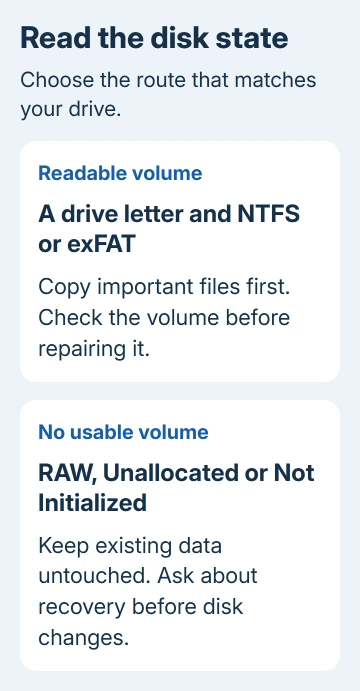
Press Windows + R, enter diskmgmt.msc and press Enter. Find the external disk by its capacity and volume label. Read both the disk label on the left and the volume information beside it.
Windows can check a volume that shows a file system, such as NTFS or exFAT, and a drive letter, such as E:. A healthy volume missing only its letter belongs with the drive-letter steps.
If a disk held files, RAW, Unallocated and Not Initialized aren't permission to create a replacement volume. Write down the label so support or a recovery specialist knows exactly what Windows shows.
The Disk Management guide explains the difference between a disk and its volumes. That matters here: Disk 2 is a disk number, not a drive letter to substitute into a command.
If the disk isn't listed at all, skip file-system commands. Windows must detect the hardware before it can inspect a volume on it. After the connection checks, an absent drive needs its enclosure, power supply or disk checked.
4. Check a readable volume before repairing it
Use this route only when the external drive has an accessible volume and your important files are copied elsewhere. Right-click Start, open Terminal (Admin) or Windows PowerShell (Admin), and approve the prompt.
Run this command, replacing E: with the external volume's actual letter:
chkdsk E:Without repair switches, CHKDSK reports the file-system status rather than fixing errors. Close apps using the volume first; an active volume can produce misleading results because the tool can't lock it.
Read the final report. A clean result means CHKDSK didn't find file-system errors during that check. It doesn't clear the cable, enclosure or disk hardware, and it doesn't restore a damaged source file.
If the report shows file-system errors and you've copied your important files elsewhere, run:
chkdsk E: /fThe /f switch makes repairs and needs to lock the volume. Close any windows or apps using that drive and follow the prompt. Read the completed report, reconnect the disk if needed, and check the file operation that failed.
5. Leave an unreadable or failing disk out of repair loops
The /r switch searches the disk for bad sectors and attempts to recover what it can read. It includes /f, takes longer and isn't a harmless first check. It can't repair a damaged read head or a faulty USB adapter.
For a drive with irreplaceable files that repeatedly disconnects or won't read reliably, stop and ask a recovery specialist about making a recovery image before repair.
Repeated scans aren't a substitute for deciding how much the data matters.
An initialization CRC error without a usable volume isn't solved by typing the physical disk number after CHKDSK.
The drive in the original Q&A had that problem. Its owner never reported getting the files back before the thread ended.
If a drive removed from an external enclosure fails through a new adapter, tell the specialist its original enclosure model and what changed. Don't assume the adapter reproduces every function of the original enclosure.
When the error keeps returning
Contact the drive manufacturer's storage support with its model, serial number, Disk Management state and the results from another cable and computer.
Ask whether its diagnostic tool is suitable before using it on a disk that still needs recovery.
If the files matter more than the hardware, ask a data recovery service for an assessment first.
A warranty replacement replaces the drive; it doesn't bring back your files. If nothing needs saving, the manufacturer can guide testing and replacement.
The Short Version
First rule out USB cable or port trouble, then separate a readable volume from a disk that won't initialize. Back up accessible files before CHKDSK repairs.
An unreadable disk holding important data needs recovery advice rather than repeated initialization attempts.
Checked November 16, 2026.
 If you have any business, I can build it online






