

File Explorer follows Windows' app color setting, so making the taskbar dark alone can leave your folders white. Open Settings > Personalization > Colors and choose Dark, or use Custom and set the app mode to Dark.
This changes the folder window's background and controls. A document, photograph, or website opened from that folder keeps its own content and may need a separate appearance setting.
In this guide
Set the app mode in Windows 11
Press Windows + I to open Settings, then select Personalization > Colors. Find Choose your mode and select Dark. Open File Explorer with Windows + E and check the folder background.
Microsoft says its Windows color settings offer Light, Dark, and Custom. Dark changes Windows along with supported apps, so it's the quickest choice.
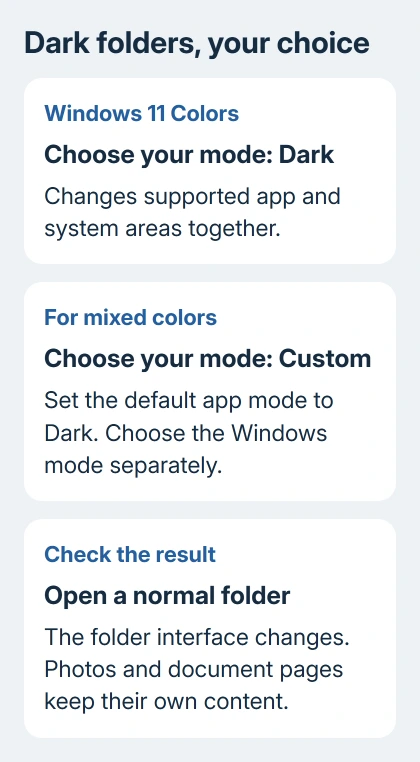
To keep the taskbar light while using dark folders, select Custom instead. Set Choose your default Windows mode to Light and Choose your default app mode to Dark.
These two controls handle different parts of the desktop. The Windows mode controls system areas such as Start and the taskbar. The app mode is the one to check when File Explorer remains white.
Open a normal folder such as Documents to judge the result. A white image thumbnail is still part of the image; its color doesn't mean the folder theme failed to change.
I'd start with the plain Dark option, confirm that folders change, and only then use Custom if you want different colors for the taskbar and apps. That way, you can see which control changes the folder.
Choose the matching option in Windows 10
Open Start > Settings > Personalization > Colors. In Windows 10 versions with the Choose your color list, select Dark. The heading differs slightly from Windows 11's Choose your mode.
For a mixed appearance, choose Custom, then select Dark under Choose your default app mode. Set the separate Windows mode to Light or Dark depending on how you want Start and the taskbar to look.
Some older Windows 10 layouts show the Light and Dark app-mode choices directly. Use the app-mode control present in your version rather than searching File Explorer's View menu for a theme switch.
Press Windows + E after the change. The ribbon layout in Windows 10 differs from Windows 11's command bar, but the place to change their color remains Windows Settings.
Leave accent colors separate from dark mode
The Accent color section is for highlights such as selected controls. A dark blue accent only changes the highlight color. The folder area can remain white until the app mode changes.
Change the mode first. Then choose a manual accent color or let Windows pick one from the background, using the options on your Colors page.
An accent can make selection highlights look different without changing file contents. Open a folder with several files and select one item to see the highlight in context before you choose a stronger color.
The same distinction applies to desktop themes. A theme can carry several appearance preferences together. After applying another theme, return to Colors if the app mode no longer matches what you wanted.
Changing File Explorer's landing page is also separate. The Home versus This PC setting changes what opens first, while the color controls change how that window looks.
Check contrast settings when the result looks unusual
A contrast theme can produce strong custom colors rather than the standard dark gray appearance. That can be useful for readability, so check whether you chose it for that reason before changing it.
In Windows 11, open Settings > Accessibility > Contrast themes. To return to normal color-mode behavior, choose None and select Apply. Wait for the colors to finish changing.
In Windows 10, the corresponding controls are in Settings > Ease of Access > High contrast. Switch high contrast off to return to the ordinary Light and Dark app choices.
The contrast-theme controls serve a different purpose from ordinary dark mode. Keep the theme if it makes the screen easier for you to read.
Return to Personalization > Colors afterward and check the selected app mode. If File Explorer now has its usual dark background, the contrast theme was changing its appearance.
Distinguish a bright preview from a bright folder
Look at the navigation area, the list of files, and the toolbar. If these are dark but the previewed document is white, the app theme has already taken effect.
A PDF or Word page can keep a white page background inside a dark interface. The folder window doesn't necessarily control how that page looks on screen or in print.
Pictures also retain their colors. Dark mode doesn't turn white areas of a photograph black, and it doesn't rewrite an image so that it matches the window around it.
Missing previews call for thumbnail troubleshooting; a dark folder background doesn't download a cloud-only photo.
Some applications offer their own appearance choices, while others don't support a dark interface. Check that app's settings if the bright area appears only after you open a file, rather than inside File Explorer itself.
An older dialog or a window opened by another app may use a different appearance from the main folder. Note the name of the window and the action that opens it before treating every bright panel as one Windows setting failure.
When File Explorer still stays light
Close the folder window and open it again after confirming Dark as the app mode. Check a second ordinary folder so you're comparing File Explorer itself rather than a file picker belonging to another program.
Save your work, restart the PC, and check the same setting again. On an organization-managed computer, ask the administrator whether appearance preferences are controlled if the choice is locked or keeps reverting.
If Explorer still stays light, open Get Help from Start and report the Windows version, the chosen app mode, and which parts of Explorer stay light. Include whether a contrast theme is active. Those details make the report useful.
The Short Version
Use Personalization > Colors and choose Dark. Under Custom, the default app mode controls File Explorer. Check contrast settings and separate bright file contents from the folder window's theme.
Checked November 16, 2026.






