
Delta runs on a compatible Apple silicon Mac through the Mac App Store. A Windows PC can't install that iPhone and iPad app, so the right route depends on which computer you have.
The current version needs an M1 or newer chip and macOS 14.4 or later. If your Mac meets both requirements, install Testut Tech's Delta - Game Emulator, add your game files and choose a controller or keyboard.
Check the Mac before downloading anything
Open Apple menu > About This Mac and note which chip and macOS version it lists. Apple M1, M2 or M3 means you have Apple silicon. A processor labeled Intel doesn't meet Delta's current Mac requirement.
Check Mac compatibility on the Delta App Store listing. It lists macOS 14.4 or later and Apple M1 or later for the current download. Older Delta releases had different requirements.
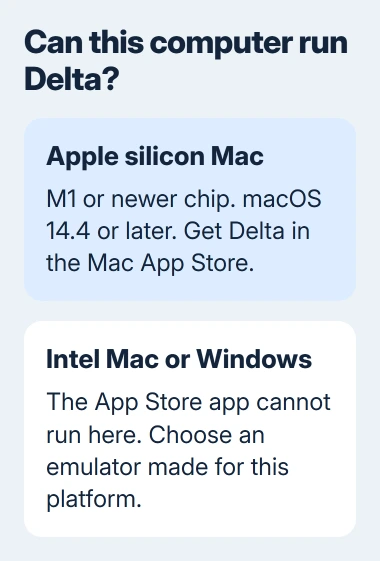
Some older guides still mention macOS 11, but the current app needs a newer version. Read the listing before changing your computer. A software update won't make an Intel processor compatible.
If your Mac has a supported chip but older software, open System Settings > General > Software Update. Make a backup before upgrading macOS, and check that your other essential apps support the release you're considering.
If your Mac meets both requirements, continue with the store installation. Otherwise, go to the Windows and Intel section. Another copy of Delta won't change which chips it supports.
Find Testut Tech's Delta in the store
Open App Store on the Mac and search for Delta - Game Emulator. Check the developer, Testut Tech, before selecting Get or the download control. Several unrelated products use the name Delta.
The app may appear with iPhone and iPad results rather than ordinary Mac apps. Apple's guide to running iPhone and iPad apps on a Mac explains the Designed for iPhone and Designed for iPad labels.
Confirm your Apple Account if asked, wait for installation and choose Open. Delta should open to its library. It'll be empty until you've added a game, so an empty library doesn't mean the download failed.
If the store's purchase sheet opens but its confirmation button is missing, try the Mac App Store missing-button fix. That's a display problem, separate from a compatibility message.
I'd start with the store search on the Mac itself. It checks availability for your account and computer before you spend time collecting game files.
Delta's download documentation also lists AltStore PAL in eligible locations. That route is for supported mobile devices. It doesn't provide a Windows edition or an Intel Mac installer.
Add a game file to the library
Delta needs a ROM, a file containing a game's data. Put a game file you're allowed to use in a folder you can easily find. Installing the emulator doesn't give you a library of commercial games.
Use the plus control in Delta's library to begin importing, then choose the game file through the file picker. Select the actual game file, rather than an installer or a folder containing several unrelated downloads.
The supported file formats depend on the console. For example, Game Boy Advance uses .gba, Nintendo DS accepts .ds and .nds, and Nintendo 64 accepts .n64 and .z64.
If a file isn't offered or won't import, compare its extension with that list. Renaming an unsupported file's extension doesn't convert its contents into a supported game.
After importing, select the game in your library and check that it starts. Try one known-compatible file first. If the library opens but that game fails, check the file and whether Delta can run that title.
Keep the original file until you've confirmed the import. That gives you a clean copy to return to without downloading the app again.
Choose the controller before remapping buttons
Connect your supported controller or keyboard to the Mac first. For a Bluetooth device, pair it in the Mac's Bluetooth settings, then return to Delta. A controller can't be selected inside the app until the computer can use it.
Open Delta's settings and look under Controllers for Player 1. Select your controller or keyboard. The controller instructions also explain how to choose a console under Customize Controls.
Select a game button, press your chosen controller button or keyboard key, and save the mapping. Check movement, confirm, cancel and the menu control in a game before customizing everything else.
With an external controller selected, Delta can hide the touch-control skin, the buttons drawn over the game. That's expected. The missing on-screen buttons don't mean something has broken.
If your controller works elsewhere on the Mac but you can't select it in Delta, give Delta support its model and connection type. Changing unrelated game files won't help you select a controller.
Move progress between supported devices
To move an existing phone library, use Delta Sync with Google Drive or Dropbox. In Delta's settings, open Delta Sync, choose Service and sign into the storage account you want to use.
The sync guide lists games, saves, skins and BIOS files among the data it handles. Check Sync Status before opening the same game on the second device.
Keep Delta on the original device until the game and your progress appear on the Mac. Check that the right save loads too; seeing the game in your library is only the first check.
Synced Delta files aren't visible as ordinary files in Google Drive. Dropbox can display them, but editing those files directly can damage the synced data. Use the app's own controls instead.
Before removing Delta from a Mac, check that the progress you need is available elsewhere. Deleting an app shouldn't be the first response to a delayed sync.
Windows and Intel Macs need another emulator
Delta doesn't offer a Windows installer through its published download routes. A file advertised as Delta for Windows isn't the Mac App Store app. That app also won't run on an Intel Mac.
Choose an emulator that lists support for your computer and the console you want to play. Check which game files and saves it can import too. Delta save states won't automatically work in another emulator.
For a store error on a supported Mac, send Apple Support the wording you see. If Delta opens but a game, button assignment or sync fails, give Delta's developer your app version, Mac model and the step that failed.
The Short Version
Check the Mac's chip and software, install Testut Tech's Delta from the App Store, then import a supported game file and select your input device. Windows and Intel Macs need an emulator built for their platform.
Checked November 5, 2026.

Isaac Smith is the founder and editor of PC Glance, a website that covers computers, laptops, and technology. He is a tech enthusiast and a computer geek who loves to share his insights and help his readers make smart choices when buying tech gadgets or laptops. He is always curious and updated about the latest tech trends.