OneNote on iPad can attach an Excel workbook through Insert > File, but it imports a separate copy. Later changes to the original won't update the attachment. Add a sharing link instead when the note needs the current workbook.
Choose the result you need first: an attached Excel file, a link to the working workbook, or visible figures on the page. Those choices look similar in a notebook, but only a link points readers back to the original file.
In this guide
Find the workbook before opening OneNote's file picker
Open the workbook in Excel or locate it in the iPad's Files app. Check its filename and folder, especially if you have several downloads with similar names. Save recent changes before attaching the copy you want others to receive.
A workbook can contain several worksheets. Attaching the Excel file attaches that workbook, rather than just the sheet you happened to be viewing. If the note should contain only one worksheet, prepare a file with just that sheet first.

Files can show iCloud Drive, On My iPad and storage providers you've enabled. Find the actual workbook rather than an email message or a shortcut to a location. OneNote's file picker needs to be able to open the saved document.
If it lives in OneDrive or another cloud app, sign in to that provider on the iPad. Microsoft explains that a missing cloud provider can require its app to be installed before the location becomes available to OneNote.
For a workbook shared by a school or workplace, sign in with the correct account and check that the workbook opens. Fix any permission problem in the app storing the workbook before you try to import the file into your notes.
Attach the workbook with Insert > File
Open the intended notebook, section and page in OneNote. Tap where the attachment should go. Choose a page you can edit; you can't insert a file into a shared read-only page.
- Tap Insert on OneNote's ribbon, then tap File.
- Select the workbook's storage location in the file browser.
- Browse into its folder, or use the browser's search if you know the name.
- Tap the Excel workbook to import it into the page.
- Check that the expected filename appears with the attachment.
The OneNote iPad file instructions confirm this route. If the browser doesn't show the file, tap Browse to reach its other locations.
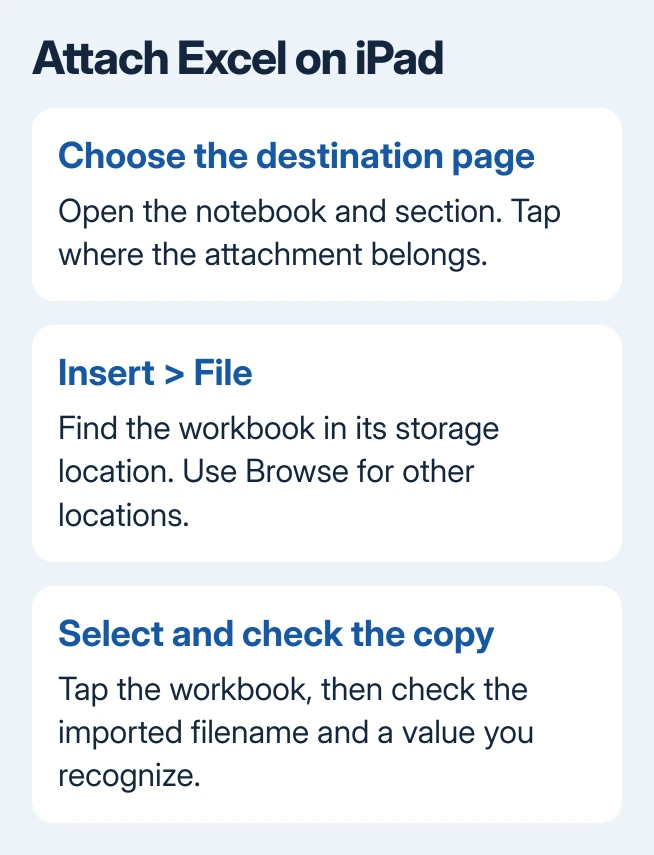
Open the inserted attachment to check what you added. Compare its filename and a recognizable value with the source workbook. That helps you catch an outdated download before the note is shared with classmates or colleagues.
I'd add a short date or version note beside the attachment when the figures matter. A label such as November budget copy tells the next reader what the file represents without asking them to guess from its name.
On iPhone, file insertion uses the paperclip control in the editing toolbar. That's different from the iPad ribbon. Follow Insert > File for the iPad rather than searching for the iPhone's toolbar layout.
Will the attachment follow changes in Excel?
OneNote imports a copy of the selected file. Editing the original in Excel or OneDrive doesn't automatically replace that imported copy. That stays true even after the file imports successfully and the notebook syncs.
Attach Budget.xlsx today and the note gets today's saved file. Tomorrow's edits to the original won't refresh it. For an updated snapshot, save those changes and insert a replacement attachment.
The OneNote notebook sync checks address whether notebook changes reach your other devices. They won't create a live connection between an imported workbook and its original source.
Before sharing, check what the recipient will get. The attached copy includes that version of the whole workbook, including its other sheets. Remove material that shouldn't be included from the source copy before inserting it.
Don't look for Windows OneNote's Insert > Spreadsheet workflow on the iPad. The supported mobile file command imports a document. It doesn't provide the desktop's embedded spreadsheet editing controls inside the note.
Link the original when the numbers will keep changing
Open the workbook's sharing controls in its storage app and create or copy a link with the access you want recipients to have. Check whether recipients need permission, belong to your organization, or can use the link you've chosen.
In OneNote, select the words that should open the workbook. Tap Insert > Link, enter the copied address in Address, check the displayed text and tap Done. The note now points to that workbook rather than holding another attached copy.
Use a descriptive label, such as Current project budget, instead of an unexplained address. The label tells readers which workbook opens. It doesn't grant access; the file's sharing permissions still decide who can view or edit it.
Test the link from the note. If it opens an access request, correct the workbook's sharing permissions in the storage service. Changing the OneNote page's title or notebook sync settings won't give anyone access to a restricted workbook.
Put visible figures on the page when an attachment isn't enough
For a few figures that don't need to update, create a OneNote table with Insert > Table and enter the values you need. This is a note table, so don't expect it to calculate formulas or stay linked to Excel cells.
A saved image is another option when appearance matters more than editing. Use Insert > Pictures, select the image and add it to the page. Check small headings and totals at the size readers will actually use.
Keep the original workbook available for calculations. A picture shows the figures as they were when you captured it, while an attachment holds a copy of the file. Neither automatically follows later edits in the source.
For homework organized in OneNote on iPad, place the table, attachment or link beside the question it belongs to. A brief explanation of the figures is easier to follow than several unexplained workbook copies.
If Files opens the workbook but OneNote can't import it, note the storage provider and OneNote version. Ask Microsoft Support about iPad file insertion. Explain whether other workbooks import successfully.
The Short Version
Use Insert > File to attach an Excel workbook copy. Add a sharing link for a workbook that must stay current, or a table or picture for visible static figures. Notebook sync doesn't update an attachment from its original.
Checked November 16, 2026.