For iPad homework, give each subject a OneNote section and each assignment a page. Keep the question, your working and the answer together, using Draw for handwriting or Text Mode to type.
Start in the notebook your school expects you to use. A personal notebook is useful for your own work, but creating one doesn't automatically submit an assignment or place it in a teacher's class notebook.
In this guide
Give the assignment its own page
Open OneNote and select the notebook for the class or subject. Check the signed-in school account if the expected notebook is missing. Don't create a second notebook with the same name to replace one you haven't opened yet.
For personal organization, keep subjects in separate sections. In the section list, tap + Section, enter the subject name and finish the naming prompt. Select that section before adding assignment pages.
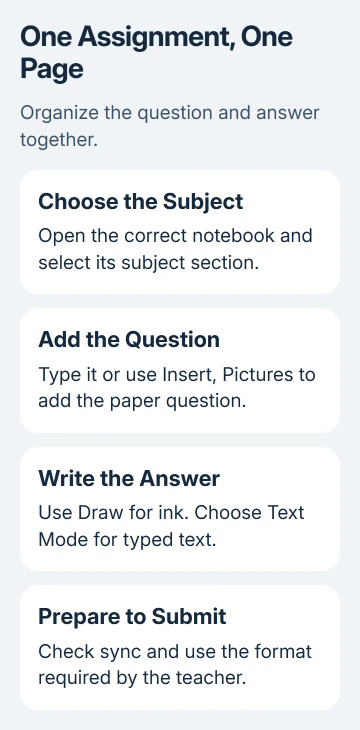
Tap + Page at the end of the page list. Enter a useful page title, such as the subject, assignment and date. The title lets you recognize the work later without opening several unnamed pages.
Microsoft says the iPad page and section controls let you add pages within a section. Choose the section first so the assignment lands in the intended subject.
I'd use one page for one assignment rather than one enormous page for the whole term. You can return to the question and its working without searching through unrelated lessons.
If the class uses a teacher-provided notebook, follow its assigned section and page names instead. Use the class's layout rather than your own naming system so the teacher can find your work.
Add the question before writing the answer
Tap the page where the question should go. Type the assignment instructions or add a picture of the paper question. Keeping the question beside your answer makes it easier to follow your work when you review it later.
For a picture already saved on the iPad, select Insert > Pictures, choose its source and select the image. Tap Add, adjust the crop if needed and follow the remaining prompts to place it on the page.
For a new photograph, use Insert > Take Picture. Hold the iPad steady with the paper well lit, capture the question and crop away the unnecessary desk area. Check that small numbers and symbols remain readable after insertion.
The basic OneNote iPad tasks describe picture insertion separately from typing. Adding a picture places it on the page; it doesn't turn the question into editable typed text.
Leave space around the question for your own working. A photo that fits neatly at the top still needs to be readable. Keep the image large enough to read before starting the answer.
For several questions, label the matching answers with the same question numbers. That organization is especially helpful when the worksheet's layout doesn't match the order in which you solve it.
Choose handwriting or typed text deliberately
Open Draw and select a pen or highlighter. Choose its color and thickness, then write in a clear area of the page. You can write with an Apple Pencil; writing with your finger depends on the drawing-mode setting.
If a finger gesture moves the page instead of drawing, check Draw with Touch. Turn it on for finger handwriting. Leave it off when finger gestures should move the page while you write with a stylus.
Use the eraser for a mistaken stroke, choosing the available erasing tool on the Draw tab. Correct a small mistake before writing a whole answer over it, since overlapping ink can make the finished work hard to read.
To type again, select Text Mode on the Draw tab and tap the page. The onscreen keyboard appears for text entry. You can also use a connected keyboard for the typed parts of your assignment.
Keep handwriting and typed explanations together when that helps the subject. A diagram might be clearer in ink, while a paragraph explaining it is easier to edit as text. Mix ink and text wherever each suits the work.
The iPad app doesn't currently offer OneNote's handwriting-to-text conversion. If the teacher requires typed answers, type them using Text Mode rather than expecting the ink to convert at the end.
Keep calculations and diagrams easy to follow
Write one stage of a calculation at a time, leaving enough space to see how it leads to the next stage. Put units beside measurements and make the final answer distinct through spacing or a short label.
For a simple comparison or results table, choose Insert > Table. Tap a cell to enter its content; the table controls appear when a cell is selected. Start with the information you need rather than making a large empty grid.
A photo, typed explanation and handwritten diagram can share the page. Use those tools for the parts they suit. For example, photograph the printed question, type a short explanation and draw the diagram yourself.
Review symbols after writing, especially a minus sign, decimal point or exponent. A page that looks tidy at a distance can still contain a symbol too small for someone else to read.
Before adding another assignment, check the page title and section. It's easier to keep the work organized while creating it than to untangle several weeks of mixed subjects afterward.
Check saving before sharing the work
OneNote saves changes automatically, but they reach another device after the notebook syncs, or copies changes between devices. Leave the iPad connected and check the notebook for a sync warning before relying on a second device's copy.
The OneNote iPad sync procedure explains account and notebook checks if the latest page isn't appearing elsewhere. A page title matching on both devices doesn't mean every recent stroke has arrived yet.
Ask the teacher what format to send your work in. A note page in your own notebook isn't the same as a submitted assignment in a school platform. Follow the class's submission instructions even when the work itself is finished.
If a PDF is required, use the iPad OneNote PDF export steps and open the exported file afterward. Check that every answer is present, readable and on the expected pages before sending it.
When a class notebook or page stays unavailable
For a missing school notebook, contact the teacher or school IT team with the account address, class name and notebook you expect to open. Ask them to check access before moving work into another account.
For an existing page that won't sync, keep the original open and report the exact error to Microsoft Support. Include your iPad app version and account type. Before signing out or reinstalling the app, save a separate copy of unsynced work.
The Short Version
Use a subject section and a page for each assignment. Add the question, choose Draw or Text Mode for the answer, and check sync before using another device. Submit the work through the teacher's required route.
Checked November 15, 2026.