
Friday Night Funkin' mods need the PC build that the mod was made for. For a mod built for the official game, extract its folder into mods, beside Funkin.exe, then restart the game.
The download itself can cause confusion. Some mods are add-ons, while others come with their own game program. Check which kind you've downloaded before moving anything into your existing installation.
1. Check the mod's required game and version
Open the mod creator's installation notes and look for the required engine and version. The engine is the game software a mod is built for. Official FNF, Psych Engine and other separate projects aren't interchangeable.
Download the game version the mod needs. Two games can have a folder named mods without supporting the same mods. The scripts and songs in your download may need a different engine to load.
Fallout 4 uses a separate Nexus mod-manager process, so its archives shouldn't be put into an FNF mods folder.
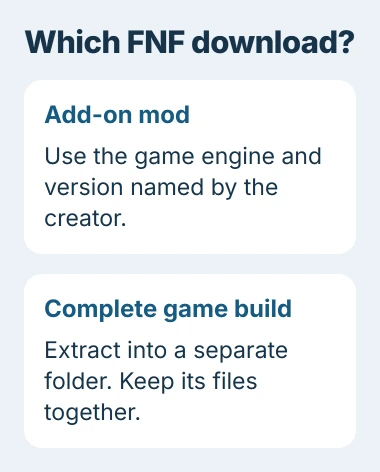
If the download includes its own game program, follow the creator's directions and keep that complete build in its own folder. Copying its program over your regular Funkin.exe can mix files from two releases.
If the add-on requires the official game, follow the next steps. I'd keep a clean game folder for your first mod; it's much easier to check one installation than untangle several mixed downloads.
2. Download and open the desktop game
Use the official Friday Night Funkin' download page. Select Download Now and choose the Windows build. You'll need this desktop version, even if you can already play the game in your browser.
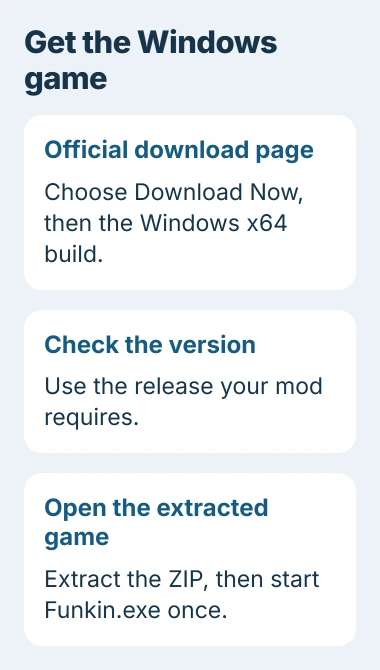
The download page listed 0.8.6 when this guide was checked. Check that the available version matches what your mod needs. The newest release won't necessarily support an older mod.
Save the game archive somewhere you can find it, such as Downloads. For a ZIP, right-click it and choose Extract All, then choose a destination folder. Open the extracted folder rather than trying to run the game inside the archive.
Windows has built-in ZIP extraction, so a ZIP download doesn't require a separate archive program.
Start Funkin.exe once and let the game reach its menu. Close it afterward. FunkinCrew says this first launch creates the mods folder beside the executable if it isn't there yet.
If the game won't open without mods, fix that first. Check that extraction finished, then open the Windows game program from the extracted folder. Keep all the files that came with it together.
3. Put the mod folder at the correct level
Extract the mod's ZIP into a temporary folder first, then look inside. The download may have an outer folder containing a readme and another folder with the mod itself.
For an official-game mod, look for _polymod_meta.json, the file that describes it. Put the folder containing that file directly inside the game's mods folder.
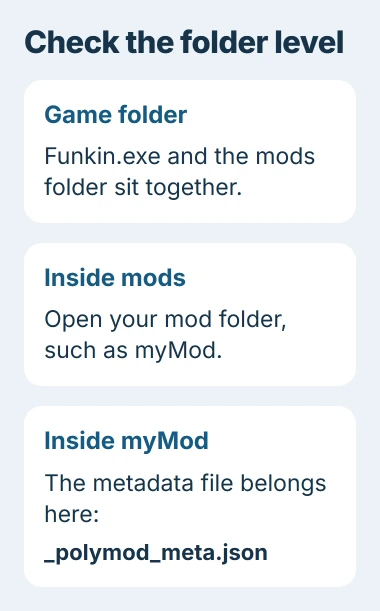
For example, a mod called myMod should have its description file at mods/myMod/_polymod_meta.json. If another myMod folder sits between the first one and that file, you've copied the outer download folder instead.
Keep the mod's other folders beside its description file, arranged as they were in the download. Moving just a song, image or script can leave behind files it needs.
If the description file is missing, check the creator's instructions instead of making a blank one. The download may use another engine or include the whole game.
4. Restart and check the content the mod changes
Launch the game again after copying the folder. For official-game mods, the documented installation procedure ends with a restart so the game can detect the new content.
Try the song, character or menu your mod changes. A character replacement may leave the main menu untouched, so seeing the usual title screen doesn't mean the mod failed to load.
Official-format mods add or replace content through the mods folder. You don't need to overwrite the original game's songs, images or other files to install one.
If the game crashes or you can't find the mod's content, close it and temporarily move the mod's folder out. If the game opens again, check that mod's files and whether it supports your game version.
Next, check the mod's required dependencies. These are other mods it needs to load. The metadata format lists required dependencies separately from optional ones.
Use the dependency versions the creator lists. Changing a version number in the description file won't update the mod's scripts, so that edit won't reliably fix a compatibility problem.
5. Treat the new mod menu as a preview feature
The v0.9 Mod Menu announcement is about a test build, separate from the stable download checked here. Its buttons won't appear in a release that doesn't include that menu.
In that preview, you can drag a mod folder, ZIP or .fnfmod file onto the game, as the new menu instructions explain. Imported mods go into the Disabled list until you enable them.
Select a mod and press Enter to enable or disable it, then choose DONE to apply your choices. Use Open Mods Folder in the preview to check which game installation you're changing.
Use that route only when the creator supports the preview build. Keep a preview installation separate from your working game so you can return to the stable version without sorting through mixed files.
If a compatible mod still won't load
Send the creator your game version, mod version, error text and the path to the folder containing the description file. Those details tell them more about your setup than a picture of the unchanged title screen.
Once the mod runs, record a short gameplay clip if you need to show a problem that happens during a song. For a wider game-launch issue, check when a graphics driver update helps.
The Short Version
Choose the required game build, launch it once and put the extracted mod folder inside mods. Folder depth and dependencies matter when content won't load. The drag-and-drop mod menu is a preview feature.
Checked November 4, 2026.

Isaac Smith is the founder and editor of PC Glance, a website that covers computers, laptops, and technology. He is a tech enthusiast and a computer geek who loves to share his insights and help his readers make smart choices when buying tech gadgets or laptops. He is always curious and updated about the latest tech trends.