
Install GRASS for QGIS on a Mac through MacPorts with sudo port install qgis3 +grass. This installs QGIS with GRASS support. If you already have QGIS, check its GRASS provider before adding another copy.
First, decide which QGIS copy you'll use. A copy installed from a disk image can sit alongside one installed through MacPorts. Opening the wrong one can leave you looking at a different set of tools.
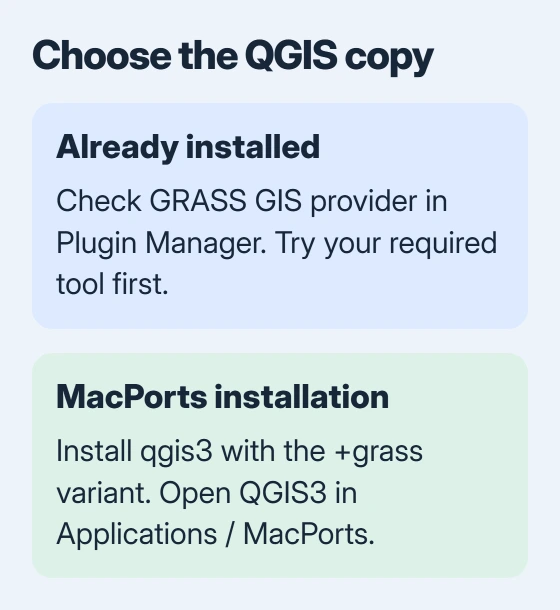
Check the QGIS copy you already have
Open QGIS and choose About QGIS from its application menu to note your version. Then open Plugins > Manage and Install Plugins and search for GRASS. Look for GRASS GIS provider, which adds GRASS tools to Processing.
Enable that provider if it's listed but unchecked. Also check that the Processing plugin is enabled. Close the manager, open Processing > Toolbox, and search for a GRASS algorithm such as v.buffer.
The older GRASS plugin manages mapsets and databases for GRASS data. Seeing that plugin doesn't tell you whether GRASS tools are available in the Processing Toolbox. Check for the tool you need before installing more software.
If the provider and the GRASS tool you need already work, you're done. You don't need a separate GRASS app when QGIS can already run the tool.
Prepare MacPorts when the existing package lacks support
QGIS's Mac installation instructions give the MacPorts command with the grass variant. A variant adds an optional feature to the package you're installing.
This route suits a Mac where you already use MacPorts to install software. The installation instructions warn that MacPorts and Homebrew can conflict, so don't add MacPorts alongside Homebrew just for this task.
Open Terminal from Applications > Utilities and run port version. If a version number appears, the command is available. If Terminal says the command wasn't found, MacPorts isn't ready in that session.
For a new installation, follow the MacPorts installation guide. It covers the developer tools and installer for your macOS release. Complete those steps before running the QGIS command.
For the developer tools, run xcode-select --install in Terminal. Follow the prompt if it offers to install them. If the tools are already installed, read the response before running the command again.
Get the installer through the project's own installation instructions. Apple's app-opening guidance explains how to handle the security prompts while keeping normal macOS protection enabled.
Install QGIS with its GRASS variant
The MacPorts qgis3 page shows the base package and its installation command. Adding +grass selects the extra GRASS support in the QGIS installation instructions.
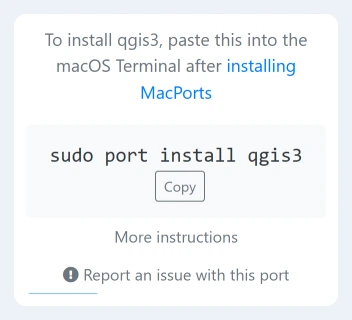
In Terminal, enter:
sudo port install qgis3 +grassEnter your Mac administrator password if asked. Terminal doesn't show the characters while you type. Press Return when you've entered it, then wait for QGIS and the other software it needs to finish installing.
Keep your Mac powered until Terminal finishes and shows its prompt again. MacPorts downloads and prepares the software QGIS needs too, so the first installation involves more than the QGIS app alone.
If the command stops with an error, save the failed package's name and the error text. Finished downloads don't mean the installation worked. Ask for help through that package's MacPorts support route before changing QGIS settings.
Open the MacPorts application and enable its tools
Open Finder > Applications > MacPorts > QGIS3. The app is installed at /Applications/MacPorts/QGIS3.app. Open that copy directly for this check, especially if you already have another QGIS icon in your Dock.
Return to Plugins > Manage and Install Plugins. Enable Processing and GRASS GIS provider where listed, then close the manager. Open Processing > Toolbox and search for the GRASS tool you need.
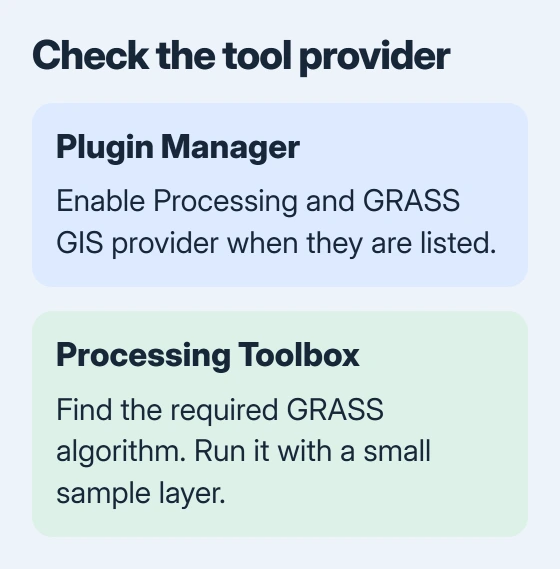
A tool appearing in the list means its provider has loaded. Open it and check that you can choose the expected data and settings. Then run it with suitable sample data to check that the installation works.
I'd use a small copy of a data layer you know works for that first run. Choose a temporary output so the check doesn't replace a project file. Check that the result loads and the processing log ends without an installation error.
If Terminal is unfamiliar, the Mac Terminal folder guide explains how its working folder differs from a Finder window. The installation command here doesn't require changing to a project folder.
Treat a standalone GRASS app as a separate installation
The GRASS download page also offers standalone Mac applications. Those are useful when you want to work in GRASS itself. Installing one doesn't automatically add a missing QGIS plugin to every QGIS copy.
The linked Mac builds have separate Apple ARM and Intel downloads. Check Apple menu > About This Mac for the processor or chip before choosing. Follow that build's instructions, including its required Applications location.
Older QGIS instructions can mention GRASS 7 paths while a current standalone download uses GRASS 8. Those paths refer to different versions. Don't paste an old app's path into settings just because the folder name looks similar.
For a standalone Mac app that needs updating or replacing, the Mac application removal guide explains ordinary app removal. Use MacPorts' own management tools for software it installed.
Send the right details when GRASS still won't run
A missing provider, a missing GRASS program and data a tool can't use need different fixes. Give QGIS or MacPorts support your QGIS version, the app's path, how you installed it and the full processing error.
Say whether the tool is missing from the toolbox or appears but fails when you run it. If it fails, include the algorithm name and a small example you can share. That gives support a specific task to check.
The Short Version
Check the existing GRASS GIS provider first. For the MacPorts route, prepare MacPorts, install qgis3 +grass, and open QGIS3 from Applications > MacPorts. Confirm a GRASS tool runs, rather than checking only that an icon appeared.
Checked November 5, 2026.

Isaac Smith is the founder and editor of PC Glance, a website that covers computers, laptops, and technology. He is a tech enthusiast and a computer geek who loves to share his insights and help his readers make smart choices when buying tech gadgets or laptops. He is always curious and updated about the latest tech trends.