
iPhone audio can disappear when playback volume is down or sound goes to another device. Start some music, raise the volume while it plays and choose iPhone as the playback destination in Control Center.
Missing ringtones, silent videos and a caller you can't hear aren't the same fault. A working ringtone with silent media points toward playback controls; silence during that test too means the speaker itself may need attention.
1. Raise the volume during the sound that's missing
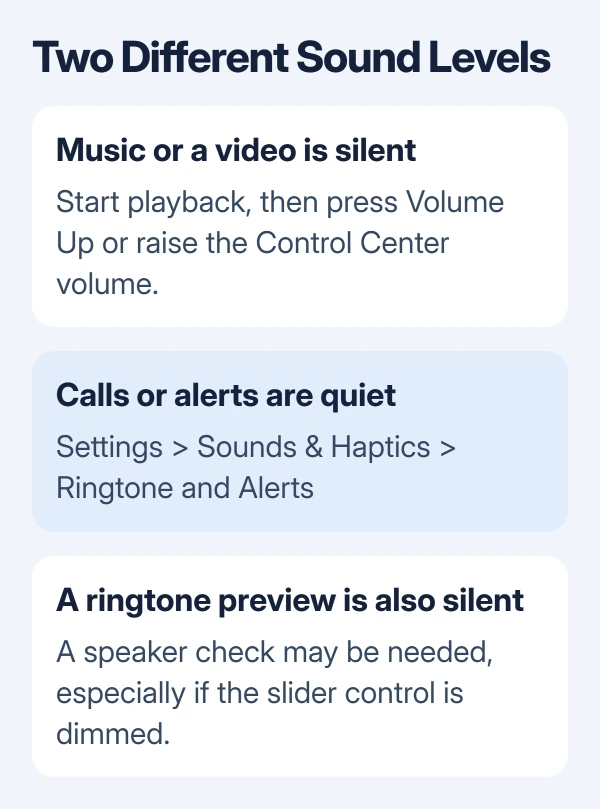
Play a familiar song or video, then press Volume Up. When media is playing, the side buttons change its volume. Turning up the ringer doesn't necessarily make a muted movie play sound.
Open Control Center and raise its volume slider too. For Face ID models, swipe down from the upper-right corner. On Home button models, begin at the screen's bottom edge and swipe upward.
If the app has a speaker or mute control on the video, check it. Try a second known recording or a different audio app. One silent clip can contain no recorded sound even when the phone's speaker works normally.
A video that stays silent while other audio works belongs in the iPhone video sound checks. Keep the working song as your comparison while you check that clip.
Apple explains the two volume behaviors in its iPhone volume controls. Changing the volume while it plays means you know which sound level you're adjusting.
2. Send playback back to the iPhone
While the audio is playing, open Control Center and expand the playback controls. Tap the playback destination button and select iPhone. The same destination control is available from supported Lock Screen playback controls.
Look for headphones, a car stereo, a wireless speaker or an AirPlay device in that list. Your audio can be playing through one of those devices while the iPhone itself stays quiet.
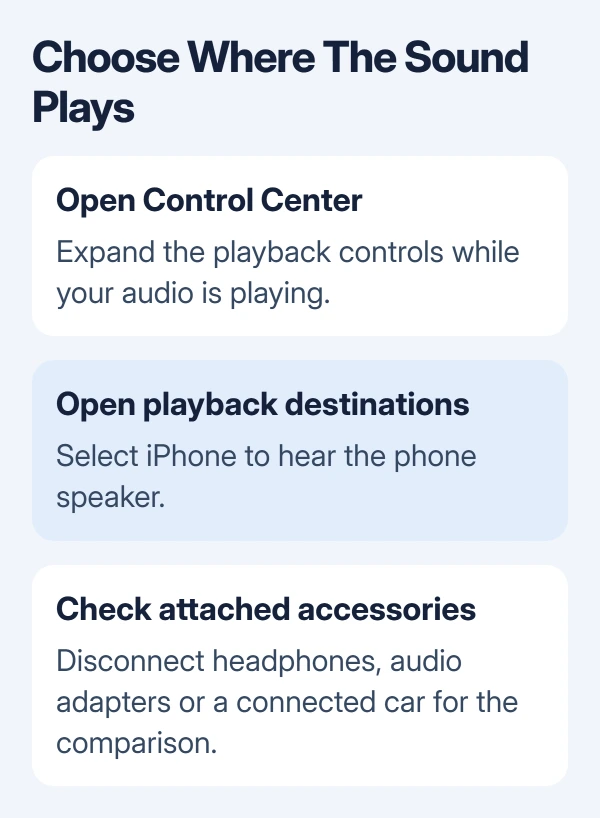
Unplug wired headphones, USB-C or Lightning audio adapters and connected audio equipment during this check. If the speaker works as soon as the accessory is disconnected, inspect that accessory's volume and connection next.
For Bluetooth, open Settings > Bluetooth, find the connected accessory and disconnect it for this check. Keep it paired while you check whether the phone's own speaker can play your song.
If choosing iPhone restores sound, it was going to the wrong device. If the route already says iPhone and several apps remain silent, continue with the ringtone test rather than repeatedly changing Bluetooth settings.
3. Test the speaker with Ringtone and Alerts
Open Settings > Sounds & Haptics and move Ringtone and Alerts back and forth several times. On a device using the older label, open Sounds. Listen for the preview as you move the slider.
If you hear that preview, the speaker can play the test tone. It doesn't tell you that every app or network call is working, but you can compare that working tone with the media that stays silent.
If that test stays silent, or its speaker control is dimmed, the speaker may need service. That's a stronger reason to have the speaker checked than one muted video or a single quiet call.
The speaker troubleshooting procedure uses this test before directing persistent faults to service. I'd do it before changing a collection of unrelated sound settings.
4. Restore ringing and notification sounds
If media and the ringtone preview work but incoming calls stay quiet, check Silent mode. On a model with a Ring/Silent switch, move it toward the display so orange isn't visible.
On an Action button model, open Control Center and switch Silent mode off. Holding the Action button can change Silent mode only when that is the action assigned to it; a button set to Camera won't change the ringer.
Open Settings > Focus > Do Not Disturb and disable it before checking an incoming call. Other active Focus settings can also affect which calls and alerts interrupt you, so check the active Focus in Control Center.
Ask someone to make a fresh call after the change. A previously missed alert won't replay simply because ringing is now allowed. Listen for the incoming call before deciding whether the change helped.
If calls ring but text and email alerts don't, follow the separate notification sound settings. Resetting playback volume won't change a notification tone set to None.
5. Clear an obstructed speaker or receiver
Remove the case and any film or screen protector that could cover a speaker opening or the receiver at the display's upper edge. Compare the sound before replacing the case.
Check the openings for dirt. Use a small, clean, dry, soft-bristled brush when cleaning is needed. Don't push sharp tools into the openings or add liquid to try to clear muffled audio.
Try the same song again with the volume at a comfortable level. A clear improvement without the case or after gentle cleaning points to an obstruction. No improvement means it's time to compare call audio or arrange service.
6. Separate call trouble from playback trouble
Make a call and turn on Speaker in the call controls. Compare speakerphone with the receiver you normally hold to your ear. Tell the repair adviser if speakerphone works but the receiver stays silent, or the other way around.
If the ringtone and music work but calls crackle or disappear, try another location or call again later. Network reception can affect the call without preventing the phone from playing local audio.
When the other person can't hear you, the missing sound is going in the opposite direction. Check the microphone for that problem; turning up your speaker won't help. Tell support which side of the conversation loses audio.
For trouble in just one app, close it, reopen it and try playing the audio again. Keep track of whether all media is silent, only one recording is silent, or only calls fail; each result changes the next step.
7. Request service when the speaker test stays silent
Contact Apple Support and choose an iPhone sound or speaker issue. Give the model, iOS version, ringtone-slider result and whether headphones or speakerphone work. Mention any drop or liquid exposure that preceded the failure.
If a case, output destination or Silent mode caused the problem, keep the setting that worked and stop changing things. If the ringtone test still produces nothing, ask for a speaker assessment rather than another app's audio settings.
The Short Version
Raise volume while media plays and select iPhone as its destination. Compare that with Ringtone and Alerts, then check Silent mode, Focus and blocked speaker openings. Persistent silence in the ringtone test needs a service assessment.
Checked November 9, 2026.

Isaac Smith is the founder and editor of PC Glance, a website that covers computers, laptops, and technology. He is a tech enthusiast and a computer geek who loves to share his insights and help his readers make smart choices when buying tech gadgets or laptops. He is always curious and updated about the latest tech trends.