A ringtone that fades when you look at your iPhone may be using Attention Aware Features. Check that first on a Face ID model. For quieter headphone music, check audio limits and exposure notifications instead.
Watch whether a volume slider actually moves, and note which sound changes. A quieter alert, a media limit and a case pressing the volume button can feel alike until you compare them.
In this guide
1. Stop Attention Aware from quieting alerts
For a Face ID model, open Settings > Face ID & Passcode, enter your passcode, and find Attention Aware Features. Turn it off to keep alerts at the same volume when the phone notices you looking.
Apple's Attention Aware explanation says it lowers alert volume when attention is detected. This works even if you haven't set up your face in Face ID. Music fading during playback needs another explanation.
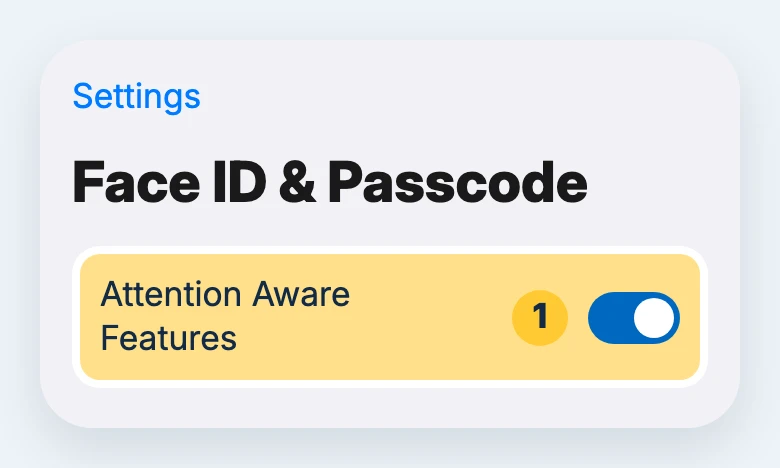
Compare the next incoming alert with the phone in the same position. If the fading stops, you've changed the feature responsible for that behavior. Keep it off if you prefer a steadier alert.
The feature also helps keep the display from dimming while you're looking at it. Turning it off changes that screen behavior too. Leave Require Attention for Face ID alone; that's a separate security setting.
Home button iPhones, including the SE models, don't use this TrueDepth attention feature. If your phone has no Face ID & Passcode menu, check the sound-volume controls next. That attention option isn't available on your model.
2. Keep the side buttons from changing alert volume
Open Settings > Sounds & Haptics and turn off Change with Buttons. Set your desired alert volume with the on-screen control. That keeps a volume-button press from changing your alert volume later.
The side buttons serve different purposes depending on what's happening. During a call or media playback they control that sound. At other times they can control alerts, unless you've turned off Change with Buttons.
After changing the switch, try a volume button while playing music. Media volume should still respond. That gives you separate control of listening volume without accidentally reducing the alert level between songs.
Current iOS layouts can include additional sound controls, so follow the labels your installed version shows. Check whether Change with Buttons was letting button presses turn down alerts you wanted to keep loud.
If the problem is alerts that are consistently too loud rather than volume changing by itself, use the iPhone notification volume choices. That includes ways to quiet selected alerts instead of changing every sound.
3. Check limits when only playback becomes quieter
Go to Settings > Sounds & Haptics > Headphone Safety and inspect Reduce Loud Audio. When it's on, it reduces headphone sound that's louder than the level you've selected. That's how the setting is meant to work.
Review the selected limit before changing it. If the sound gets quieter as it reaches that limit, the setting explains the change. Raising the limit isn't necessary just to confirm why the phone is reducing loud playback.

On current versions that offer a built-in speaker limit, check Settings > Sounds & Haptics > Volume Limit too. Limit Maximum Volume caps speaker playback. Use this check when the phone's own speaker is affected rather than headphones.
If Reduce Loud Sounds is offered under Built-In Speaker, that setting also softens loud speaker sounds. Check it when peaks get quieter through the phone itself.
A cap differs from a slider moving downward without a button press. If the sound never exceeds a level but the control stays where you put it, review the limit. If the control visibly moves, continue to the physical controls.
Compare the same audio through the phone speaker and your headphones. If only one of them gets quieter, you'll know which setting to check without changing every sound control at once.
4. Recognize a reduction after a headphone warning
Headphone exposure notifications can explain a lower starting volume the next time you connect headphones. After a notification, the iPhone automatically sets a lower volume on the next wired or Bluetooth headphone connection.
Review that history in Health > Browse > Hearing > Headphone Notifications. Check whether a notification arrived before you noticed the lower volume. This is different from a song becoming quieter every time you speak.
The headphone notification instructions explain the reconnection behavior and regional limits on disabling notifications. In some countries or regions, that notification switch can't be turned off.
For AirPods that reduce the sound while you're talking, check Conversation Awareness and the other AirPods volume features. Those controls depend on the AirPods model.
I'd check the timing before resetting anything: an alert fading as you look toward the screen, music dipping when you speak and lower volume after reconnecting point to three different controls.
5. Remove pressure from the volume-down button
Take off the phone's case and check whether the volume-down button can move normally. A case edge that sits over the button can keep sending presses. Test the phone on its own before putting that case back on.
Use a soft cloth to clean around the outside of a dirty button. If it is damaged, sticks or works only sometimes, arrange repair using the button troubleshooting instructions.
If the button seems normal, restart the phone and compare one app with another. Note whether the volume control moves in both apps, only one app, or only while a particular accessory is connected.
If the slider keeps moving with the case off and without anyone using the controls, contact Apple Support for a volume-button and audio check. Give your iPhone model, iOS version, affected speaker or headphones, and button behavior.
The Short Version
Check Attention Aware for fading alerts, button settings for alert changes, and audio limits for quieter music. A headphone warning can lower the next connection's volume. A moving slider needs a button and case check.
Checked November 27, 2026.
 If you have any business, I can build it online