A gray Wi-Fi switch on an iPhone needs a restart first, as Apple recommends for a dimmed setting. If the switch turns on but the phone won't connect, check network joining instead. Router passwords won't enable an unavailable switch.
Use the main Wi-Fi switch in Settings to tell those cases apart. A disconnected button in Control Center doesn't always mean Wi-Fi has been switched off completely.
In this guide
1. Check the actual Wi-Fi switch, then restart
Open Settings > Wi-Fi and check the switch beside Wi-Fi. If you can use it, try turning it on there. Not seeing a network name is a different problem from being unable to turn on the switch.
For a dimmed switch, follow Apple's Wi-Fi troubleshooting instructions and restart the iPhone. Try that before removing saved connections or changing anything on the router.

For Face ID iPhones, hold the side button and either volume button for the shutdown slider. Slide to turn off, then wait 30 seconds. Power on by holding the side button until the Apple logo appears.
For an iPhone 6, 7, 8 or SE from the second or third generation, hold only the side button for the shutdown slider. A first-generation SE or an older model uses the top button. Use the same button to power it back on.
Unlock the restarted phone and return to Wi-Fi settings. Check that the switch responds and the phone starts showing available networks. Select a trusted network and check whether it connects.
If it now turns on but doesn't rejoin home automatically, use the Auto-Join checks. Those settings help with rejoining a network once the switch works.
2. Separate Control Center from a disabled radio
The Wi-Fi button in Control Center can disconnect the current network while leaving Wi-Fi available for some system features. That temporary disconnect doesn't behave like turning off the main switch in Settings.
For Face ID models, swipe downward at the screen's upper-right corner to reveal Control Center. On a Home button iPhone, swipe upward from the bottom. If you saw the problem there, check Settings before assuming the radio has failed.
Also inspect Airplane Mode on the main Settings page. Disable Airplane Mode for this attempt, then return to Wi-Fi. Check whether the Wi-Fi switch responds with Airplane Mode off.
If the Wi-Fi switch is usable and a network gets a checkmark, it has turned on and joined. A message about internet access after that is a different fault. Note the exact message instead of repeating the steps for a gray switch.
A network password is requested after selecting a network, not to enable the radio itself. Changing the router's password won't make a nonresponsive Wi-Fi switch become available.
3. Check installed VPN or security software
If a VPN or network-security app is installed, follow its removal instructions, then restart and test Wi-Fi again. Removing that software is one of the recommended steps when it interferes with network access.
For an organization-managed phone, ask IT before removing its software or profiles. Give them the exact symptom: whether the main Wi-Fi switch is gray, flips back off, or turns on but won't join a network.
If removing the app restores a working connection, contact its provider about a compatible version or configuration. Tell them that removing the app helped, so they don't send you straight back to changing the home router.
If the switch stays unavailable after removing the app, move to software updates. A phone with no VPN or security app installed can go straight to that step.
4. Check for an iOS update using a working connection
Look in Settings > General > Software Update for the supported update offered to the phone. Read the screen's connection and power requirements before starting. Save a backup of your data before the installation.
A phone with unusable Wi-Fi may need a computer for the update. Connect by cable. Unlock your phone and approve any trust prompt. Use Finder on a modern Mac, or the Apple Devices app for Windows.
Select the iPhone in the app's sidebar. From its General page, select Check for Update. For iTunes, select its device button and use Summary > Check for Update. Choose the option to update rather than restore.
The iPhone update instructions link to each supported computer method. If the computer can't recognize the phone, resolve that connection first rather than starting an erase to try to reach the updater.
After updating, check the Wi-Fi switch again in Settings. If it responds, join a network and try loading a page. If it stays dimmed, consider a network reset next.
5. Reset networks once, then request an assessment
Open Settings > General > Transfer or Reset iPhone > Reset and select Reset Network Settings. This clears Wi-Fi passwords and saved networks along with cellular, VPN and APN settings, so have your connection details ready.
For a phone managed by school or work, ask its administrator before resetting networking. The reset affects those connections too, rather than just the home network you last selected.
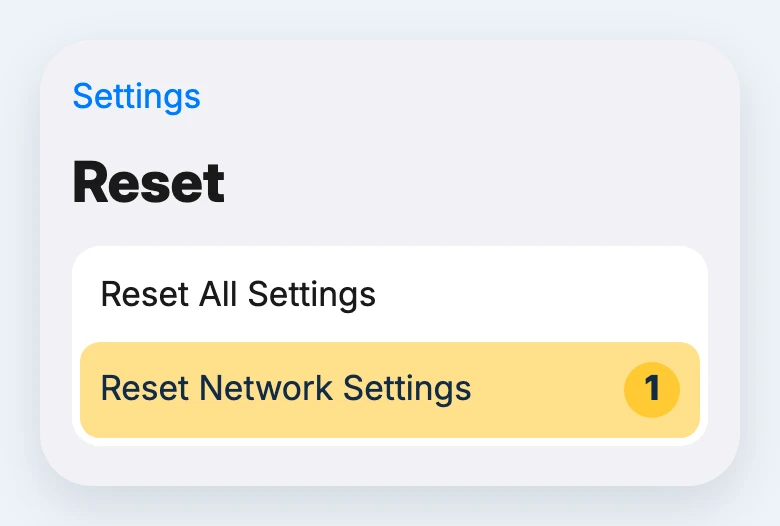
After the reset, inspect the switch before entering passwords. If it works, join one trusted network and test access. If it still won't turn on, don't keep repeating the same reset.
If the switch works and the network has a checkmark but pages won't load, use the connected Wi-Fi with no internet checks. That failure comes after the radio has turned on.
Contact Apple Support about the switch and request a Wi-Fi check. Give them your model, iOS version and what happened after the restart, update and reset. Mention any recent damage and whether Bluetooth is also unavailable.
I'd get that check before agreeing to erase the phone. Ask support whether a restore is needed and how to protect the backup first. A gray switch alone doesn't tell you which internal component, if any, needs replacing.
The Short Version
A dimmed Wi-Fi switch calls for restarting, reviewing network apps and checking iOS updates. Use a network reset after those steps. If the switch stays unavailable, request a Wi-Fi assessment rather than changing router passwords.
Checked November 27, 2026.
 If you have any business, I can build it online