An in-place upgrade fixed the stuck KB5015882 download for the person who reported it. The repair reinstalls Windows and leaves your apps and documents in place. Check your Windows version first: this preview dates from July 2022.
If your PC runs a newer Windows release, use that release's updates and repair options. If it's still running Windows 11 version 21H2, plan an upgrade to a supported version. KB5015882 isn't the last update it needs.
In this guide
1. Check whether KB5015882 is still the active failure
Press Windows + R, type winver, and press Enter. Make a note of its version and build numbers. Then open Settings > Windows Update and read the package currently downloading.
The KB5015882 release page identifies it as a July 21, 2022 preview for build 22000.832. That package targets Windows 11 version 21H2; later releases use different update packages.
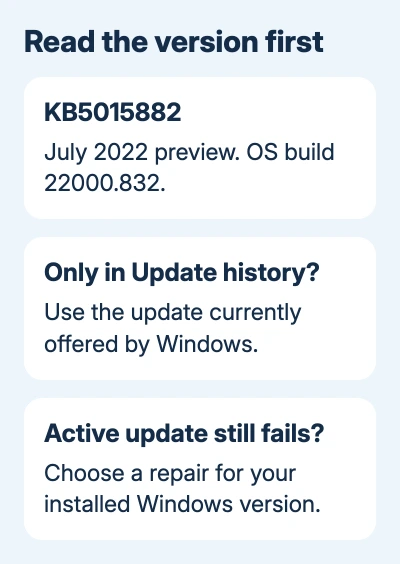
If the KB appears as a past failure under Update history, open Windows Update again to see what's pending. Windows can retain that entry after it stops needing the package. Work from the name of the update Windows is currently offering.
If your PC has since moved to another release and current updates finish normally, don't download KB5015882 just to change that history entry. An update meant for a different release can report that it doesn't apply to your computer.
For the original release, protect your documents and check Windows Update's current upgrade offer. Plan an upgrade to a supported Windows version; completing this old preview alone won't bring the operating system up to date.
2. Finish a normal retry before starting a repair
On the Windows Update page, save open documents and complete a requested restart. Reopen the page and select Check for updates. Keep internet access available during the download, with the PC's charger attached.
Check whether the download is stuck in Settings or installation has already started on the restart screen. The steps here start from a working desktop. Don't interrupt an installation screen just to try a desktop repair command.
If the retry completes, check Update history for the update that actually installed. Look for successful installation of the current package, rather than a particular percentage changing once and then stopping again.
If another package now stalls, use our general Windows Update repair guide for the download checks. It covers space, connectivity and the update troubleshooter before you move to a larger Windows repair.
One owner said the early repair suggestions still left downloading stuck at 64%. The asker later confirmed an in-place upgrade worked. The completed repair gives you more to go on than the earlier suggestions.
I'd avoid repeating an update-reset routine that has already failed on your PC. Once the package and Windows version are clear, you can choose the repair that fits your Windows release.
3. Use the built-in repair on a newer release
In Settings > System > Recovery, find Fix problems using Windows Update. Use its Reinstall now control when available. The repair replaces Windows components without removing your installed applications or personal data.
Back up important files before beginning. In the confirmation window, choose whether Windows can restart automatically after installation, then select OK. Keep the charger attached and the internet connection active throughout the repair.
Windows Update then handles the repair download and installation. Restart manually afterward unless you allowed it to happen automatically. Check for updates again to see whether the failed package now installs.
Microsoft's current repair instructions explain when this option is available. Managed devices and older releases can lack the control.
Windows must have the 2022 annual release or a newer one, with February 2024's optional package or anything newer installed.
A PC still on the original 2021 release won't have this option just because a newer guide shows it. Ask support to help you use installation media instead of continuing to search Settings for that button.
If Recovery or Settings itself won't open, our Settings repair checks address that obstacle. A missing repair option and a broken Settings application require different next steps.
4. Use an in-place installation when the repair option is absent
An in-place installation launches Setup while you're already using Windows. That is the repair the asker reported using. Starting the PC from USB instead won't follow these steps for keeping your apps.
Get installation media through the official Windows 11 download page. Match the architecture, language and edition to the installation you intend to repair or upgrade. Ask support for help if an older release needs a version upgrade.
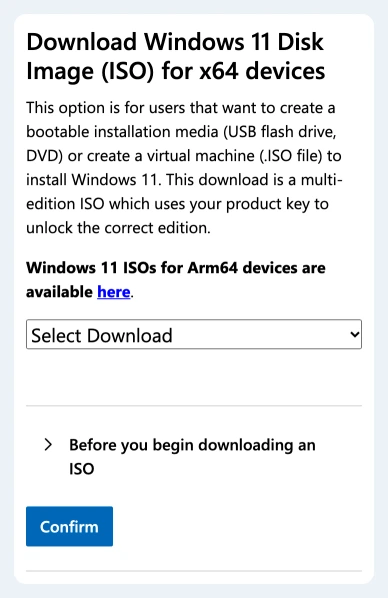
For installation media already prepared on a USB drive, open it in File Explorer while Windows is running and run setup.exe.
For an ISO image, right-click its downloaded file and choose Mount. That opens it as a virtual disc; run setup.exe from that drive.
Follow Setup until it shows what it will keep. Choose Change what to keep if needed and select Keep personal files and apps. Read the final summary before choosing Install.
If that keep option isn't available, stop and check the media and upgrade path. Don't choose to keep nothing just to get past this screen. That would erase what you're trying to keep rather than repair Windows in place.
Keep the charger attached through every Setup restart. Once the desktop returns, check your applications and files. Then check for updates for the newly installed release.
When Setup or the download still fails
Open Get Help and request help with an in-place Windows repair or upgrade that preserves applications. Provide the version and build from winver, the active update name, its error code, and any Setup compatibility message.
For an organization's PC, give IT those details and say whether the built-in repair is available. Ask which supported version or component repair the device needs before trying more old standalone packages.
The Short Version
KB5015882 is a 2022 preview. Confirm whether it's an active failure or old history. The reporter's confirmed fix was an in-place upgrade; use a current Windows repair or supported upgrade while preserving your files and apps.
Checked November 26, 2026.
 If you have any business, I can build it online