Windows 11 update error 0x80070032 can come from a dynamic system disk. Check the disk type before resetting Windows Update again. One owner fixed a repeating 22H2 upgrade failure by converting the disk to basic.
The code also appeared on basic disks. A separate owner fixed Surface laptops by reinstalling .NET Framework 3.5. Your disk type and Windows version determine which repair to try. Neither report covers every computer.
In this guide
1. Read the disk type without changing it
Open the Start right-click menu, then select Disk Management. Find the volume marked C:, then look at the disk containing it in the lower pane. The label beside its disk number says Basic or Dynamic.
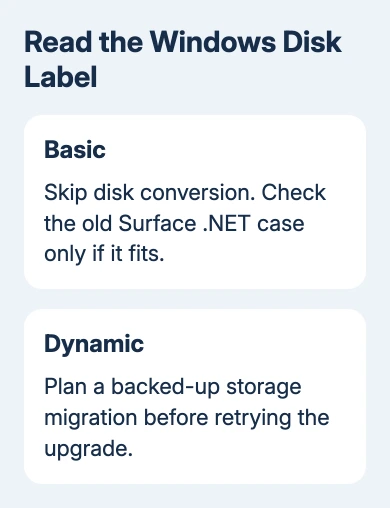
Check the disk containing Windows rather than a second storage drive. Its label is the one that matters. Read it, then close the window without accepting a conversion or deletion.
Dynamic disks can combine or mirror volumes. In the original report, the Windows partition was mirrored and the upgrade failed at 37%. Their upgrade stopped at that point, but the stopping percentage doesn't diagnose the fault on your PC.
For help reading the partitions, use the Disk Management guide. A disk's Basic or Dynamic label is different from its GPT or MBR partition style, so don't convert between GPT and MBR for this error.
If the Windows disk says Dynamic, continue with section 2. If it says Basic, leave its partitions alone and go to section 3. Use that label to choose between the two confirmed repairs.
2. Plan a safe move away from a dynamic system disk
The accepted reply pointed to a dynamic Windows disk as the cause of the old 22H2 and 23H2 setup failures. A later owner confirmed that converting away from dynamic with EaseUS Partition Manager fixed their failure.
Back up your files and plan how you'll recover Windows before letting any tool change the system disk. With mirrored Windows volumes, the plan must account for both disks and how they will be used afterward.
Microsoft's disk conversion instructions require deleting the disk's volumes before converting it to basic. That means rebuilding the disk after erasing its contents. It won't keep Windows and your files in place.
Don't follow Delete Volume as an ordinary update repair. Have a storage technician plan the migration with you, including how Windows will start afterward and how to replace the mirror if you still need a second copy on another disk.
I'd get that plan agreed before paying for a partition utility. The important question is whether it supports your exact system disk and mirrored layout, not whether its advertising says it can convert disks without losing data.
After conversion or rebuilding, confirm that Disk Management labels the Windows disk Basic. Retry the supported upgrade. If 0x80070032 returns, tell support the error and that the disk now says Basic; don't convert it again.
3. On an old basic-disk installation, check .NET 3.5
A different owner reported the failure on several Surface laptops after they had been wiped and reinstalled through Intune. Removing and enabling .NET Framework 3.5 again let those laptops update to 22H2.
Try this on an older installation like the ones in that report, particularly when .NET 3.5 is already enabled. If that doesn't describe your PC, leave this older component disabled if you don't use it.
- Close applications that depend on .NET 3.5.
- Press Windows + R, type optionalfeatures, and press Enter.
- Clear .NET Framework 3.5 (includes .NET 2.0 and 3.0) and select OK.
- Complete removal, restarting if Windows requests it.
- Open Windows Features again, select the same component, and choose OK.
- Allow Windows to download the required files, then retry the update.
On a managed laptop, have IT do this. The report involved business devices, and an organization's update source can affect whether Windows can download the component files.
The result to check is a completed update, not just a successful .NET installation. If the component won't download, record that new message for IT. Repeating the feature removal won't fix a blocked download source.
This Windows Features route applies to older releases such as 22H2. Windows 11 26H1 uses a standalone .NET 3.5 installer instead. That version needs a different installation method, so this old Windows Features workaround doesn't apply.
4. Retry a supported Windows release
Press Windows + R, enter winver, and read your installed version. As of November 26, 2026, 22H2 and 23H2 are past their update lifetimes. Repairing the block should help you move forward, not leave the PC on one of those releases.
Open Settings > Windows Update and check which feature update is offered. For a managed device, get the approved release name from IT. If another error appears, save its exact code and the update name before taking the next step.
The asker had tried troubleshooting, component resets, DISM and SFC without clearing the failure. That history makes the disk check useful: resetting update services again won't change a dynamic system disk.
If your disk is basic and the .NET repair doesn't fit, use the Windows update error guide to separate download, installation and upgrade failures. Don't mix ISO installation files using the old setup workaround for a current upgrade.
Get help before changing the storage layout
Give the technician your error, Windows version, target update and disk labels. Mention mirrored volumes. If the disk is dynamic, ask for a backed-up move to a basic system disk and supported Windows release.
If updates still fail on a basic disk, send support the setup logs from the failed upgrade and a list of repairs you've already tried. That lets support work on the remaining installation failure without proposing another disk conversion.
The Short Version
The Windows disk type decides which repair fits. A planned conversion fixed one dynamic-disk case; reinstalling .NET 3.5 fixed a separate group of old basic-disk Surface installations. Finish by moving to a supported Windows release.
Checked November 26, 2026.
 If you have any business, I can build it online