

KERNEL_SECURITY_CHECK_FAILURE in Windows 11 can follow a faulty driver or hardware change. Undo the change nearest the first crash. Stop code 0x139 means Windows detected damaged internal data; it doesn't mean your account was hacked.
A crash after installing a device calls for different checks than repeated crashes before sign-in. If Windows stays open, protect your files, then review that change.
If it can't stay running, use Safe Mode to reach the settings for its drivers.
1. Reverse the change closest to the first crash
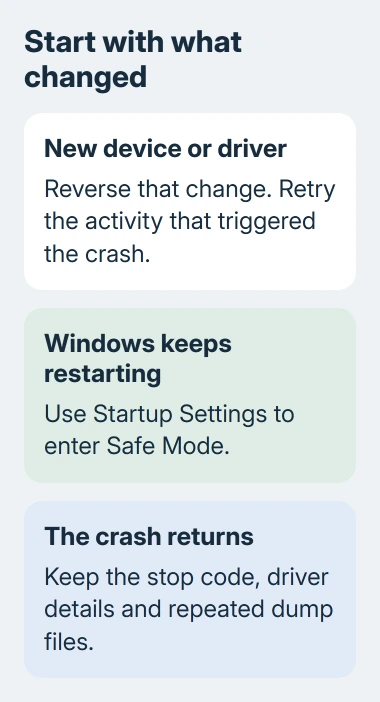
Disconnect recently added external hardware, such as a new USB adapter, dock or storage device, then restart. Test the activity that caused the crash with that device disconnected.
Leave long-standing equipment alone unless the symptoms point to it.
If the crashes stop, check the new device maker's support page for a compatible driver or a known problem. Reconnecting it and seeing the same stop code return is useful information for that support request.
A newly installed VPN, security tool or hardware utility can also install system services or drivers. If the timing matches, uninstall that recent app through Settings > Apps > Installed apps, restart, and compare normal use.
I'd reverse one clear recent change before replacing parts. If several things were installed together, record their names and dates so you can make each comparison without guessing what changed afterward.
If you've had RAM or another internal part installed, ask the installer to check that it fits correctly and is compatible.
For a laptop under warranty, give the repair team the crash history rather than repeatedly opening it without knowing which part needs attention.
2. Reach Safe Mode when Windows keeps restarting
If the sign-in screen remains usable, hold Shift while choosing Power > Restart. From a working desktop, open Settings > System > Recovery, then select Restart now beside Advanced startup.
In the recovery menu, choose Troubleshoot > Advanced options > Startup Settings > Restart. Press 4 or F4 for Enable Safe Mode. Windows starts with a limited set of files and drivers so you can remove or repair a suspect component.
Before entering recovery tools, get the recovery key for BitLocker. An encrypted computer may request it, and the Windows sign-in password isn't a replacement for that key.
If the computer won't reach sign-in, use the Windows Recovery Environment when automatic repair offers it. Choose Advanced options, then follow Startup Settings.
If recovery itself is unavailable, use Microsoft's recovery guidance or the PC maker's recovery service.
If Windows stays stable in Safe Mode, check the drivers and services that load during normal startup next. It doesn't identify one particular program. Return to the recent changes and the recorded errors rather than uninstalling everything.
For restarts that show no readable code, use the Windows restart-log checks. A shutdown without a captured message needs more detail before it's treated as a 0x139 crash.
3. Update or roll back the driver the timing points to
Right-click the Start button and select Device Manager. Expand the category for the recently changed device. A yellow warning symbol is useful, but a driver can still be involved without showing one there.
Open the device's Properties and inspect Events for related problems. On the Driver tab, note the provider, version and date. Compare those details with the driver package your computer maker offers.
If the crashes began after updating that driver, select Roll Back Driver when available. Follow the prompt and restart. If the button is unavailable, Windows doesn't have an earlier driver available to restore for that device.
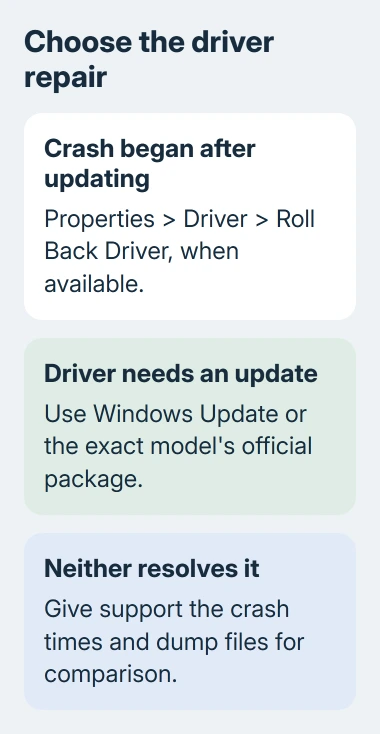
Otherwise, check Settings > Windows Update for updates and restart when required. For a manufacturer-specific driver, use its official support page to match the driver to your computer or component and Windows version.
Test normal startup and the original trigger after changing the driver. Stability during that same activity is more useful than simply reaching the desktop. If the crash returns, keep the new stop-code details for the next check.
Avoid using Driver Verifier as a casual repair step. It's a diagnostic tool that can intentionally trigger crashes while checking drivers. A technician analyzing the dump can decide whether it's needed and plan how to recover from it.
4. Read the crash-time events and keep the dump files
Press the Windows key, type Event Viewer, and open it. Select Windows Logs > System. Inspect errors around the recorded crash time, especially ones naming a device or driver before the restart.
An unexpected-shutdown entry tells you Windows didn't shut down properly. It doesn't, by itself, tell you which component caused the failure. Save the details of any earlier device-specific errors as well.
Microsoft's 0x139 troubleshooting guidance explains why several crash dumps can be needed: the damage may be detected after the original mistake happened.
If present, keep files from C:\Windows\Minidump for support. A memory dump records information from the crash for a debugger to read. Ask support for a private upload route, since dumps can contain information from the computer's memory.
An analysis naming ntoskrnl.exe doesn't automatically mean replacing Windows is the answer. Windows code can be where damaged data is noticed.
Ask the technician to compare several dumps for recurring driver problems before blaming one filename.
If the code is actually KERNEL_DATA_INPAGE_ERROR, use the drive and memory read-error checks. That is a different stop code with a different emphasis, despite the similar first word.
5. Repair Windows files and request targeted help
When the driver checks haven't resolved it, install available Windows updates, then open Terminal (Admin) from the Start button's right-click menu. Run the following command and let it finish:
DISM.exe /Online /Cleanup-image /Restorehealth
Next run sfc /scannow. DISM repairs the Windows image, the files used to repair its components. System File Checker checks protected system files.
Keep the completion messages, including any files it couldn't repair, then restart and test again.
Run a malware scan through Windows Security > Virus & threat protection > Scan options too. This checks another possible cause of damaged system data. A clean scan doesn't replace the driver and hardware comparisons.
If 0x139 keeps returning, contact the PC maker's Windows support team with the stop code, crash times, dump files and the changes already reversed.
Ask them to check the drivers and hardware using those details, including memory testing if the crash pattern points to it.
The Short Version
Undo recent hardware or driver changes, use Safe Mode if normal startup fails, and inspect the errors nearest each crash. Keep repeated dumps for analysis.
Repair system files when needed, then request a targeted driver or hardware assessment if 0x139 continues.
Checked November 8, 2026.

Isaac Smith is the founder and editor of PC Glance, a website that covers computers, laptops, and technology. He is a tech enthusiast and a computer geek who loves to share his insights and help his readers make smart choices when buying tech gadgets or laptops. He is always curious and updated about the latest tech trends.