
Every key you press acts as Alt plus that key. Or Shift, Ctrl or the Windows key behaves as if it is held down. You swap keyboards and it follows you, even onto the On-Screen Keyboard.
Before you reinstall anything, I would press Windows key + L and sign back in. It is the quickest way out that owners trust.
One Microsoft Q&A thread on this has Same question at 400+. A Super User question about the Alt key has 31,107 views, and one owner wrote that locking "always works".
What a stuck key does
On Super User, the asker described it exactly: "Any key I type is interpreted as this key plus ALT." A reboot cleared it, until the next time.
The asker of the 400+ thread noticed something useful. "If I lock myself out of my account and then log myself back in, it goes away temporarily". And "the keyboard never does this on the sign in screen."
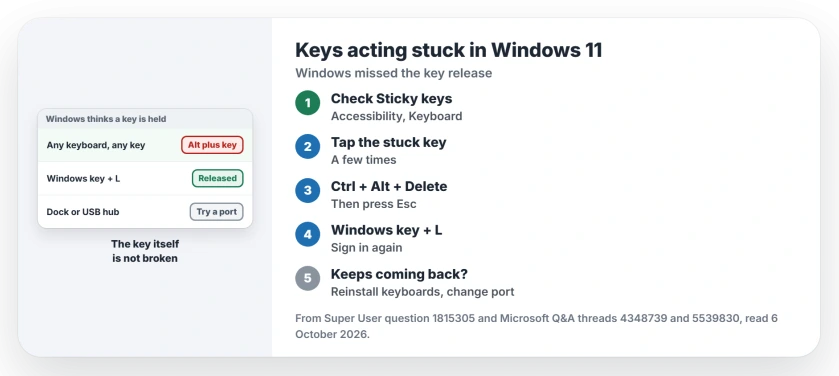
Status: checked 6 October 2026. Windows 11 acted as if Alt, Shift, Ctrl or the Windows key was held, on any keyboard. Locking the PC, tapping the key, or reinstalling the keyboard released it.
So the key is fine. Windows just thinks it is down. Nothing is broken.
The accepted answer explains how that happens: "a badly written driver for some hardware which causes a delay during which Windows skips the detection of the release of the key."
1. Check Sticky Keys first
Rule out the setting before the bug. Open Settings, then Accessibility, then Keyboard, and turn Sticky keys off.
Microsoft says on its keyboard accessibility page that Sticky keys lets you press a shortcut one key at a time. A key locked that way feels exactly like this fault. Our Sticky Keys page shows how it turns itself on.
2. Release the key: tap it, or lock the PC
Try the cheap moves first. Tap the stuck key a few times. The Super User asker found it worked: "When i keep pressing ALT key, it seems to fix the issue without having to reboot".
Next, press Ctrl + Alt + Delete, then Esc. The accepted answer lists that as the next thing to try.
If neither works, press Windows key + L and sign in again. This is the step owners report as reliable. One said it bluntly: "For me Lock the screen does the job." Another agreed: "Locking on the other hand always works."
Ours: the sign-in screen starts fresh, which is why the stuck key never follows you there.
3. Reinstall the keyboard without restarting
When it keeps coming back, reset the keyboard drivers. Open Device Manager from the menu you get by right-clicking Start. Expand Keyboards and uninstall each entry. Then pick Scan for hardware changes from the Action menu.
An owner in the 400+ thread wrote that after that scan, "it should fix the issue without having to reboot." Another found it "seems to be a temporary fix", so expect it to return.
4. On a dock or hub? Change the port
Several owners in that thread used a USB hub or a docking station. One found the real cause: "I eventually tracked the issue down to a failed USB port on the docking station I was using."
Plug the keyboard straight into the PC for a day. Watch what happens. If the stuck keys stop, the dock or hub is your fault.
An Alt box on your screen
A different asker saw a grey box with Alt in it, even with no keyboard plugged in. A volunteer pointed out that "Windows natively does not show key status (like your Alt box)."
That points to an app drawing the box, often keyboard or laptop software. Start Windows in Safe Mode to test it. If the box is gone there, one of your startup apps is the cause.
If your whole keyboard stops instead, our keyboard not typing page starts with the thirty second test.
Why does Windows think a key is still pressed?
It missed the moment you let go. The accepted answer blames slow drivers, and owners in the big thread point at hubs, docks and updates. The key itself is fine.
The Short Version
- A key acting held down on every keyboard is Windows, not the key.
- Turn off Sticky keys first.
- Tap the key, or press Ctrl + Alt + Delete and Esc.
- Windows key + L and signing back in always worked for one owner.
- Reinstall the keyboards in Device Manager if it keeps coming back.
- On a dock or hub, plug the keyboard straight in.
Where to Next
Lock your PC with Windows key + L, sign in again, and type a few letters. Then check Sticky keys in Settings.
Which key sticks on your PC, and do you use a dock or hub? Tell me in a comment.

Isaac Smith is the founder and editor of PC Glance, a website that covers computers, laptops, and technology. He is a tech enthusiast and a computer geek who loves to share his insights and help his readers make smart choices when buying tech gadgets or laptops. He is always curious and updated about the latest tech trends.