
A laptop USB device can stop working because of its cable, hub, driver or hardware. Connect it directly to another laptop port first, then read its Device Manager status to choose the next step.
One failed accessory points you toward that device and its connection. Several unrelated devices failing across every port mean you need to check the laptop too. Keep those cases separate before removing drivers.
In this guide
1. Compare the device, cable and laptop port
Disconnect the hub or dock and attach the affected device directly to the laptop. For a device with a removable cable, try a replacement you know can carry data. Being able to charge your phone doesn't mean the cable also carries data.
Try a second laptop port, then a different USB device in the original port. A mouse or keyboard can check basic detection without depending on a storage drive's file system. Note which combinations work.
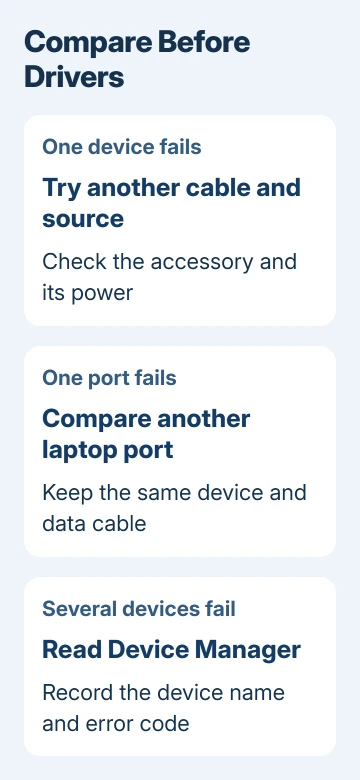
If the accessory fails on another computer too, ask its maker about its cable, power supply or hardware. Laptop chipset drivers won't repair a broken accessory. If only the dock fails, check its power and supported connection.
For USB-C, charging, data and display output are separate capabilities. The USB-C troubleshooting reference explains why a connected accessory can require a particular port or cable.
Save anything open, restart Windows, and reconnect the accessory. Use Start > Power > Restart. If basic detection still fails, check the exact entry Windows creates for that device next.
2. Read the affected device's status before changing it
Right-click Start and choose Device Manager. Watch the list while connecting and disconnecting the accessory. Look under its normal category, Other devices, or Universal Serial Bus controllers for an entry that matches the change.
Right-click that entry, choose Properties, and read Device status on the General tab. Note its full name and code. An unknown USB device and a working device whose app can't use it need different fixes.
Code 28 means drivers aren't installed. Code 43 records a problem reported by a device driver, which isn't always a missing download. A descriptor-request failure means Windows can't read the information it needs to identify the device.
The Device Manager code guide helps interpret other numbers. Keep the code with your notes so you can check whether each driver change fixed that error.
If Device status reports normal operation, move to the application that needs the accessory. A microphone can need app permission, a printer can have a stuck queue, and a drive may be detected without having a usable volume in Explorer.
For the general unknown-device case, the USB detection guide covers connection failures. Continue with drivers if its status suggests a driver problem or it stopped working after a software change.
3. Get the matching update through Windows first
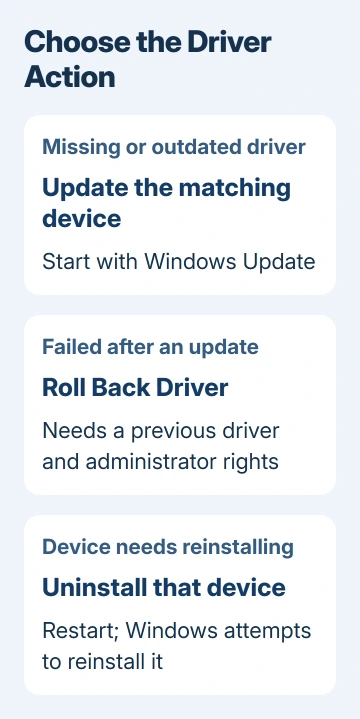
On Windows 11, open Settings > Windows Update and select Check for updates. Then open Advanced options > Optional updates and inspect Driver updates for a relevant device or laptop component.
On Windows 10, open Settings > Update & Security > Windows Update. Choose View optional updates when it appears, then inspect the driver section. That link may be absent when no optional updates are offered.
Install an offered driver that matches the affected device, and restart if requested. Don't select every optional driver just because a USB accessory is failing. The result you want is the same device reconnecting without its earlier error.
Microsoft says Windows Update normally supplies recent drivers; its Device Manager instructions cover alternatives. Right-click the affected entry for Update driver > Search automatically for drivers.
A message saying the current driver is the best match only describes Windows' completed search. It doesn't rule out a damaged cable, and the laptop maker may have a different compatible driver package.
4. Roll back the driver when the fault followed an update
If this exact device worked before a recent driver update, return to its Properties > Driver tab. Choose Roll Back Driver when available, complete the rollback dialog, then restart the laptop.
You'll need administrator permissions and a previous driver Windows can restore. A gray button means this route isn't available for that entry. Don't remove unrelated packages to try to make the button appear.
Reconnect the same accessory with the same port and cable. If the previous driver fixes it, report the newer driver's version to the maker. That gives support a specific update to check before offering another package.
I'd use rollback before reinstalling a device that failed immediately after its driver changed. For a brand-new accessory that has never worked on this laptop, look for a matching current driver instead.
5. Reinstall only the device that needs it
Save open files and close the accessory's app. In Device Manager, right-click the affected entry, choose Uninstall device, then confirm Uninstall. Leave driver-package removal unchecked if the dialog offers that separate choice.
Restart the laptop. Windows attempts to reinstall the device driver after restarting, but you may need to install the manufacturer's package separately if the device requires one. Reconnect and read Device status again to see what changed.
Keep this to the identified accessory. Removing every USB controller at once can disconnect keyboards, mice and other devices needed to control the computer. Don't clear the whole controller list to fix one accessory.
If Windows now detects the device but the app still can't use it, return to the app's device selection and permissions. Repeating the same uninstall won't select a microphone input, repair a document, or give an app access to the hardware.
6. Use the laptop maker's package or request a port check
Use the laptop maker's installed support app, if available, to identify the exact model and check recommended chipset, USB, Thunderbolt or dock updates. The relevant package depends on the laptop and the connection being used.
For a driver made for the accessory, ask its maker for a package matching the model, system type and your Windows version. Avoid driver-download utilities that identify a package only by a broad label such as USB driver.
If every port rejects several known-good devices, give the maker the model, Windows version, error codes and connection results. Ask for USB controller and port diagnostics before agreeing to a Windows reinstall.
The Short Version
Compare ports, cables and devices, then read Device Manager's status. Update the matching driver, roll back a recent bad update, or reinstall the affected device. Failures across several devices need a check of the laptop itself.
Checked November 15, 2026.





