Mevo+'s camera view on Windows 11 needs a Wi-Fi connection to the unit. Join its network and open camera alignment in your golf app. If the app doesn't detect the radar, fix the connection before trying the camera.
A separate USB swing camera is another case: that camera does use Windows camera permissions. Check whether you're missing the radar's alignment view or your swing recording before changing settings.
In this guide
1. Connect Windows to the Mevo+ network
Switch on the Mevo+ and wait for it to be ready. Open Settings > Network & internet > Wi-Fi > Show available networks on the PC. Find the network matching the serial number of your launch monitor.
The network name starts with FS, followed by the unit identifier. The Wi-Fi password uses the identifier after FS, including its letters and hyphen. Use the label on your own unit rather than copying a sample serial number.
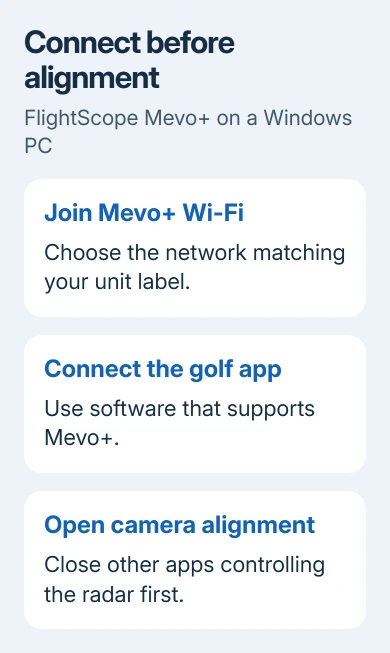
After joining that network, open your golf software and connect to the launch monitor. For Awesome Golf, choose FlightScope on the launch-monitor connection screen, then select the discovered Mevo+ or its automatic connection option.
A No Internet label on the Mevo+ network doesn't by itself mean the radar failed. This network belongs to the launch monitor. Check whether the golf app can discover the unit before switching away from it.
If its network is missing, check power, range, and the PC's Wi-Fi capability. Move near the unit and see whether a supported phone detects it. If neither device sees the network, ask FlightScope for help connecting the unit.
2. Use compatible PC software and its alignment control
FlightScope lists FS Golf PC 2.0 as compatible with Mevo+. Its older FS PC app supports a different set of devices. Check for your exact launch monitor in the compatibility information before choosing the download.
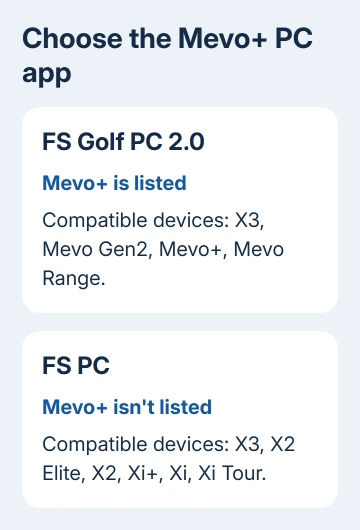
Use the official app listing to find the current PC download. Before buying a license, check how activation works for your Mevo+ generation. An older installer may not include the same access.
For GSPro, open its FlightScope connection application, connect the device, and use Camera Alignment. That control opens the view used to aim the radar. This is separate from adding a webcam to record your swing.
Some apps can connect to the Mevo+ without offering its camera features. The Swing Catalyst integration doesn't implement camera alignment. When another app provides the view, the missing control may be a limit of the app you're using.
If the device connects but the camera command isn't present, check that application's Mevo+ guide. If the command is present but shows nothing, continue with the connection-conflict check.
3. Close competing golf apps before reconnecting
End the session in other golf apps using the radar, including an app on a nearby phone or tablet. Then close those apps, reopen the PC software, and connect the Mevo+ again. Start with one app controlling the unit.
The E6 connection guidance describes this one-app-at-a-time requirement. A phone left connected for setup can interfere with a fresh simulator connection on the PC. Closing it is more useful than reinstalling Windows camera drivers.
If the alignment view now opens, finish aiming the unit within your chosen golf application. Reopening another controlling app can recreate the conflict. You don't need multiple applications active just because each one is installed.
Listener Mode is a supported exception: it lets the PC display launch data while a student uses FS Golf on an iPad. It needs its own setup and won't fix every black camera view.
For Listener Mode, begin the session in FS Golf on the iPad. Join the unit's Wi-Fi on the PC, choose Listener Mode in FS Golf PC, and select the operator. The PC then displays that session's launch data.
4. Keep simulator internet access separate from radar Wi-Fi
Some golf applications also need internet access. Awesome Golf's direct-connection instructions require a second network connection so the PC can reach both the Mevo+ and the internet at the same time.
Keep Wi-Fi joined to the radar while Ethernet connects the PC to the router. A second Wi-Fi adapter also provides that extra connection. Switching your only Wi-Fi connection to the home router disconnects it from the Mevo+.
I'd check the active network when a session works briefly and then loses the device. It's easy to switch networks after seeing an internet warning and accidentally disconnect the launch monitor.
If Windows can't join wireless networks generally, a Wi-Fi health check can record the wider connection problem. Don't reset the router solely because the Mevo+ network reports no internet.
5. Apply Windows camera permissions only to a PC camera
For a USB webcam used to record your swing, open Settings > Privacy & security > Camera. Enable Camera access, Let apps access your camera, and the desktop-app access setting when your golf app needs it.
The Windows camera permission controls apply to cameras accessed by Windows apps. They don't replace the Mevo+'s Wi-Fi connection or add an alignment feature to unsupported simulator software.
Check a USB webcam in the Windows Camera app. If it works, select it in the golf app and close other camera-using programs. If Camera fails too, follow the webcam maker's driver instructions.
A laptop with a physical webcam shutter needs that shutter open for its own camera. That control has no effect on the launch monitor across the room. For problems with that camera, follow the Windows camera troubleshooting guide.
6. Give support the camera type and connection result
Update the supported golf application and check its firmware-update instructions for your Mevo+. Keep the unit powered and follow the app's update prompts. Then repeat the same alignment-camera check, using one controlling application.
For a feed that stays blank, reach technical support through FlightScope's Contact page. Send the serial number, app and firmware versions, and Windows version. Say whether the unit connects and sends launch data.
Check whether FS Golf's alignment view works on a supported mobile device. If that view works, support can focus on the PC app or how it connects to the Mevo+. If it's blank on both devices, ask them to check the unit too.
The Short Version
Join the radar's Wi-Fi and open camera alignment in compatible golf software. Close competing golf apps and keep a separate internet connection if needed. Use Windows camera permissions for a PC webcam.
Checked November 13, 2026.