A disk read error after a Windows 11 upgrade means the PC can't read what it needs to start Windows. Remove external storage and retry the internal drive. If the message returns, check drive detection before Startup Repair.
An unreadable drive needs a different fix from damaged startup files. A black screen asking for Ctrl + Alt + Del also happens earlier than a Windows stop-code screen, so a fix for a blue-screen update failure may not apply.
In this guide
1. Remove external drives and try the Windows drive
Turn the PC off and unplug USB storage, memory cards, and external hard drives. Leave the keyboard, mouse, and display connected as needed. Start the PC once more with the internal Windows drive as its only storage choice.
An upgrade USB left attached can change which device the PC tries to start. If unplugging it gets Windows running, back up important files. Check update history to see what installed and which version is running.
If the same error returns, open the PC's one-time boot menu using its manufacturer's instructions. Dell PCs often use F12 at the logo. Other brands use different keys, so look up the model rather than repeatedly guessing.
Choose Windows Boot Manager when that is the existing entry for your installation. Older legacy installations may list the drive itself. Use this menu to choose the startup drive. Don't change Legacy, UEFI, AHCI, or RAID settings at random.
If that entry starts Windows, check the stored boot order with the PC maker. If it doesn't, check whether the PC's hardware settings show the internal drive at all.
2. Check drive detection before writing repairs to it
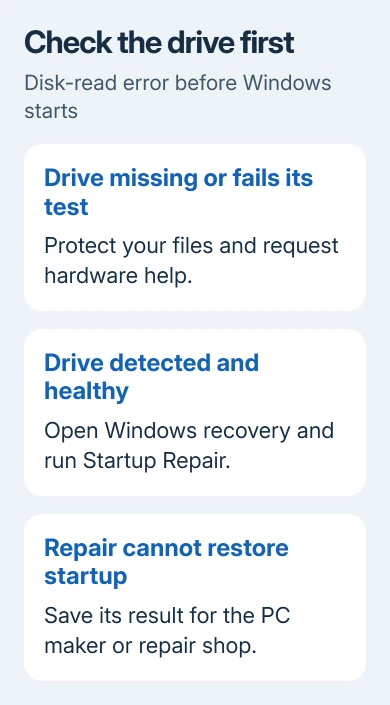
Open the BIOS or UEFI setup, the hardware settings screen available before Windows starts. Look for the internal SSD or hard drive under storage information. Find that page in your model's manual.
A missing drive needs a connection or hardware check; recovery software can't repair an undetected disk. A repair shop can check a desktop drive's power and data cables. Laptop access depends on the model.
For a detected drive, run the maker's storage test. On Dell PCs, select F12 > Diagnostics when offered and save error and validation codes. If the test fails, protecting your files comes first.
Stop if the drive clicks, disappears, or fails its test and your files aren't backed up. Ask a data-recovery service about copying it before replacement or reinstallation. I'd protect those files before repairs that write to the disk.
For a Dell that specifically reports no drive installed, the Dell storage detection guide follows that hardware branch. If the disk is consistently detected and passes its test, continue to recovery.
3. Open Windows recovery when the desktop won't load
From Automatic Repair, select Advanced options to open the Windows Recovery Environment. This is the repair menu for startup failures. Keep your BitLocker recovery key handy in case the encrypted drive requests it.
Microsoft recommends interrupting startup twice to reach Automatic Repair on the third start. This requires Windows to begin loading. A PC stuck at the disk-read message may need recovery media instead.
On a working PC, visit the official Windows 11 download page and create installation media. Use the Media Creation Tool for the supported PC type. You can use that USB to open the recovery menu on the failed computer.
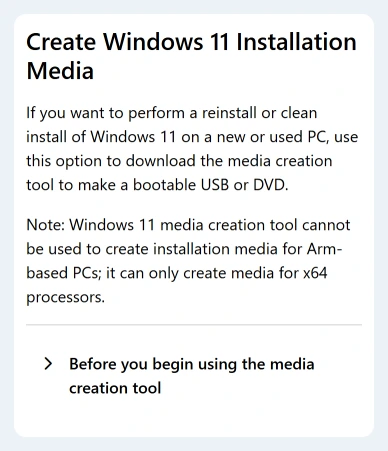
Boot the affected PC from that USB using the one-time boot menu. At Windows Setup, choose the repair option, labeled Repair your computer or Repair my PC depending on the setup version, rather than starting an installation.
Follow the Windows recovery access instructions if your setup screen differs. Creating the USB erases its contents, so use a spare drive. Once the recovery menu opens, select the startup repair tool.
4. Run Startup Repair for damaged startup files
Choose Troubleshoot > Advanced options > Startup Repair. Select the Windows installation and enter its recovery key if asked. Follow any restart prompt and let the scan finish before removing the recovery USB.
Startup Repair tackles damaged startup files and records, including boot configuration data, the information Windows uses to find its installation. A failed SSD or hard drive still needs hardware service.
Restart using the internal drive. If Windows loads, copy important files. Press Windows + R, enter winver, then confirm with Enter to record the version. Check whether the upgrade finished or Windows returned to its previous version.
If Startup Repair can't fix the PC, save that result for support. Don't keep running the same failed scan. Use the storage-test result to decide whether to try the remaining recovery options or seek help with the drive.
5. Undo a recent system change when recovery offers it
In Advanced options, check Uninstall Updates if the failure followed an update. A quality update is a regular servicing package; a feature update changes the Windows version. Select the matching option for the update you installed.
Moving from Windows 10 into Windows 11 differs from installing a monthly security update. Don't remove an unrelated package just because it is newest. Tell support both the starting version and the upgrade you attempted.
System Restore is another option when a restore point exists from before the failure. It undoes system changes; it doesn't back up your personal files. Read the selected restore point and affected-program information before confirming it.
If recovery can't locate Windows or can't unlock its drive, record that exact message. If the recovery stick itself won't start, use the USB boot checks before creating it again.
6. Get help for a boot-mode mismatch or persistent failure
For unsupported upgrades or legacy boot, a technician may need to check the disk layout and PC hardware settings together. Switching to UEFI doesn't convert an old disk layout. Changing storage-controller mode can cause a new startup error.
Ask your PC manufacturer or repair technician to check drive health, boot mode, disk layout, and the storage-controller driver. Mention RAID and earlier BIOS changes before discussing a conversion or reinstall.
Supply the full disk-read message, attempted upgrade version, drive-test result, and Startup Repair outcome. Ask for a file backup or a drive image, a copy of the disk, before agreeing to erase it and reinstall Windows.
The Short Version
Start with external storage disconnected, then check internal drive detection and health. If the disk is healthy, try recovery and Startup Repair. A missing or failing disk needs hardware and file-recovery help before reinstallation.
Checked November 13, 2026.