

An Edge installer that fails as soon as you click Install can work after you move the package from Downloads to Desktop. Try that first: one owner confirmed the folder change worked, with another later confirming it too.
That folder change helps with this installation failure. A Mac running an unsupported macOS needs a system upgrade instead, while a warning about an unverified app needs a different check from the ordinary installation-failed message.
In this guide
1. Run the same package from Desktop
Close the failed Installer window. In Finder, open Downloads, find the Microsoft Edge installer package and drag it to Desktop. Move the downloaded package itself, instead of creating an alias.
Double-click that package on Desktop and follow the installation prompts again. Approve the administrator request only for the Edge package you downloaded from Microsoft's official site. Keep the package's original filename.
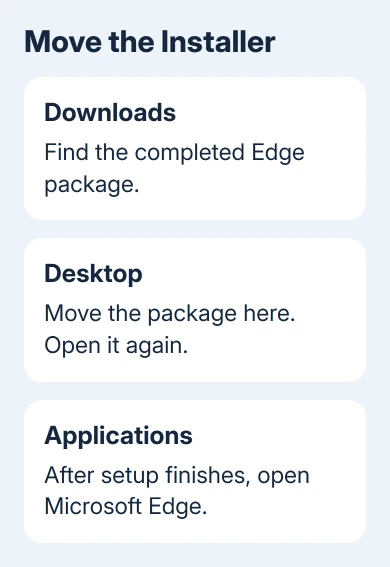
After setup completes, open Microsoft Edge from Applications. The password prompt is only part of setup. Once the browser launches, open a page to check that it's working.
This worked for owners replying in March and May 2023. Another owner reported that the suggested steps still failed, so moving the package isn't a universal repair. The replies didn't identify why the folder change helped.
I'd start with the folder change: it moves one package without touching your profile. If installation immediately fails again, record its message and compare your macOS with the supported versions.
2. Check whether the current Edge supports your macOS
Choose Apple menu > About This Mac and read the macOS version. A Mac with an M1 or M2 chip can still be running an older macOS release. Check the version even if your Mac has Apple silicon.
The current Edge operating-system requirements list these Mac limits:
- Big Sur 11: supported by Edge versions 129 through 138.
- Monterey 12: supported by Edge versions 139 through 150.
- Ventura 13 or later: required for Edge 151 and newer.
Microsoft warns that Big Sur may have trouble installing or launching Edge from version 139 onward. Installing a current package repeatedly won't turn an unsupported macOS into a supported one.
On Ventura or later, open System Settings > General > Software Update. On Big Sur or Monterey, use System Preferences > Software Update. Check which compatible system upgrade the Mac offers before downloading another browser package.
Back up your Mac before installing a major macOS upgrade. If the available macOS upgrades won't meet Edge's requirements, ask about a device or browser that still gets support. An old Edge build isn't a permanent solution.
If Edge is already installed and the real problem is an account that won't sync on Big Sur, use the Mac Edge sync checks. Installation and sync can fail for different reasons.
3. Replace an old or incomplete download
Use Safari to open the Edge download page. Find Other download options, then Download for macOS. Use the Mac option rather than a Windows installer saved on another computer.
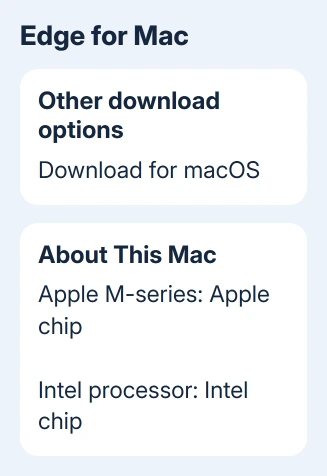
If the download offers a processor choice, match Apple chip to a Mac showing an Apple M-series chip in About This Mac. A Mac showing an Intel processor needs the Intel chip choice. Don't guess from the MacBook's screen size.
Wait for the complete download, then open the package. Put that fresh package on Desktop and run it once. Trying a fresh copy checks for an incomplete or outdated download without deleting your saved browser information.
The Windows offline Edge installer guide covers MSI packages for PCs. An MSI isn't a Mac package, and changing its filename won't convert it into one.
The original asker tried several older builds without success. Going through an archive of old Edge releases isn't the next repair here. Use the current supported Mac release, then keep the new failure message if it still stops.
4. Match the message before changing Mac security
An Installer window reporting that installation failed is different from macOS refusing to open a downloaded package. Check whether the error appears before Installer opens, after you click Install, or after administrator approval.
Don't switch off Mac security or grant Full Disk Access to unrelated apps to get past a generic failure. The confirmed Desktop workaround didn't require those changes, and the thread doesn't show that they solve this problem.
For a managed Mac, tell IT which package fails and when the failure appears. A managed software policy or missing administrator approval needs their attention. Downloading a different channel doesn't bypass those controls.
If other installer packages also fail, mention that when asking for help. That changes the support request from one browser package to a wider macOS installation problem. Leave working apps installed while making that comparison.
5. Keep the profile and collect the failed installation details
Save any open work, restart the Mac and retry the fresh package once. Before another attempt, check available storage through System Settings > General > Storage on newer macOS, or About This Mac > Storage on older releases.
If the drive is nearly full, move files you recognize to a backed-up location. A browser install needs room to unpack and copy its files. Don't remove Library folders simply because they contain the word Microsoft.
The accepted answer also suggested a Library cleanup, but the asker never confirmed that it worked. The clear success reports describe moving the package to Desktop. Keep your browser data instead of deleting it on that evidence.
If installation still fails, use Microsoft Support's Edge installation help and provide the complete error, macOS version, chip type and package filename. Say whether moving the package helped and whether other installers work.
Ask the Mac's administrator to check its installation logs for the failed package. The recorded error gives them something specific to work on if reinstalling the same file hasn't helped.
The Short Version
Move the Edge package to Desktop and run it again. Check the macOS support limit, replace an incomplete download and keep your profile intact. If a supported Mac still rejects the package, send the exact installation details to support.
Checked November 23, 2026.
 If you have any business, I can build it online






