

A Microsoft Visual C++ Runtime Library window means one program crashed, and the Program line inside the window names it. So the fix is in that program, not in Windows.
When it pops up at startup with VulcanMessageLib.node in the path and vulcanadapter.cc on the File line, it comes from Adobe Creative Cloud. Turning off its CCX entry in Task Manager's startup list and restarting cleared it for one owner.
If the window shows up every time you open a particular app, repair or reinstall that app first, then the Visual C++ runtimes it runs on.
In this guide
Read the window before you fix anything
The title bar says Microsoft Visual C++ Runtime Library because lots of Windows programs are built with Microsoft's C++ tools and share the same support code, called the runtime. The text under the title is about the program that crashed.
You'll see one of two messages. Runtime Error! comes with a code such as R6025 and a Program path; it means the app shut itself down because of an internal problem, often a bug or a damaged install.
Assertion failed! lists Program, File, Line and Expression, with Abort, Retry and Ignore buttons. It means one of the program's own safety checks failed while it was running.
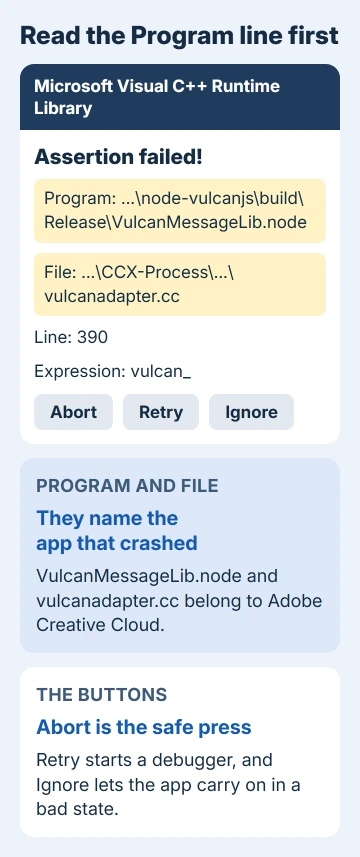
On that window, Abort closes the program, Retry tries to start a debugger (a tool developers use to look inside a crash), and Ignore lets the program carry on, which can leave it misbehaving. Abort is the safe one to press.
If a startup program is behind it, the window comes back at every sign-in until you deal with the cause.
Now look at the Program and File lines. Anything with node-vulcanjs, VulcanMessageLib.node or vulcanadapter.cc is Adobe (fixes 1 and 2). A path to the app you just opened is fix 3, and a startup window naming anything else is fix 4.
1. Turn off Adobe's CCX entry at startup
The person who raised this on Microsoft's forum saw the assertion window at every startup, right after an update. It turned out they'd uninstalled Creative Cloud three days earlier, and a startup entry called CCX was still there.
Press Ctrl+Shift+Esc to open Task Manager and choose Startup apps on the left. Find CCXProcess or any Adobe entry, right-click it, choose Disable and restart. The asker did just that, and the window stopped.
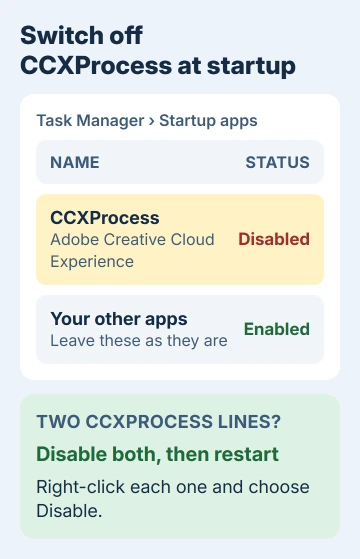
The same list lives in Settings > Apps > Startup if you'd rather flip switches. Look closely: one owner found two CCXProcess entries, one already off and one still on, and the error stopped once both were off.
Still using an Adobe app? On that PC, Acrobat Pro kept working. Its background helpers simply started when Acrobat opened instead of at sign-in, and the error didn't come back.
2. No CCX entry? Clear out what Creative Cloud left
No Adobe entry to disable? The adviser who answered that owner thought the uninstall hadn't finished. Their fix: reinstall Creative Cloud, restart and uninstall it again. Another owner cleared the window by removing and reinstalling it.
Adobe's Creative Cloud Cleaner Tool is the heavier option. One owner ran it as administrator, chose to remove every Adobe app and Creative Cloud itself, restarted, and the window was gone.
The Cleaner Tool can miss one piece. Another owner still had a CCXProcess.exe startup entry afterward, pointing into C:\Program Files\Adobe\Adobe Creative Cloud Experience. Disabling it and deleting that folder finished the job.
That owner suggested a restore point before deleting anything, and I'd do the same. Search the Start menu for Create a restore point, select Create and give it a name; it takes a minute and gives you a way back.
3. An app shows it every time you open it
Here the program itself is the problem, so repair it first. Open Settings > Apps > Installed apps, find the app, open its three-dot menu and choose Modify or Advanced options.
Use Repair if it's offered, or uninstall and reinstall the app. Then check the maker's site for a newer version and run Windows Update.
If the window keeps coming back with the same app, reinstall the Visual C++ runtime it runs on before you contact the maker.
One current package covers programs made with Visual Studio 2017 to 2026, and it comes as X86, X64 and ARM64 installers on the Visual C++ Redistributable download page.

On a 64-bit PC, install both X64 and X86, because 32-bit apps load the X86 one. If the same version is already installed, the installer offers Repair instead, which is what you want.
Restart, then try the app. If the window turns into a different error, such as a missing DLL or 0xc000007b, our 32-bit versus 64-bit guide picks up from there.
4. A startup window that names something else
A window right after sign-in comes from something that starts with Windows. A clean boot tracks it down: Windows starts with only its own services, and you bring the rest back in halves.
- Press Windows+R, type msconfig and press Enter.
- On the Services tab, tick Hide all Microsoft services, select Disable all, then Apply.
- On the Startup tab, select Open Task Manager and disable every enabled item. Note which ones you turned off.
- Close Task Manager, select OK and restart.
If the window doesn't appear, turn on the top half of what you disabled and restart. When it returns, the culprit is in that half; keep halving until one item is left, then update, repair or uninstall it.
When you're done, open msconfig again, choose Normal startup on the General tab, and turn your startup apps back on in Task Manager.
When the window keeps coming back
Take a screenshot of the whole window, with the Program, File and Line text in it, and send it to the program's maker. For the Adobe case that's Creative Cloud support on Adobe's site; for a game or tool, it's the developer's support page.
The Short Version
Read the Program line. VulcanMessageLib.node or vulcanadapter.cc at startup is Adobe Creative Cloud: disable CCXProcess in Startup apps, or remove Creative Cloud cleanly. For an app that crashes on launch, repair it, then the runtimes.
Checked November 20, 2026.
 If you have any business, I can build it online






