Holding Power for about 30 seconds often restarts a frozen Motorola Edge 2023. If taps work but scrolling looks blurred, check the refresh rate. If one part of the screen never responds to touch, have the display checked.
After the phone restarts, follow the steps for the problem you're seeing. Don't erase the phone just because one app stopped answering.
In this guide
1. Restart a frozen screen with the Power button
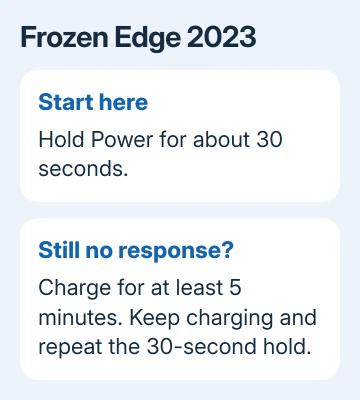
Keep Power held down for around 30 seconds, until the phone restarts. Motorola's screen-freeze instructions say to use this hold on the Edge 2023. Continue through any menu you can't tap.
If nothing happens, connect the charger for at least five minutes. While it's connected, hold Power again for around 30 seconds. After the startup screen, check whether the lock screen accepts your PIN and swipes.
A restart doesn't erase files. If touch returns, see whether the freeze returns too. If only one app freezes, start with that app. If Settings and the home screen freeze too, check the phone's software and storage.
I'd do this before changing display settings. A phone that can't register a tap can't reliably carry out a settings change, so try restarting it with the button first.
2. Remove interference and check the same patch of glass
Take off gloves and clean the screen. Remove any case, protective film, or stickers that interfere with the screen or cover its sensors. Check for cracks or other damage before trying software changes.
With touch partly working, follow the Android screen checks. Drag slowly from the top-left corner toward the bottom-right without lifting your finger. Take about ten seconds.
Watch whether the notification shade follows your finger or lets go before you lift it. Repeat if it releases. A break at the same place gives repair support a specific area to check, rather than a general report of slowness.
Don't press harder to push past a dead area. Report where taps or swipes fail. For a cracked screen or an area that repeatedly drops your finger, have the display checked rather than wiping the phone again.
If the drag works across the whole screen but apps hesitate, continue with software checks. The display can register a continuous movement even while an app is taking too long to respond.
3. Separate motion blur and call-screen trouble from lost touch
If taps register but scrolling looks smeared, open Settings > Display > Display refresh rate. Choose a higher available rate and compare the same movement. Choices depend on your installed software.
This changes how often the picture refreshes. It won't restore touch detection in a dead patch. Return to the previous setting if you don't see an improvement, then continue with app or system checks.
A screen that goes black specifically when the phone rings has another documented route: clear the Phone app's stored data. Open Settings > Apps > See all apps > Phone > Storage & cache > Clear storage and confirm.
Clearing an app's storage resets its saved app data and settings. Use this for the incoming-call black-screen symptom, then have someone call again. A phone that remains black outside calls needs the frozen-screen and repair checks instead.
4. Check system updates, apps, and free storage
Once touch works, open Settings > System updates and install an offered update. Record Settings > About phone > Android version for support. Menu wording can differ after an Android upgrade.
Open Play Store, tap your profile picture, then Manage apps & device to check app updates. If only one app freezes, update that app and try the same action again before treating the entire phone as faulty.
Check Settings > Storage as well. Nearly full internal storage can cause problems, so delete unwanted files or move photos whose backup copies you've verified. Free space in a cloud account doesn't create free space inside the phone.
Try the action that previously froze the screen. If the phone works normally after an update or after you free up storage, you can stop there. If the freezes continue, safe mode checks whether a downloaded app is involved.
5. Try safe mode when freezes keep returning
Open the power choices by pressing Power + Volume Up together. Touch and hold Power off, then tap OK to restart in safe mode. Touch needs to work well enough for you to tap the confirmation.
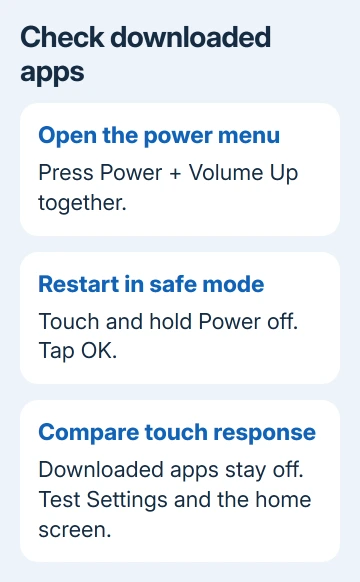
Safe mode runs the original software and apps without your downloaded apps. Try Settings, the home screen, and the movement that usually fails. A downloaded app won't be available for a direct comparison while this mode is active.
If the problem disappears, restart normally and remove recent downloaded apps individually, testing between removals. Record which ones you remove; once you find the app causing the freezes, put the others back.
For the normal restart menu, the Motorola restart guide explains the button choices. If the same freeze happens in safe mode, decide whether to reset the phone or have it repaired.
6. Choose a reset only after protecting your data
A factory reset removes your data. Back up accessible files and confirm your Google account password and screen-lock code. If a dead screen prevents a backup, discuss that with repair support before erasing it.
When Settings works, use Settings > System > Reset options > Erase all data (factory reset). The Motorola reset guide covers button-operated recovery when Settings won't open.
If you reset because an app seemed to be causing the freezes, don't restore all your apps at once. Test touch first, then bring apps back individually. Otherwise the backup can bring the same app back, leaving you unsure what changed.
If touch still fails, contact Motorola support with the Edge 2023 model, Android version, affected screen area, and safe-mode or reset result. Ask for a touchscreen assessment and check your repair or warranty options.
The Short Version
Restart with Power held for about 30 seconds. Check a repeatable dead area separately from motion blur, then check updates, storage, and safe mode. Protect your data before a reset, and have the phone repaired if touch still fails.
Checked November 13, 2026.