Press Alt+Enter while editing an Excel cell to start another line without moving to the next row. On a Mac, use Control+Option+Return. The blinking text cursor must be inside the cell. Just selecting the cell isn't enough.
Wrap Text handles a different job: it fits text to the column width. Use a manual line break when a name, address, or list item needs to begin on a new line even after the column gets wider.
In this guide
Put the insertion point inside the cell
Double-click the cell containing your text. Click the point in the text where you want the split. The blinking cursor within the text means you can edit that entry without replacing it.
On a desktop keyboard, selecting the cell and pressing F2 also enters editing mode. Move the text cursor to where you want the split before pressing the line-break shortcut.
For example, an address can have the street on its first line and the city on its second. Place the text cursor between those parts, insert the break, then finish editing. Both lines remain in one cell.
Don't select a whole worksheet row for this task. Adding a new worksheet row changes the table's structure; a line break only changes the text inside the existing cell.
Microsoft lists different new-line controls for Windows, Mac, browser, and mobile Excel. Use the steps for your device.
Insert the break in Windows or Excel for the web
In Excel for Windows, double-click the cell, position the text cursor, and hold Alt while pressing Enter. Let go of the keys and type the second line.
Press ordinary Enter when you're finished editing the cell. The text should stay in the original cell with the break at the point you chose. Clicking another cell also lets you inspect the saved entry.
In Excel for the web, the shortcut is also Alt+Enter while editing. Start editing with a double-click, or use F2 after selecting the cell. Look for a blinking cursor within the cell's text before using the shortcut.
You need permission to edit the workbook. If it opens in a viewing mode, choose editing if available, or ask the workbook's owner for editing permission. A keyboard shortcut can't change a read-only workbook.
If Enter sends you to another cell, return to the original one and check that Alt was held during the keypress. Try the shortcut on a simple text entry before changing settings across the workbook.
Use the Mac shortcut with all three keys
In Excel for Mac, open the cell for editing with a double-click. Position the text cursor at your chosen split. Hold Control and Option, then press Return. Release the keys before typing the second line.
Use Control, not Command. Windows' Alt+Enter instruction and the Mac's three-key shortcut aren't interchangeable, even though the resulting cell looks the same.
Finish editing and select the cell again to check its contents. If the text looks cut off, check wrapping and row height next. The existing break doesn't need to be inserted again.
I'd start with a few words in an unused cell. Once the shortcut gives you two lines there, use it on the actual address or description. That shows whether the shortcut failed or Excel is hiding part of the text.
Make both lines visible without changing their text
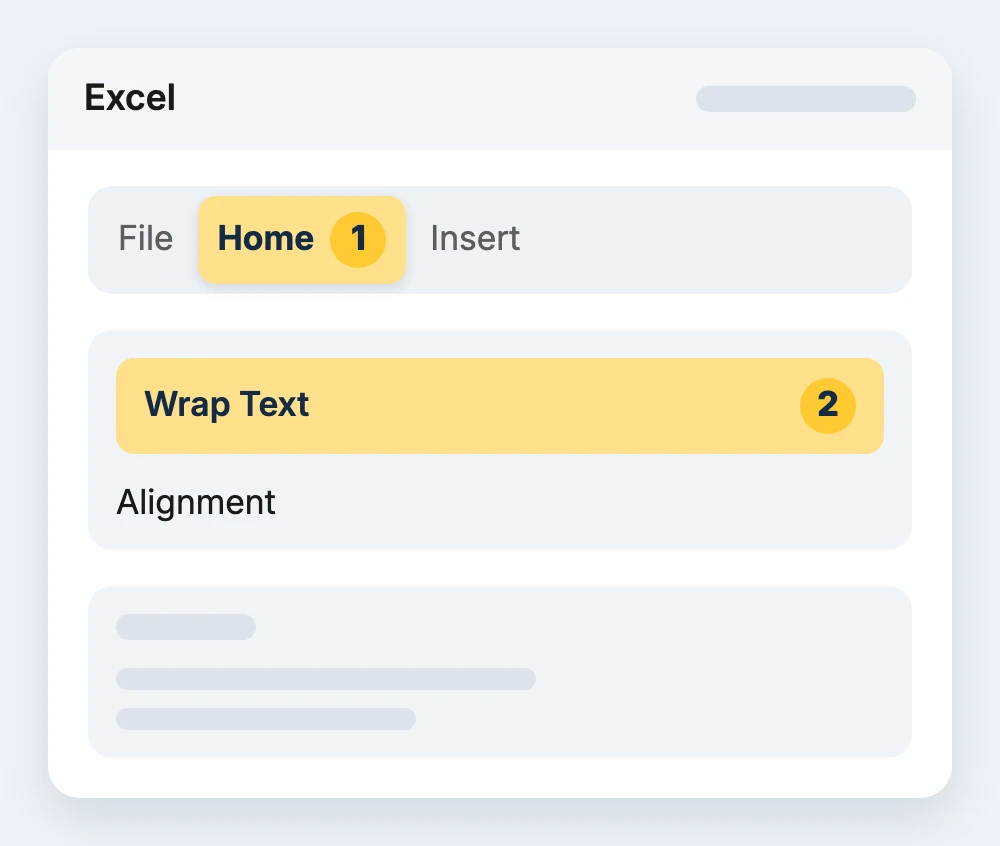
Select the cell and choose Home > Wrap Text. This tells Excel to display text across multiple lines inside the column. It doesn't require putting each line into a different cell.
For Windows Excel, select the cell or range, then choose Home > Format > AutoFit Row Height. Excel can expand the row to show the wrapped contents. A fixed row height can otherwise hide part of the entry.
If you prefer a specific height, use Row Height in the same Format menu or drag the row heading's lower edge. Increase the height until the complete entry is visible, then check the adjacent rows still read clearly.
Merged cells can also prevent all wrapped text from appearing as expected. Check whether the entry spans merged cells before treating hidden text as a failed keyboard shortcut. Adjust the layout or row height to suit that merged area.
Automatic wrapping changes as the column width changes. A manual break keeps the chosen split in the text. Use wrapping for a long description; insert a break when you want a specific part of that description to start on its own line.
Add a new line on iPhone, iPad, or Android
On Android Excel, double-tap within the cell. Touch and hold at the point where the line should break, then choose New Line from the menu that appears.
On iPhone or iPad, tap the keyboard toggle button to open the numeric keyboard. Touch and hold where the line break belongs, then select New Line from the menu that appears.
These are controls inside the Excel mobile app. Use them instead of looking for a desktop Alt key on your phone's onscreen keyboard.
After the break, finish editing and inspect the whole entry. If the second line is hidden, check cell wrapping and row height. Don't move the second part into another cell unless you want the two parts stored in separate cells.
The Excel cell notes guide covers an annotation attached to a cell. A note sits apart from the cell's visible text.
Fix a break in the wrong place or copied text
Reopen the cell for editing and place the cursor beside the unwanted break. Use Backspace or Delete to remove it, just as you would remove a character, then insert a new break at the correct position.
Use Undo right away if the last edit changed the wrong cell. Ctrl+Z on Windows or Command+Z on a Mac can reverse the change while it's still available to undo.
A cell with line breaks can gain surrounding quotes when pasted into a plain-text app. The Excel extra-quotes explanation covers copying the text without that spreadsheet formatting.
If the shortcut still fails in a new editable workbook, report your Excel version, operating system, and keyboard to Microsoft Support. Describe whether you can see a text cursor and how Excel responds to the shortcut.
The Short Version
Edit inside the cell, then use Alt+Enter on Windows or the web, or Control+Option+Return on Mac. In mobile Excel, touch and hold to find New Line. Use Wrap Text and enough row height to show both lines.
Checked November 29, 2026.
 If you have any business, I can build it online