

A hard-to-see Excel cursor can be a pointer blending into the sheet or hiding while you type. Move the mouse over the ribbon: if it appears there, try a larger, contrasting pointer. If Excel won't respond either, check the app itself.
A blinking insertion point inside a cell is different from the pointer you move with the mouse. Windows has separate controls for them, so match the setting to the mark that's missing.
In this guide
1. Check whether Excel still responds
Move the mouse away from the worksheet and over the ribbon or taskbar. Then try opening an Excel ribbon tab. If the pointer is visible outside the sheet, the problem may be how it appears against the worksheet.
If the ribbon responds and cells can still be selected, Excel hasn't frozen. Try the visibility controls in the next section. A faint pointer against a pale background doesn't call for reinstalling Excel.
If the window says Not Responding, or none of its controls react, troubleshoot Excel freezing. Give a long calculation or other task time to finish before clicking repeatedly or forcing Excel to close.
Save your work with Ctrl + S if Excel still responds. If you later need to close a stuck process, unsaved changes can be lost, so saving comes before trying fixes that require closing Excel.
When the pointer disappears throughout Windows, use the guide to changing Windows mouse pointer visibility. The remaining Excel checks are useful when other apps behave normally.
2. Make the mouse pointer easier to locate
On Windows 11, open Settings > Accessibility > Mouse pointer and touch. Increase Size and choose a contrasting pointer style, such as Black, Inverted, or Custom, rather than leaving a small white pointer against a pale worksheet.
On Windows 10, open Settings > Ease of Access > Mouse pointer. Adjust Change pointer size and Change pointer color. These are Windows controls, so you can make the change even when Excel's own menus are awkward to use.
Return to the same worksheet area and move the mouse again. Keep the new size or color if your pointer is easier to follow there. Some apps draw their own pointer shapes, so check your worksheet rather than relying on the Settings preview.
I'd try a larger, contrasting pointer before changing several Excel settings. It takes very little time, and you can see straight away whether it helps.
For a quick locator, open Settings > Bluetooth & devices > Mouse > Additional mouse settings on Windows 11. On Windows 10, use Settings > Devices > Mouse > Additional mouse options.
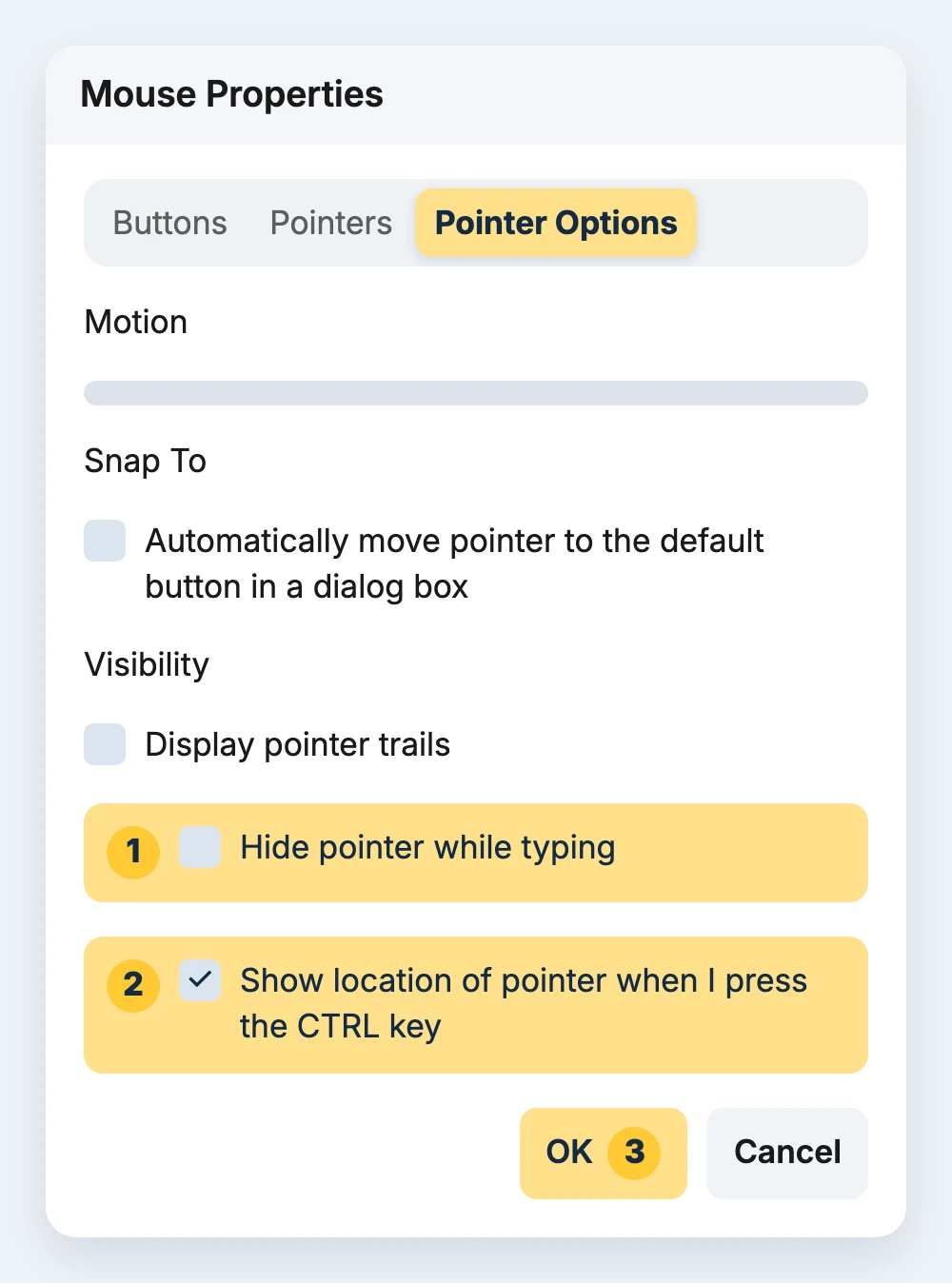
In Mouse Properties, choose Pointer Options. Enable Show location of pointer when I press the CTRL key, select OK, then press and release Ctrl. The circle helps locate a pointer that's present but hard to pick out.
3. Stop the pointer hiding during typing
Check Pointer Options if typing makes the mouse pointer vanish but moving the mouse brings it back. Clear Hide pointer while typing, then select OK and compare the behavior in Excel.
That setting controls the mouse pointer. It doesn't control the blinking text insertion point or identify which spreadsheet cell is active. Changing it won't repair a workbook that no longer accepts input.
Microsoft's mouse instructions describe both hiding during typing and the Ctrl locator. Use the first control for disappearance during typing and the second for locating a hard-to-see pointer.
If the missing mark is specifically the blinking typing cursor, open Settings > Accessibility > Text cursor on Windows 11, or Settings > Ease of Access > Text cursor on Windows 10.
Try the Text cursor indicator and thickness controls, then return to the text you're editing. Check whether the change appears in the app you're using. Text-cursor settings won't select the correct cell for you in Excel.
4. Compare another workbook before changing add-ins
Open a new blank workbook and move the mouse over its sheet and ribbon. Compare it with the troublesome file. If the problem affects just that file, note what triggers it. Focus on that file before trying to repair Excel.
If several workbooks lose the pointer while other programs behave normally, use the close button to quit Excel, then reopen it. Check the same workbooks again before changing any add-ins.
For Office updates, open File > Account > Update Options > Update Now in a current desktop version of Office. If your employer manages updates and those controls aren't available, ask IT to review the Office version on this PC.
Check whether the same thing happens in another Office app. The guide to a mouse pointer disappearing in Outlook covers that app's separate behavior; note whether both apps are affected when requesting help.
If Excel is freezing as well as losing its pointer, continue with safe mode. A contrast change can't make a stalled application respond again.
5. Use Excel safe mode for an application fault
Desktop Excel on Windows 10 and 11 has a safe mode for troubleshooting. Close Excel, press Windows + R, type excel /safe, and select OK. Check for the safe-mode wording in the Excel window.
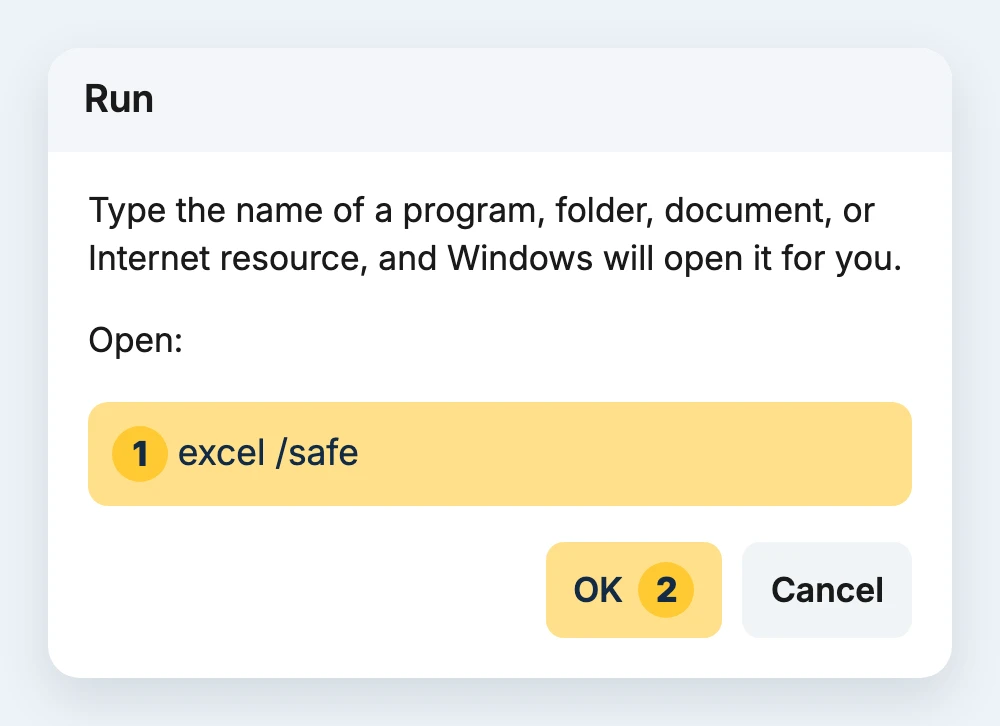
Safe mode starts Excel without some saved preferences and the add-ins that give it extra features. Open the affected workbook and check whether the pointer still disappears or Excel still freezes.
For a workbook that behaves correctly in this mode, choose File > Options > Add-ins. Set Manage to COM Add-ins, select Go, note which boxes are selected, then clear them and select OK.
Close Excel and reopen normally. If the fault is gone, enable the add-ins one at a time, restarting Excel after each change. When the problem returns after turning one add-in back on, ask that add-in's maker about an update or fix.
If safe mode doesn't help, use the Excel repair guidance or ask IT to repair Office. Report which workbooks fail, whether the pointer vanishes elsewhere, and whether safe mode helped.
The Short Version
Distinguish a faint pointer, hiding during typing, and a frozen Excel window. Use the matching Windows control first. For Excel-only failures, compare workbooks, update Office, and check startup add-ins with Excel safe mode.
Checked November 29, 2026.
 If you have any business, I can build it online





