Error 0x8004deb2 can stop OneDrive work sign-in while a personal account works. Update Windows and OneDrive first. The original fix involved an older Windows sign-in problem, so its registry workaround needs IT review today.
Keep the full code when recording the error. 0x8004deb2, 0x8004deb4 and 0x8004ded2 are different codes, even though their names look almost identical.
In this guide
1. Update before retrying the work account
Save your work. In Windows 11, open Settings > Windows Update > Check for updates. Windows 10 uses Settings > Update & Security > Windows Update; your PC's support coverage determines the available updates.
Install the offered updates and complete a requested restart. Then launch OneDrive and try signing into your work account again. If it signs in and your work folder begins syncing, you don't need a sign-in workaround.
Use the current OneDrive sync app as well. Open its cloud icon, then Help & Settings > Settings > About, and read the version number there. On interfaces with a gear icon, open that menu to reach Settings.
The OneDrive download and setup guide covers installing the sync app, which is separate from browser access. On a managed PC, ask IT to supply the organization's approved version if installation is controlled.
The original 2018 discussion tied this error to Windows sign-in components and referenced an update for Windows 10 version 1709. That old update number isn't a repair package to apply to Windows 11 or an unrelated Windows build.
2. Compare work account access with the browser
Use your work address to sign into the organization's OneDrive website. Note whether you reach your file list, fail at the password stage, or see an access-rule warning from your organization.
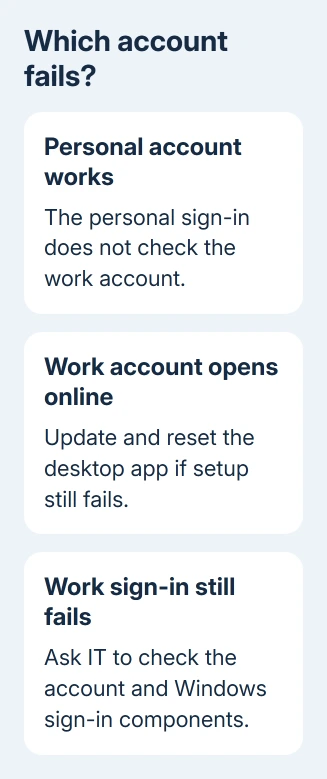
Signing into your personal account doesn't check your work account. Your work account needs its own OneDrive license and permission to sign in, and Windows needs to complete that sign-in.
If the work library opens online while setup returns 0x8004deb2, continue with the desktop app check. If browser sign-in also fails, have IT review the account's sign-in records before you reset the app.
Record when sign-in failed. Save either identifier if it appears: Request ID or Correlation ID. IT can use it to find that sign-in attempt. Send those details through your support channel along with the exact account address.
For a personal-versus-work mix-up with a different code, use the OneDrive account mismatch checks. Don't change the recorded error to match advice written for a nearby number.
3. Reset a desktop app that still won't connect
If the account works online and the updated desktop app still fails, use the supported OneDrive reset procedure. Resetting rebuilds the sync app's connections and causes it to check your files again.
Before changing the setup, copy any important local-only work to a separate folder. Cloud files remain available online, but a file that hasn't uploaded needs its own safe copy while you repair the connection.
Press Windows+R and enter %localappdata%\Microsoft\OneDrive\onedrive.exe /reset. Select OK and wait for OneDrive to restart. If it stays closed, launch it from Start.
If that path isn't found, try C:\Program Files\Microsoft OneDrive\onedrive.exe /reset. If needed, try C:\Program Files (x86)\Microsoft OneDrive\onedrive.exe /reset. Use the installation path present on your PC.
Finish setup with your work address. Check for the correct work folder and resumed syncing. If setup returns the same code, record that the reset failed and continue to the Windows sign-in component check.
I'd keep the browser result with the support request. When web access works and resetting fails, IT can focus on the desktop sign-in route rather than changing an already working password.
4. Have IT check the Windows sign-in components
Windows uses Web Account Manager, or WAM, to help apps sign in. A missing work-account component can disrupt Microsoft 365 sign-ins while personal sign-in behaves differently.
The current automatic authentication repair instructions cover missing information about installed sign-in components. They offer a sign-in troubleshooter and a PowerShell repair for the relevant package.
That repair article specifies Windows 10 version 1703 or later and Microsoft 365 version 1807 or later. For Windows 11, have IT match the failed sign-in to guidance for that build before using a package-repair command.
Ask IT to check that guidance when the symptoms fit. The work-account package, an installed sign-in component, is Microsoft.AAD.BrokerPlugin. Personal accounts use a different package, so choose the repair for the affected identity.
The repair uses a command window with administrator access and can close an affected app. Let IT handle it on a managed PC, then retry OneDrive. It repairs the component; it doesn't change your organization's access policy.
If the component is present and other work apps sign in normally, give support that result too. The code alone won't tell IT whether a missing package is causing your sign-in problem.
5. Keep the old registry workaround with the old case
In the original 0x8004deb2 thread, an owner said their IT team restored sign-in by changing EnableADAL from 1 to 2 under HKEY_CURRENT_USER\SOFTWARE\Microsoft\OneDrive, then restarting the app.
A later reply explained that this bypassed an affected older Windows sign-in integration. It also described updates addressing the issue. That fix worked on the older setup in the report; it won't apply to every current PC.
Don't copy the discussion's separate Office registry change into OneDrive. The entries use different app paths. Have IT review any existing workaround against your Windows and OneDrive versions first.
Ask your administrator to send Microsoft 365 support the unresolved work sign-in error. Include the code, Windows build, app version, browser and reset results, and whether other work apps sign in.
The Short Version
Update Windows and OneDrive, compare web access, then reset the app if needed. Persistent desktop-only failure needs IT to check Windows sign-in components. Keep the historical EnableADAL change for version-specific review.
Checked November 17, 2026.