Error 0xE0000140 in OneNote flags a corrupted section. Stop editing it and find a readable backup through File > Info > Open Backups in desktop OneNote. Copy recovered pages into a working notebook before adding more notes.
The error doesn't identify why the file became damaged. Start with the newest copy you can read, then check whether the damage returns after you restore the notes.
In this guide
1. Keep new work out of the damaged section
Create a separate section or use another working notebook for new notes. Leave the damaged section in place while you check what can be recovered. Adding more notes there makes it harder to tell old damage apart from your new work.
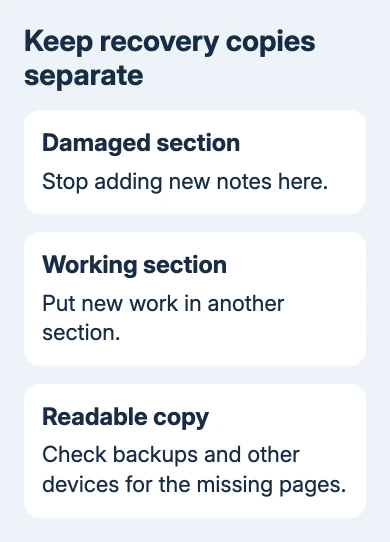
Try opening several existing pages in that section. If some are readable, copy important content into the working notebook and save readable attachments as separate files. Open the saved copies to confirm they are readable.
For a notebook stored online, compare the same section in its signed-in browser view. If you can read the saved copy, you can recover notes from it. A page title appearing there isn't enough; open the page and inspect its contents.
These instructions use desktop OneNote on Windows, including Microsoft 365, OneNote 2024 and 2021. The File > Info backup route isn't a menu in OneNote for the web, on an iPhone or on an Android phone.
If a different device still has the missing notes, save that readable content before trying app resets or reconnecting its notebook. Don't let the recovery depend on a single device retaining the only useful copy.
2. Open the newest usable section backup
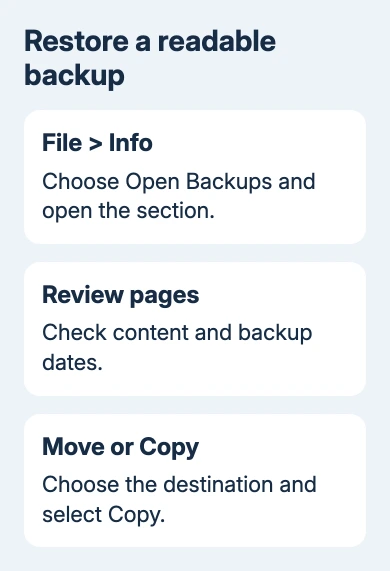
Select File > Info > Open Backups. Open the folder for the affected notebook, select a backup of the damaged section and choose Open. Check its date against the last time your notes were complete.
Microsoft's backup restoration steps open the recovered section in Open Sections, where you can inspect its pages before adding the recovered notes to your notebook.
A backup folder doesn't mean your latest notes were saved there. Open the pages you need, including any attachments or drawings, and compare their contents with what you remember adding.
If the newest backup has the same problem, open an earlier available backup. Keep track of which date contains readable pages. An older complete page might recover more material than the newest damaged section.
An empty backup folder, or one without that section, has nothing you can restore. Turning on automatic backups now protects future work; it can't create a copy from before the damage.
3. Copy recovered pages into a working notebook
Right-click the backup section's tab and select Move or Copy. Choose the destination notebook and select Copy to restore the whole section. To recover selected pages, use Move or Copy on their page tabs instead.
Restoring from a backup uses Copy so the backup remains available. The Move command is unavailable for this operation. Keep the recovered section separate until you've compared the contents.
Open the restored pages in the notebook you copied them to. Check the important text, ink and attachments, then close the backup section when you've finished reviewing it.
For an online destination notebook, start a sync through File > Info > View Sync Status and Sync Now. After it finishes, open the restored pages in the online notebook to confirm the recovered notes were saved online.
If a copied page won't sync, leave the backup intact and create a new page and paste in the text you can still read. Record which page or attachment triggers the failure so support can focus on that item.
4. Use other readable copies when there is no backup
A section that still opens online or on another device can provide the notes that the damaged local section can't. Copy its readable pages into a separate working section and check those recovered pages before changing the original section.
If only part of a page survives, save that part with a clear title and date. A partial recovery helps, though the remaining section content and attachments may still be missing.
For notes that were deleted rather than corrupted, check the notebook's deleted-note recovery options. The OneNote recovery guide covers those controls separately from a section-file warning.
The recycle bin and a backup serve different purposes. A deleted-page copy may exist even when there is no local backup, while a section that was never deleted may need a backup or another readable device copy.
If every available copy is unreadable, keep the damaged notebook and any backups. Ask Microsoft support about section recovery before approving a notebook removal or an app reset.
5. Check storage protection if corruption returns
One owner linked repeated corruption to Credant Desktop Encryption and reported switching to BitLocker after reaching support. That problem with workplace software doesn't explain every case of this error.
Another later reply from a different owner still described problems in that environment. No repair was confirmed to work on every computer in the discussion. The accepted backup suggestion didn't report that any notes had been restored.
If the warning repeatedly returns on a work laptop, tell IT which encryption product is installed, the notebook location and when the section last worked. Ask them to check whether storage protection is interfering with OneNote.
Don't disable encryption or switch products yourself on a managed computer. That decision affects access to your files and belongs with the team responsible for the device.
A separate 0x26 message about a corrupt cache needs the OneNote cache-error checks. Error 0xE0000140 names a section file, so deleting the cache shouldn't be the first response.
When no readable copy remains
Open Help > Contact Support if that option is available in your OneNote version, or use the Microsoft Support contact page. For notes from work or school, ask your administrator whether they can recover an earlier saved version.
Provide the exact code, OneNote version, section name, notebook location and dates of available backups. Explain whether the damaged section opens on another device. Keep new work in the separate section while support checks your options.
The Short Version
Keep new work separate and recover readable pages from backups or another copy. Check the restored contents and syncing. If corruption returns, ask support to review storage and related software, especially on a managed laptop.
Checked November 26, 2026.
 If you have any business, I can build it online