Moving OneNote sections can leave error 0xE0000063 and empty online sections. An owner restored syncing by copying pages into a new notebook instead of using Move, then checking the destination's contents online.
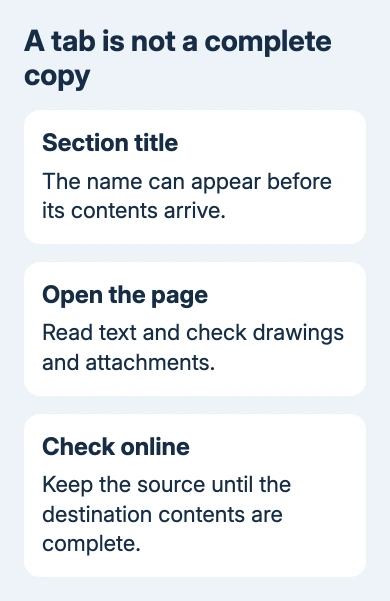
Keep the original notes you can still read until you finish that check. A section name appearing in the destination doesn't mean its pages, drawings and attachments arrived with it.
In this guide
1. Stop moving sections and find the readable pages
Open the original notebook and the destination notebook in the app. Check which one still contains readable pages. If another device has a complete copy, keep that copy available while you save the missing material.
Don't reset OneNote or delete its cache while it holds the only readable notes. An app reset can remove local data that never reached the stored notebook.
The original report described section names arriving online without their contents. The owner recovered notes manually from an older device. Checking the contents matters more than comparing tab names.
Select several pages, including the last ones edited. Read the text and open important attachments. Note where each usable copy is: the source notebook, the destination or another device.
For material that can't yet be copied into another notebook, save readable text and accessible files separately. This extra copy gives you something to recover from if the notebook connection changes during repair.
2. Create a destination and copy one page first
In current desktop OneNote on Windows, use File > New, select the account or location you want to use, name the recovery notebook and choose Create Notebook. Add a clearly named section for the recovered pages.
Use the same account that you plan to open online. A notebook saved only to a local folder can't be verified in the browser as an online notebook until you store it in a supported online location.
Right-click one readable page in the affected notebook and select Move or Copy. Choose the recovery section and select Copy. Start with an ordinary page to check the destination before sending more pages.
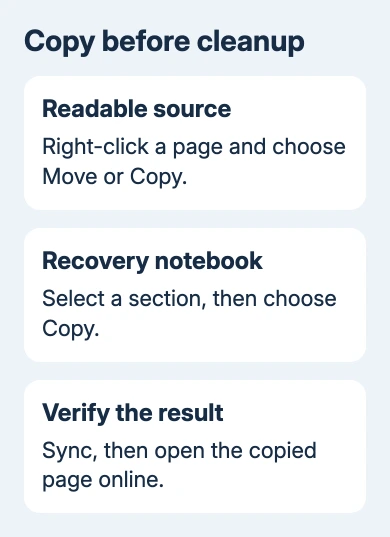
The important choice is Copy, even though the dialog offers both actions. Copy leaves the original page available for another attempt. Moving removes that source item as part of the operation you're trying to repair.
Open the new page in the recovery notebook. Check that you can read its contents in the app. If it opens, continue with the sync check before transferring the rest of the pages.
3. Confirm the copied page reached online storage
Select File > Info > View Sync Status, find the recovery notebook and choose Sync Now. Wait for the attempt to finish and write down any error it shows.
Next, copy that notebook's address from File > Info and open it in your browser. Use the account for this notebook, open the recovery section and read the copied page. You need to sign in and open your actual notebook for this check.
Check a meaningful part of the page, such as its final paragraph, a drawing or an attachment you need. Seeing a page title or a section tab doesn't confirm that the rest of the content synced.
One owner said this copy-based method worked and specifically advised checking the notebook online. Microsoft's section-sync guidance also recommends copying pages into a fresh section when one section won't sync.
If the recovery page is complete online, the new notebook can receive that page. If it's missing or incomplete, keep the source and examine the new sync message before copying more content into the same destination.
For access denied in the browser, have the notebook owner check destination permissions, or request that check from your administrator. Copying content won't help if your account isn't allowed to save notes there.
4. Transfer the remaining pages in manageable groups
Return to the original notes you can still read and copy the remaining pages into the verified recovery section. Keep track of the page titles you've transferred so repeated attempts don't leave confusing duplicates.
After each group, request another sync and check the pages online. Choose the group size based on how many copied pages you can review carefully; the discussion gives no specific number to use.
If one group fails, compare its pages and retry them individually. Tell support which page or attachment repeatedly fails. Leave its original in place while you recover the pages that copy successfully.
For a readable page that won't transfer as a page, try copying its text and other accessible content into a fresh page. Check images and files separately because a text copy alone won't preserve everything.
If another code replaces 0xE0000063, record that exact number. For example, OneNote error 0xE40200A8 has its own section-sync checks. A changed message needs to be read before choosing another repair.
5. Recover missing source pages before cleaning up
If the Move operation removed pages from the source and the destination has no readable content, check the source notebook's deleted-note recovery. Also check any other device that had a complete copy before the move.
Desktop OneNote on Windows can open existing backups through File > Info > Open Backups. Open the appropriate notebook folder and section backup, inspect its pages, then use Move or Copy > Copy to recover needed content.
Backups only contain what was saved when they were created. If the folder is empty, the backup route can't restore yesterday's notes. The deleted OneNote notes guide explains the separate deleted-content route.
The original discussion included a suggestion to reset the old Windows 10 app, but none of the owners who replied confirmed that a reset worked. The owner was still asking how to back up their data first.
Support for that older app ended in October 2025. Current desktop OneNote has the File tab used in these steps; don't apply old app-reset instructions as though someone had confirmed they fixed the current program.
Ask for recovery help if pages still won't transfer
For company or school notes, ask IT to check the source and destination storage locations and the pages that failed to copy. For a personal notebook, contact Microsoft Support with code 0xE0000063 and your OneNote version.
Include whether the original pages remain readable, whether a single copied page reaches the browser, and which pages fail. Keep both notebooks until the recovered contents have been checked; only then decide what can be removed.
The Short Version
Keep your readable original pages and check a copied page online before transferring more. Check each group of pages. For a missing source, try another device, deleted-note recovery or a saved backup before changing the app.
Checked November 26, 2026.
 If you have any business, I can build it online